Guardian Management
The guardian management module allows you to create guardian records (parent/legal guardian), edit them, and link them with students. This module is accessible to Administrator, Manager, and Teacher roles.
Guardian List
Go to People → Guardians from the left menu.
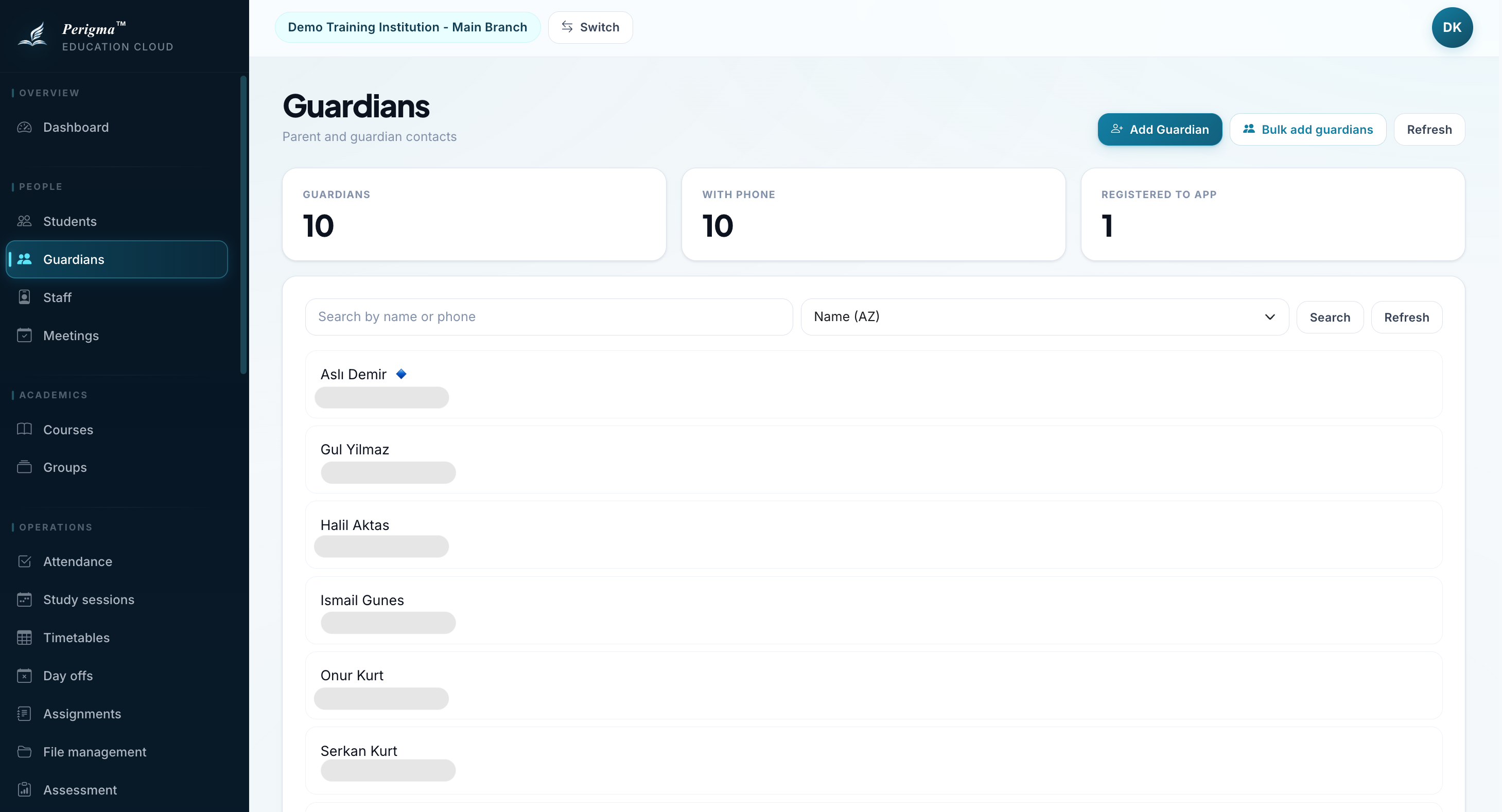
Image 1: Guardian list screen
List Features
- Search by guardian name/surname
- Pagination with 20 records per page
- Detail View by clicking any guardian
Adding a New Guardian
- Click "New Guardian"
- Fill in person details:
| Field | Required | Description |
|---|---|---|
| First Name | Yes | Guardian first name |
| Last Name | Yes | Guardian last name |
| National ID | Yes | 11-digit identity number |
| Phone | No | Contact number |
| No | Email address | |
| Date of Birth | No | Birth date |
| Address | No | Home address |
- Click "Save"
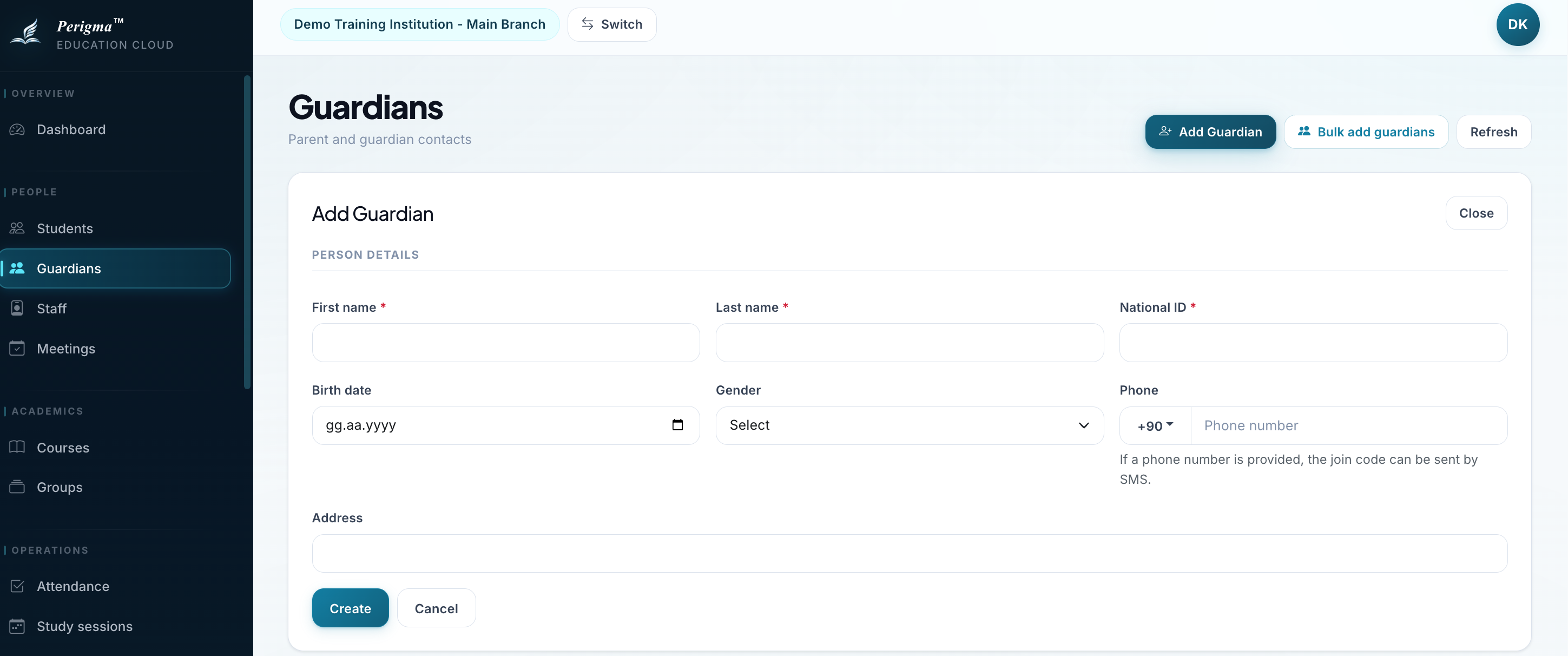
Image 2: New guardian form
If a phone number is provided, the join code can be sent by SMS.
Bulk Guardian Import
Use the "Bulk Add" button on the guardian list to import many guardians from a CSV or Excel file.
Flow
- Click "Bulk Add" on the guardian list
- Choose Excel or CSV
- Download the matching template
- Use "Upload Template" for the completed file
- Review rows on the preview screen and edit if needed
- Complete the import when all rows are valid
Template Rules
- Do not rename template column headers
- Columns starting with
*are required - Enter phone numbers without a leading
0 - If a phone number is provided, the join code can be sent by SMS
- For gender, use only Kadın, Erkek, or Bilinmiyor
- The recommended birth-date format is Day/Month/Year, but common date formats are also accepted and validated
Uploaded files open in an editable preview screen first. The system shows row-level validation problems before anything is committed.
Bulk guardian import runs in a single transaction. If any row fails validation or save, no guardian record is committed.
Linking Guardian to Student
Guardian-student links are managed from student detail:
- Open student detail page
- Click "Add Guardian"
- Select existing guardian or create a new one
- Set relation and permissions:
| Field | Description |
|---|---|
| Relation | Parent or Relative |
| Academic Permission | Can view attendance/exams/assignments |
| Billing Permission | Can view payments/installments/contracts |
| Communication Permission | Can receive institution communications (SMS/email) |
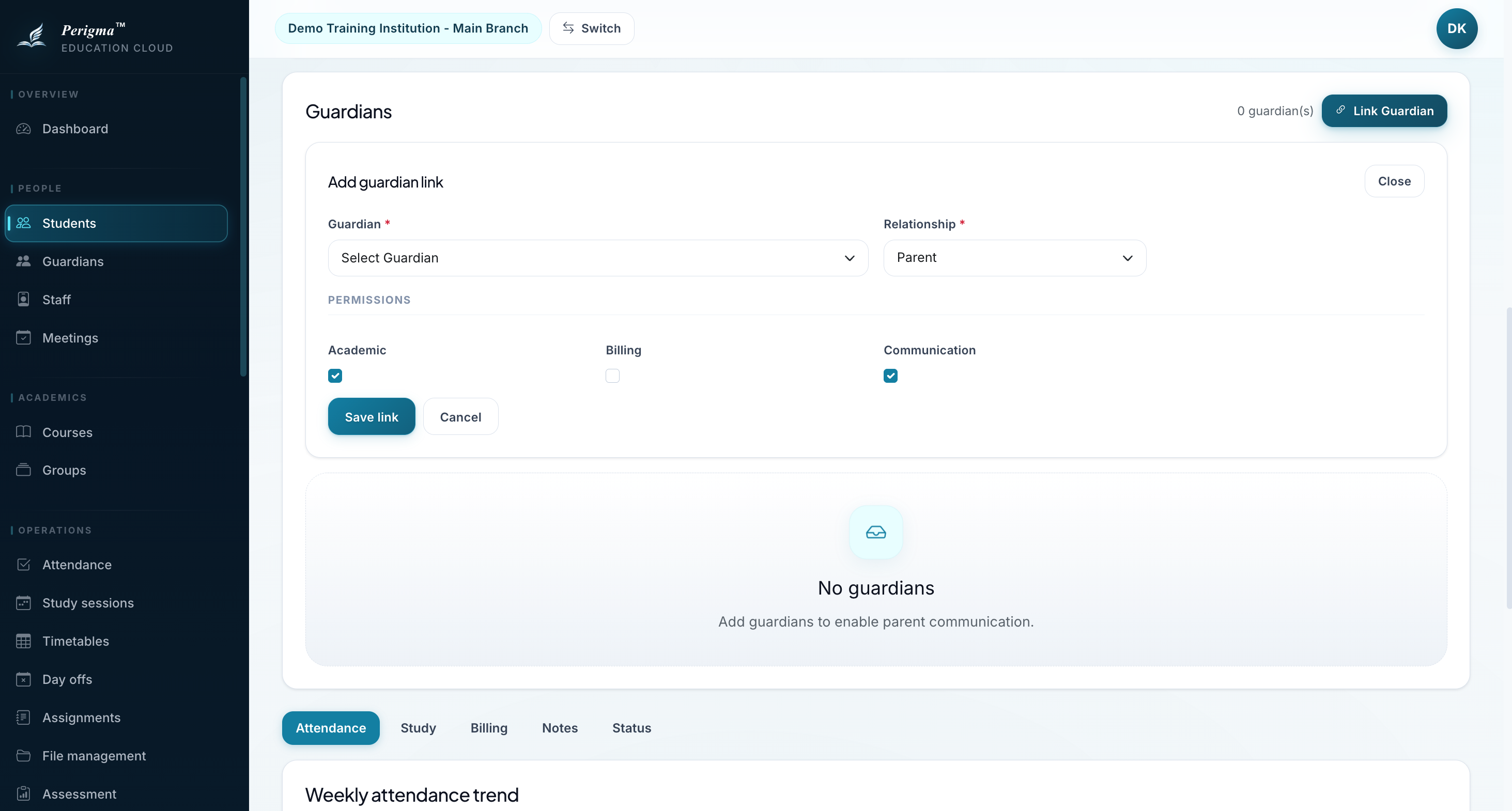
Image 3: Guardian-student linking and permissions
Guardian access is controlled per student with exactly three permissions: Academic, Billing, and Communication. Academic and billing permissions define what data can be viewed. Communication permission defines whether institution communications can be sent to that guardian.
Guardian Detail
Guardian detail page contains:
- Personal Information
- Linked Students
- Permission Scope per student
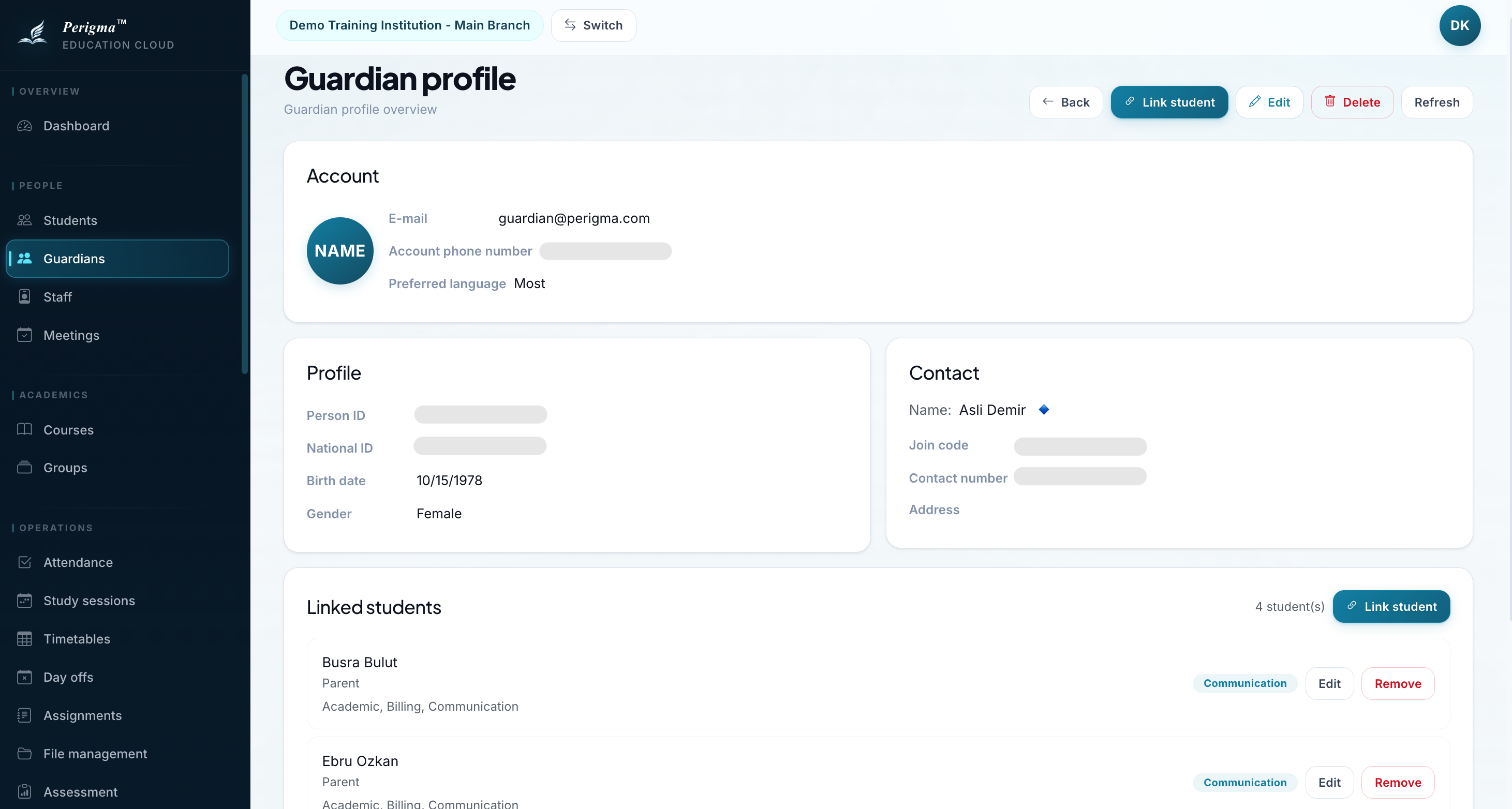
Image 4: Guardian detail page
Deleting a Guardian
- Open guardian detail
- Click "Delete"
- Confirm deletion
Deleting a guardian also removes all guardian-student links. This action is irreversible.