Dashboard
The dashboard is the first screen you see after logging in to Perigma. It provides role-specific content and a quick overview of institutional status.
Administrator / Manager / Teacher Dashboard
For management roles, the dashboard includes key performance indicators (KPI) and summary statistics.
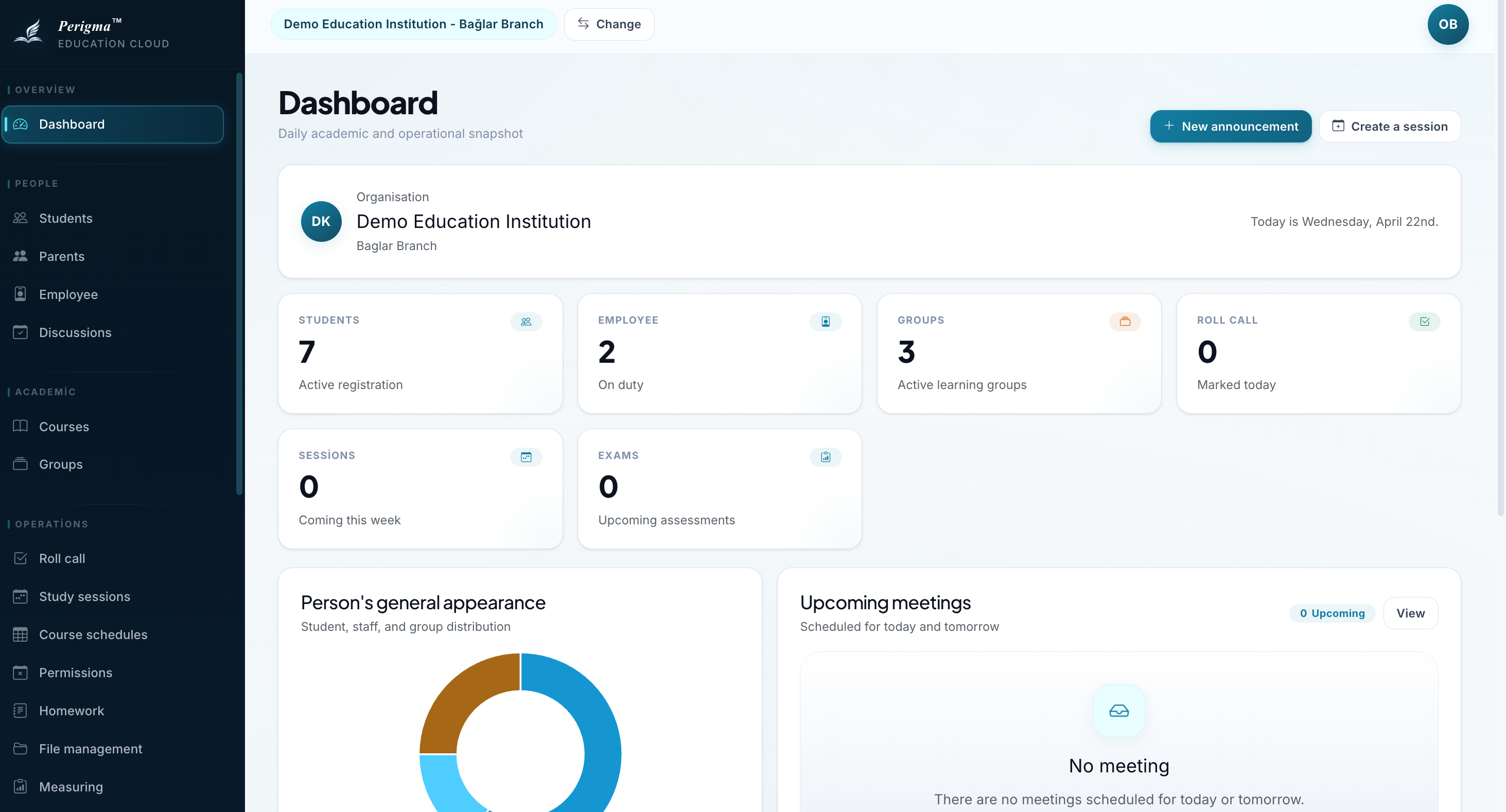
Image 1: Administrator dashboard overview
Summary Cards
The top section contains these cards:
| Card | Description |
|---|---|
| Total Students | Number of active enrolled students |
| Total Staff | Number of active staff members |
| Active Groups | Number of active groups in current academic year |
| Today's Attendance | Participation rate in today's attendance sessions |
| Planned Sessions | Number of today's/upcoming study sessions |
| Active Exams | Number of upcoming or ongoing exams |
| Pending Day Offs | Staff leave requests awaiting review (Administrator/Manager) |
| Pending Payment Notices | Payment notices awaiting review (Administrator/Manager) |
Image 2: Dashboard KPI cards with sample data
Pending Day Offs and Pending Payment Notices are shown only for administrator and manager roles.
Quick Access
You can navigate directly to frequently used pages from the dashboard. Clicking any KPI card opens the related module detail page.
Lower Sections
Under the KPI grid, management roles see summary sections for current activity:
- Upcoming meetings: Meetings planned for today and tomorrow
- Activity summary: A compact view of recent operational activity
Student / Guardian Dashboard
For student and guardian roles, the dashboard focuses on personal summary information.
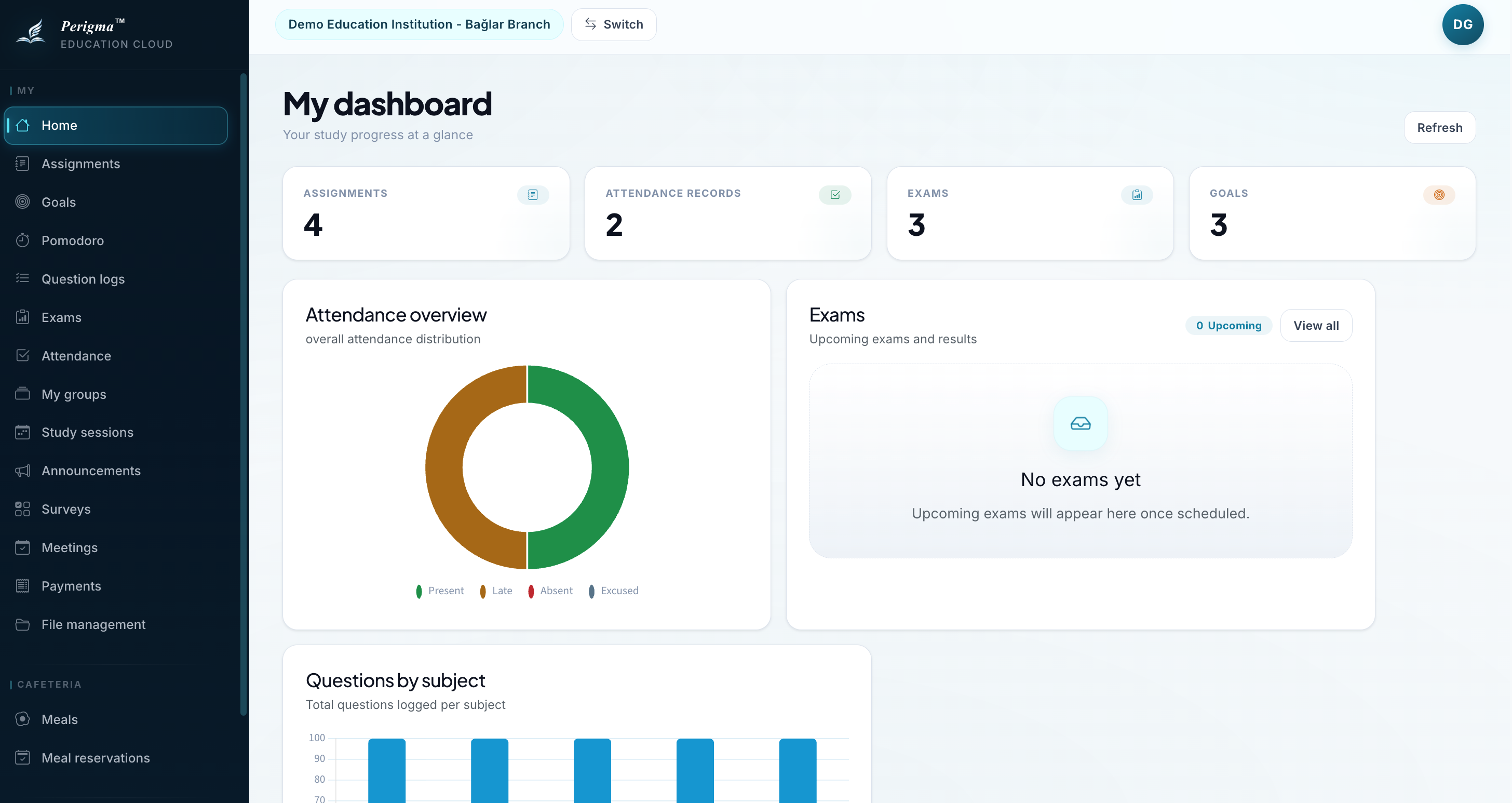
Image 3: Student/guardian dashboard view
Student Panel Information
| Section | Description |
|---|---|
| Pending Assignments | Count of assignments nearing due date or not submitted |
| Attendance Records | Student attendance records summary |
| Exams | Student exam list/results |
| Meetings | Meetings relevant to the selected student |
Student Selection for Guardians
Guardians with multiple children can use the student selector at the top of the dashboard to switch between children. When supported by the screen, they can also return to an aggregate view. Dashboard content refreshes for the current selection.
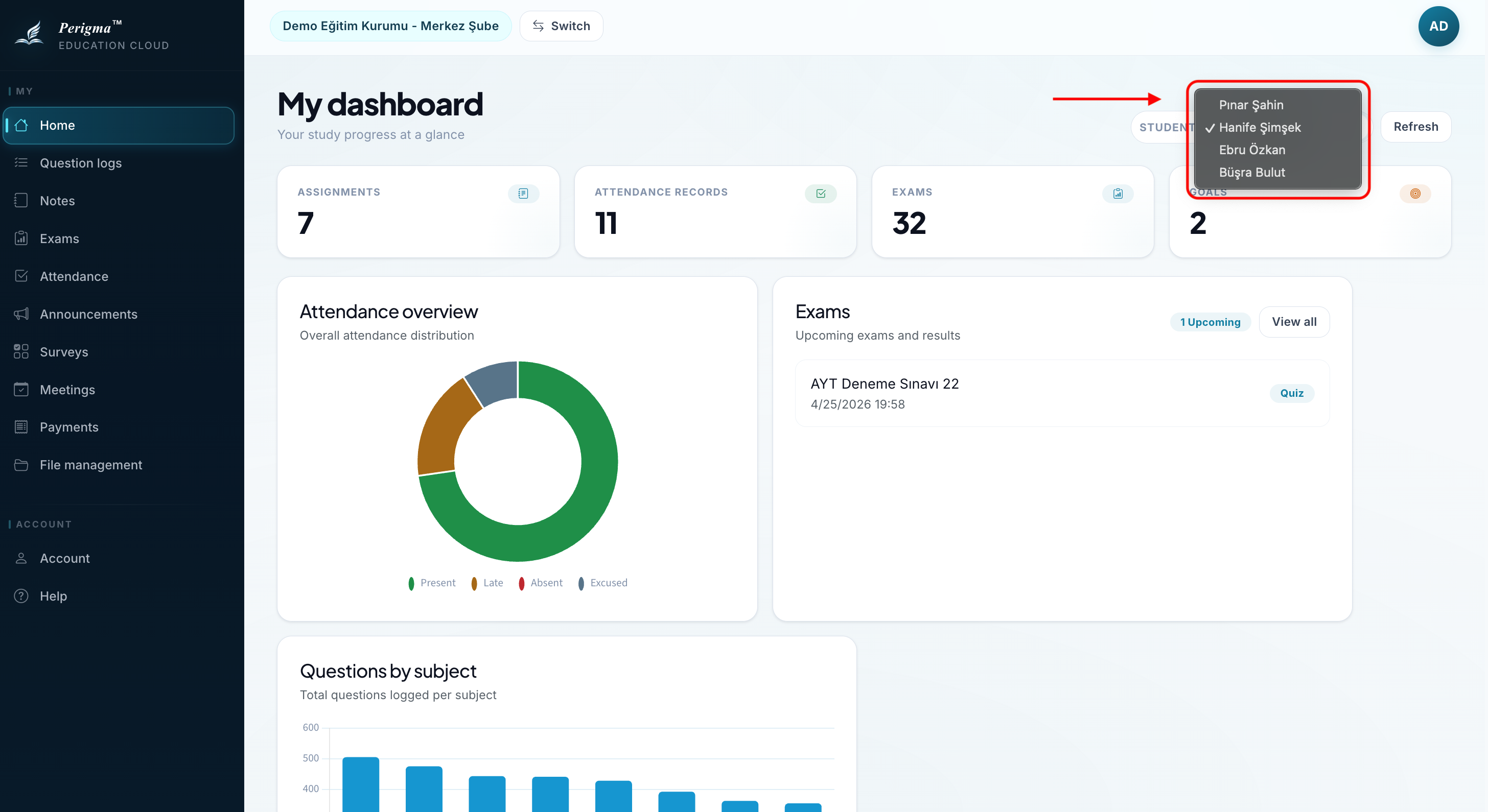
Image 4: Student selector menu in guardian dashboard
Dashboard Tips
Dashboard data refreshes automatically whenever the page opens. Refresh the page to ensure the latest view.
Dashboard cards show only the data allowed by your role. For example, teachers cannot see finance data while administrators can access all data.