Study Sessions
The study sessions module lets you plan supervised study hours and one-to-one special lesson sessions for students. Accessible to Administrator, Manager, and Teacher roles.
Session List
Go to Operations → Study Sessions from the left menu.
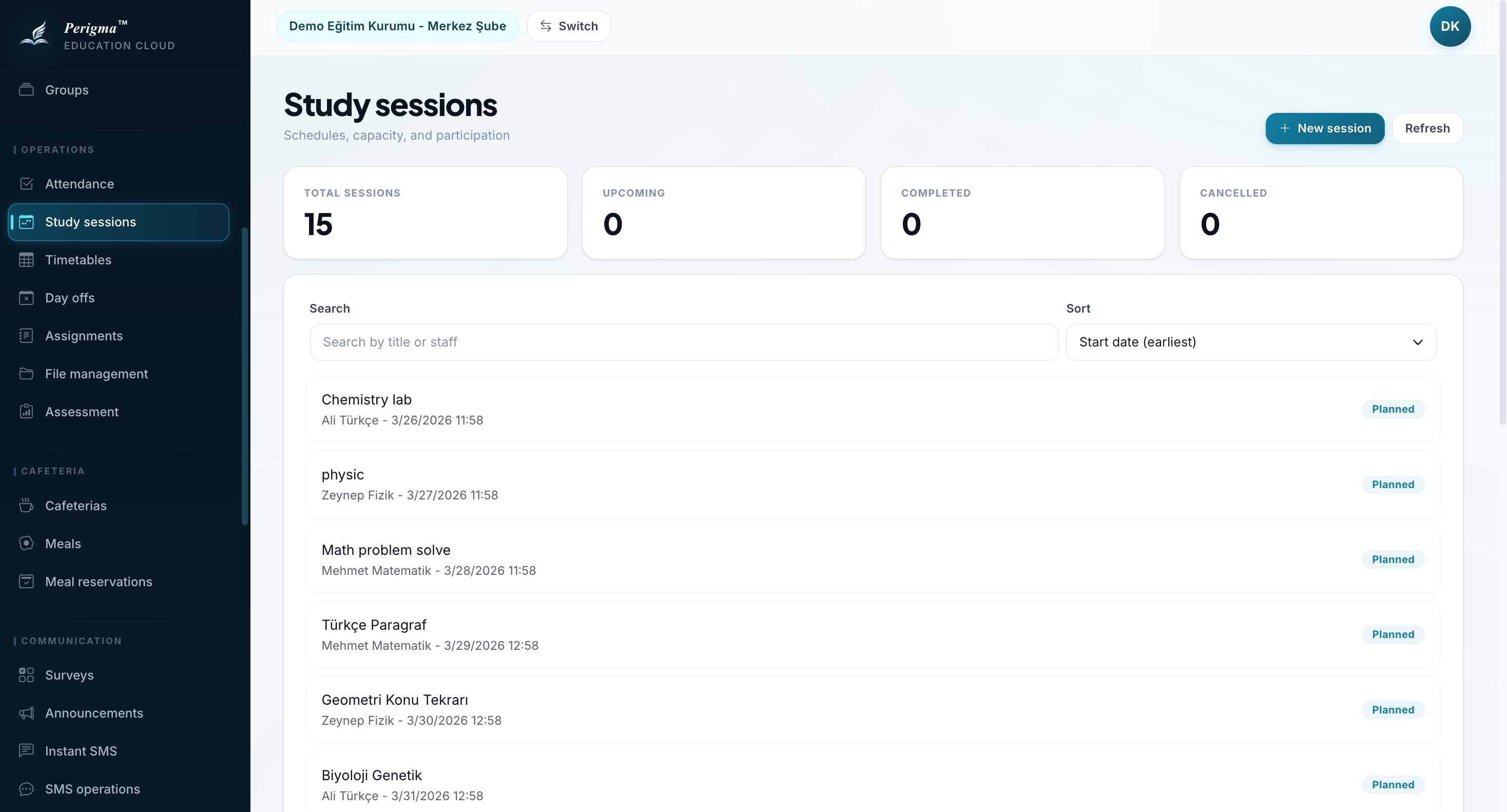
Image 1: Study session list
Filtering
- Staff (teacher)
- Date
- Status (Scheduled, Completed, Canceled)
Creating a New Session
- Click "New Session"
- Fill details:
| Field | Required | Description |
|---|---|---|
| Title | Yes | Session name |
| Session Type | Yes | Study Session or Private Lesson |
| Responsible Staff | Yes | Teacher leading session |
| Start Date/Time | Yes | Session start |
| End Date/Time | Yes | Session end |
| Course | No | Related course |
| Subject | No | Related subject |
| Classroom | No | Room |
| Capacity | No | Maximum participants |
| Notes | No | Additional information |
- Click "Save"
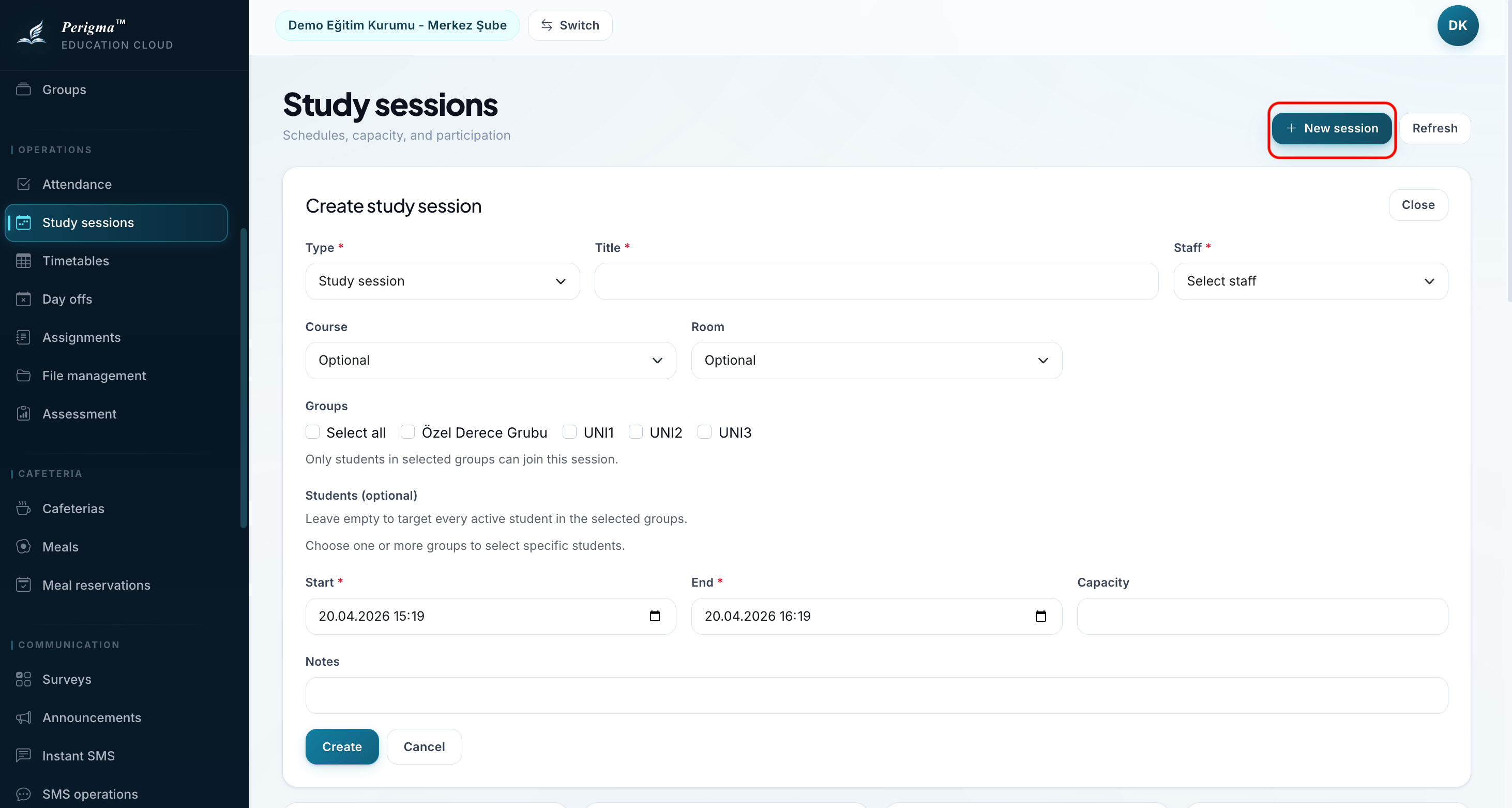
Image 2: New study session form
Session Types
| Type | Description |
|---|---|
| Study Session | Supervised study period |
| Private Lesson | One-to-one or small-group instruction |
Adding Participants
Add by Group
- Click "Add Group"
- Select group
- All group students are added automatically
Add Individually
- Click "Add Student"
- Select student
- Click "Save"
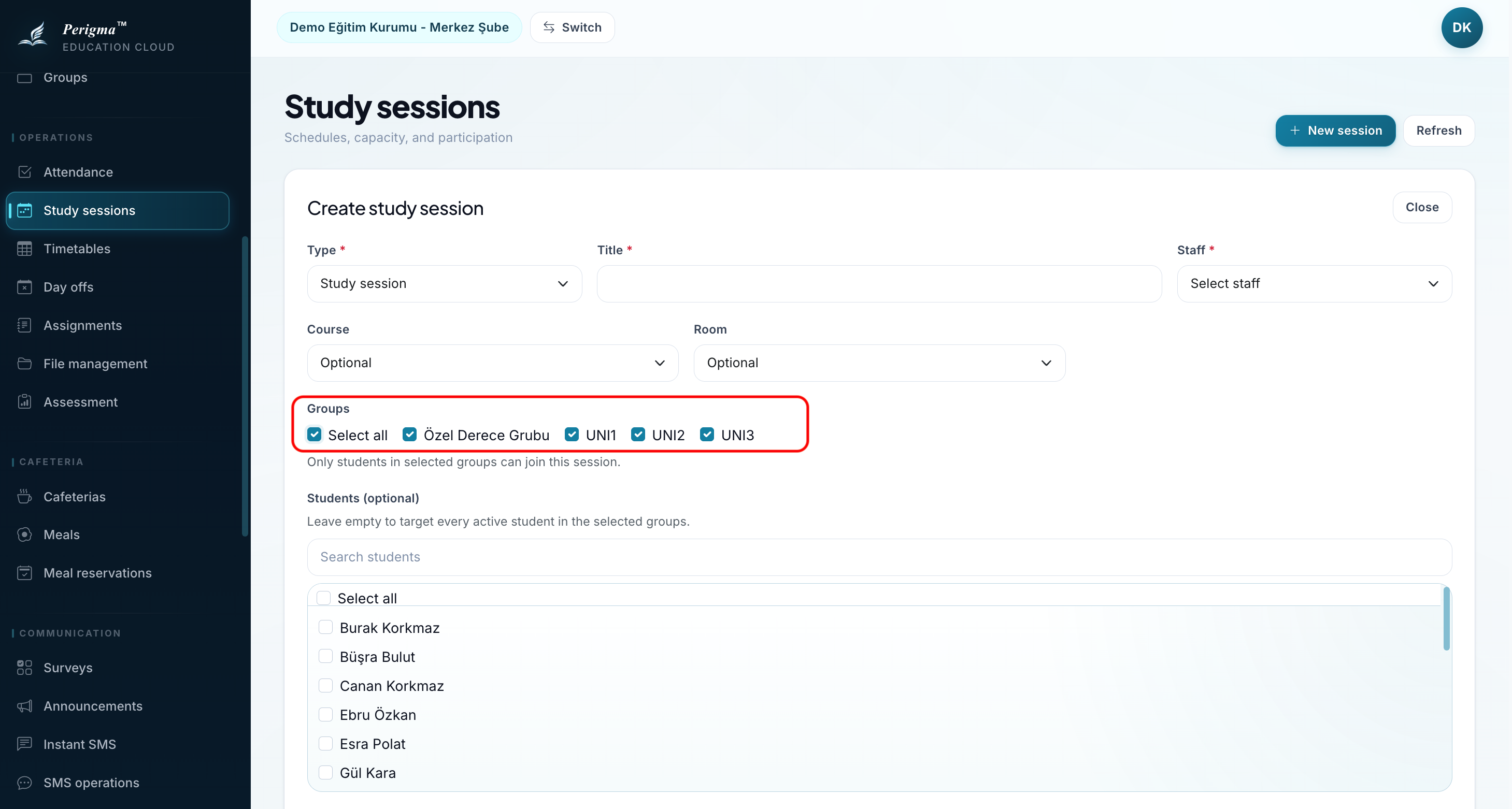
Image 3: Participant add flow
Session Statuses
| Status | Description |
|---|---|
| Scheduled | Session is planned |
| Completed | Session finished |
| Canceled | Session canceled |
Participant Attendance
After a session:
- Open session detail
- Click "Take Attendance"
- Set participant status:
- Unknown
- Present
- Absent
- Optionally add feedback
- Click "Save"
Student View
Students can view sessions under My → My Study Sessions and mark attendance status where supported.
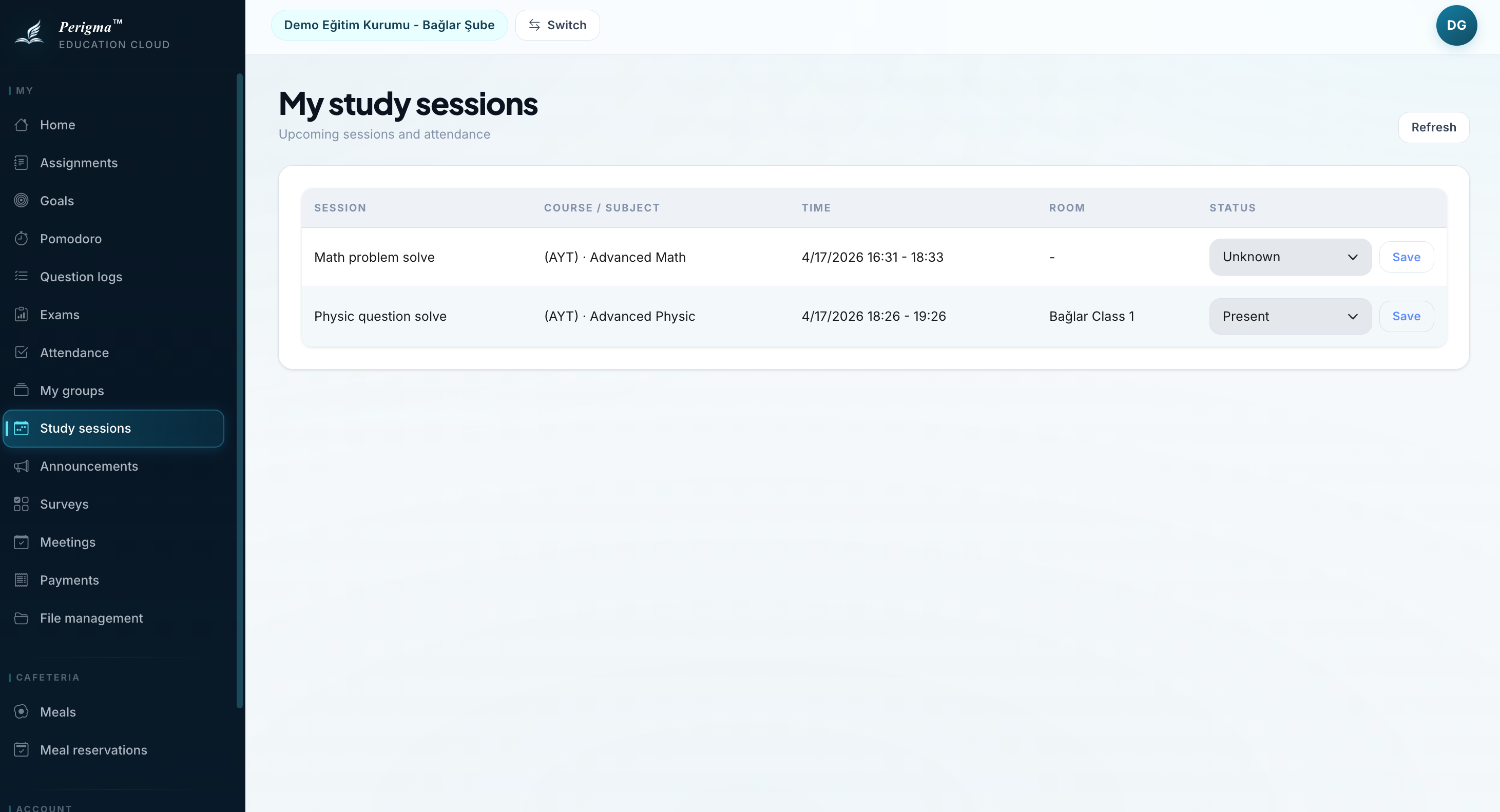
Image 5: Student study session view