Payment Notices
The payment notice module allows guardians/students to submit receipts for completed payments and lets institution staff approve/reject them.
Notice List
Go to Billing → Payment Notices from the left menu.
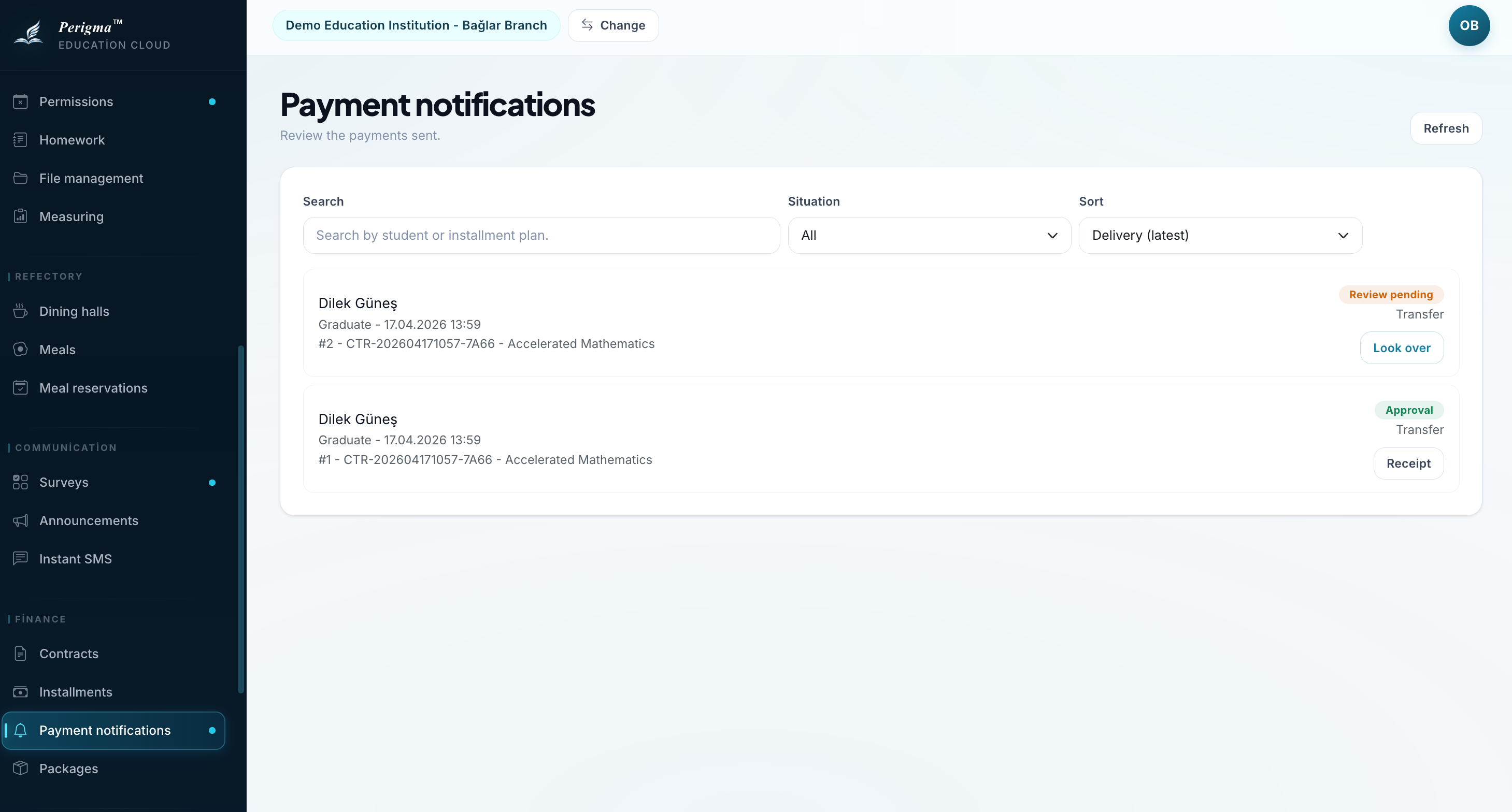
Image 1: Payment notice list
Filtering
- Student
- Contract
- Installment
- Status (Approved, Rejected, Pending)
Notice Fields
| Field | Description |
|---|---|
| Student | Student/guardian making payment |
| Contract | Related contract |
| Installment | Related installment |
| Payment Method | Cash, Card, Wire, Online |
| Receipt File | Uploaded receipt |
| Submission Date | Notice creation time |
| Status | Approved, Rejected, Pending |
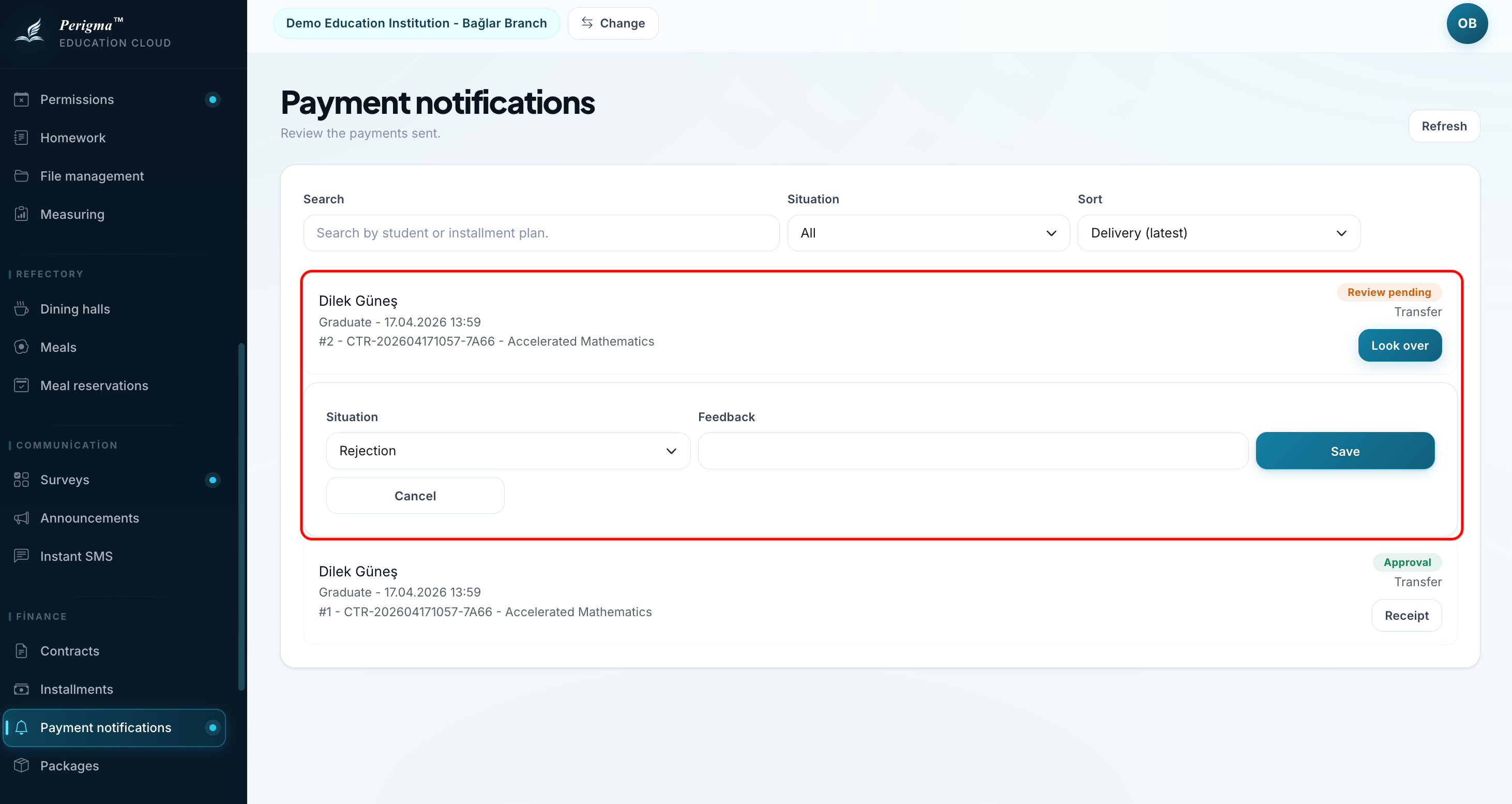
Image 2: Payment notice detail
Notice Statuses
| Status | Description |
|---|---|
| Pending | Not reviewed yet |
| Approved | Payment verified, installment marked paid |
| Rejected | Invalid receipt or unmatched payment |
Approving or Rejecting Notice
- Open notice record
- Review receipt file
- Click "Approve" or "Reject"
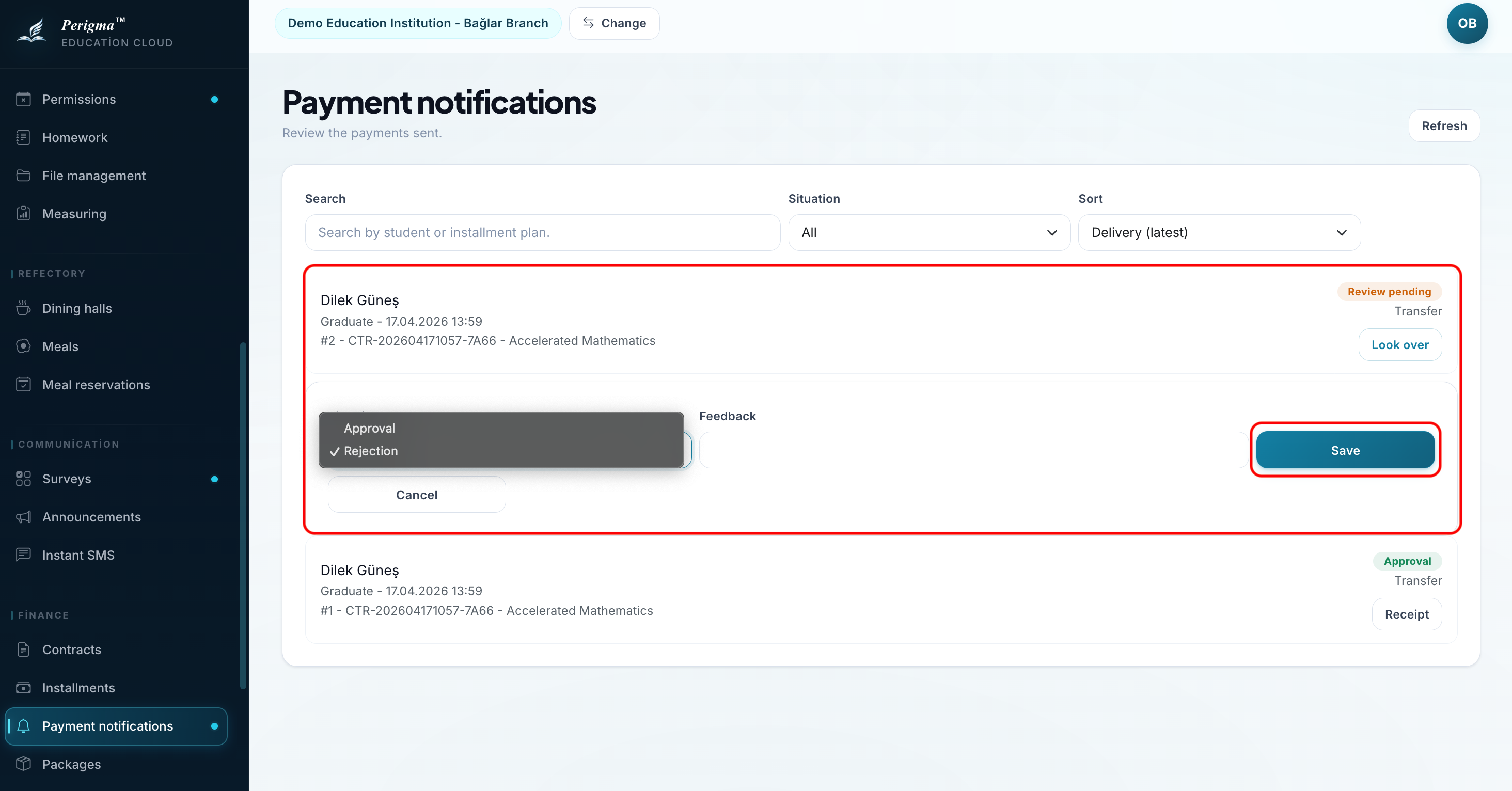
Image 3: Notice approve/reject action
When approved:
- Installment is set to Paid automatically
- Payment date/method are saved
When rejected:
- Installment status is unchanged
- Guardian/student can submit new notice
Guardian Submission Flow
Guardians can submit payment notices from My → My Payments:
- Select installment
- Click "Send Payment Notice"
- Choose payment method
- Upload receipt
- Click "Send"
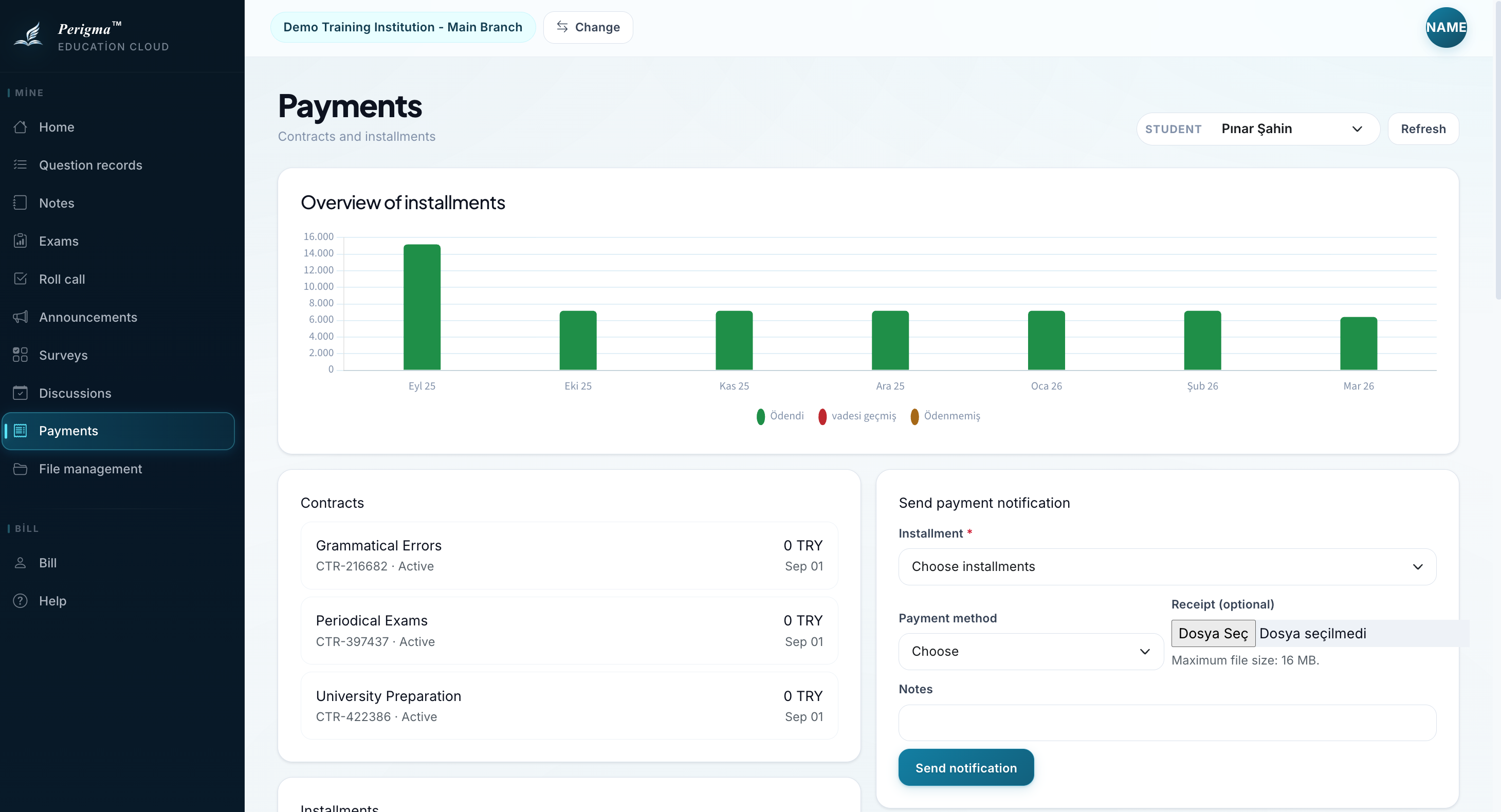
Image 4: Guardian payment notice submission screen