Join Institution
After creating your account in Perigma, you connect to your institution and branch contexts using a join code provided by the institution.
What Is a Join Code?
A join code is a unique 12-character code generated by your institution in Perigma. It contains uppercase letters and numbers (example: A3BX7KM9P2YZ).
You usually receive your join code through:
- SMS: Your institution sends an SMS including the join code
- In person: Your administrator or registration officer shares it directly
A separate join code is generated for each person (student, guardian, staff). Do not share your code with others.
Join Steps
Step 1: Login
Sign in to Perigma using your email and password.
Step 2: Enter the Join Code
You can enter the join code from two places:
- The join code screen shown after login when your account has no institution/branch link yet
- The connect section on the institution selection (tenant selection) screen
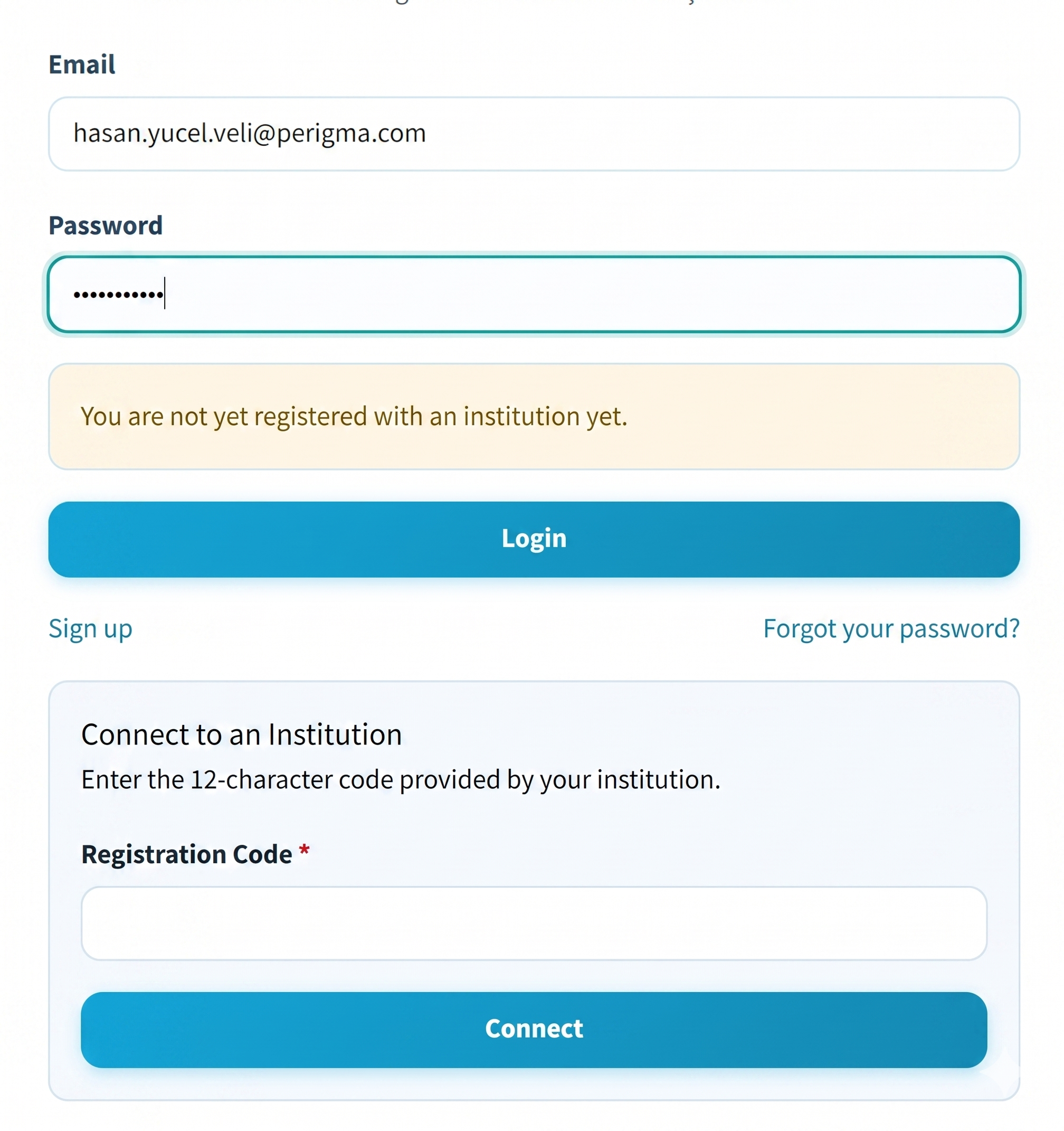
Image 1: Institution join code screen
Step 3: Confirm Connection
After entering the code, confirm the action. The system validates your code and links your account to the related institution/branch.
Step 4: Open Dashboard
After a successful join, you are redirected to the dashboard based on your role:
- Administrator/Manager/Teacher: Management dashboard
- Student/Guardian: Personal dashboard
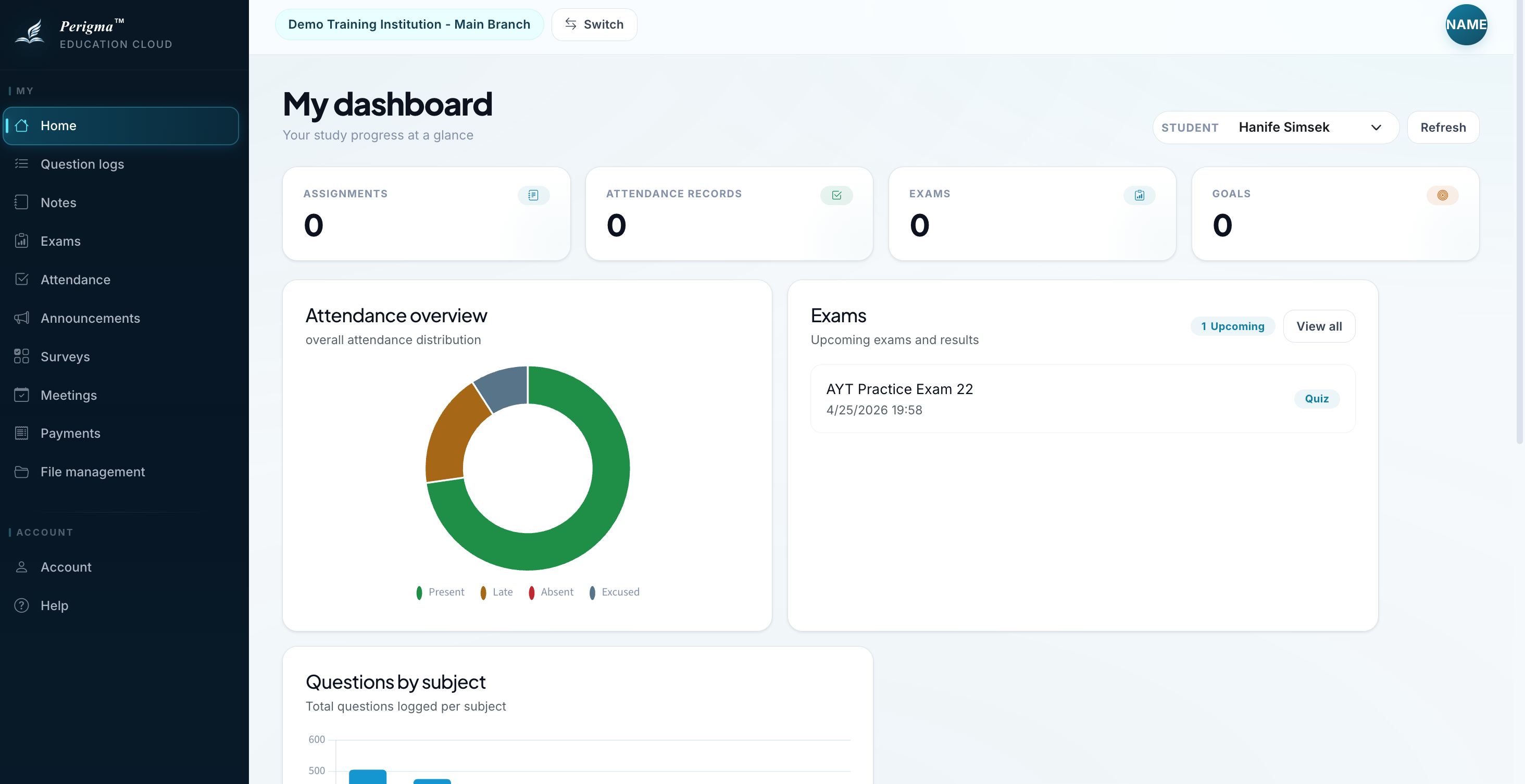
Image 2: Dashboard after successful institution join
Interface By Institution Type
After tenant selection, the left menu and some screens are adjusted for the selected institution type.
- Private School tenants keep the standard module set.
- Cram School and Language School tenants do not show the Cafeteria module.
- If the same account is linked to multiple institutions, switching tenants also refreshes the menu structure for the selected institution.
This page documents the join flow. Institution-type-specific business behavior is documented in the relevant module pages.
Join Multiple Institutions
You can join multiple institutions/branches with the same account. For example:
- A teacher may work at two branches
- A guardian may connect to different institutions for different children
Use a separate join code for each new institution/branch. After login, you can add more links from the institution selection screen and switch contexts from the top bar.
Troubleshooting
| Issue | Solution |
|---|---|
| "Invalid join code" error | Make sure you entered the code correctly; uppercase/lowercase matters |
| You do not have a join code | Contact your institution administrator or registration officer |
| "Institution not found" error | Confirm your institution is active in Perigma |
| Code already used | Each join code is single-use and cannot be reused by another account |
| You cannot find where to enter the code | If you already have tenants, use the connect section on the institution selection screen; if you have no tenant link, the join screen opens automatically after login |