Login
After creating your account and verifying your email, you can log in to Perigma.
Standard Login
- Open Perigma (app or app.perigma.com); the login screen appears
- Enter your email address
- Enter your password
- Click "Login"
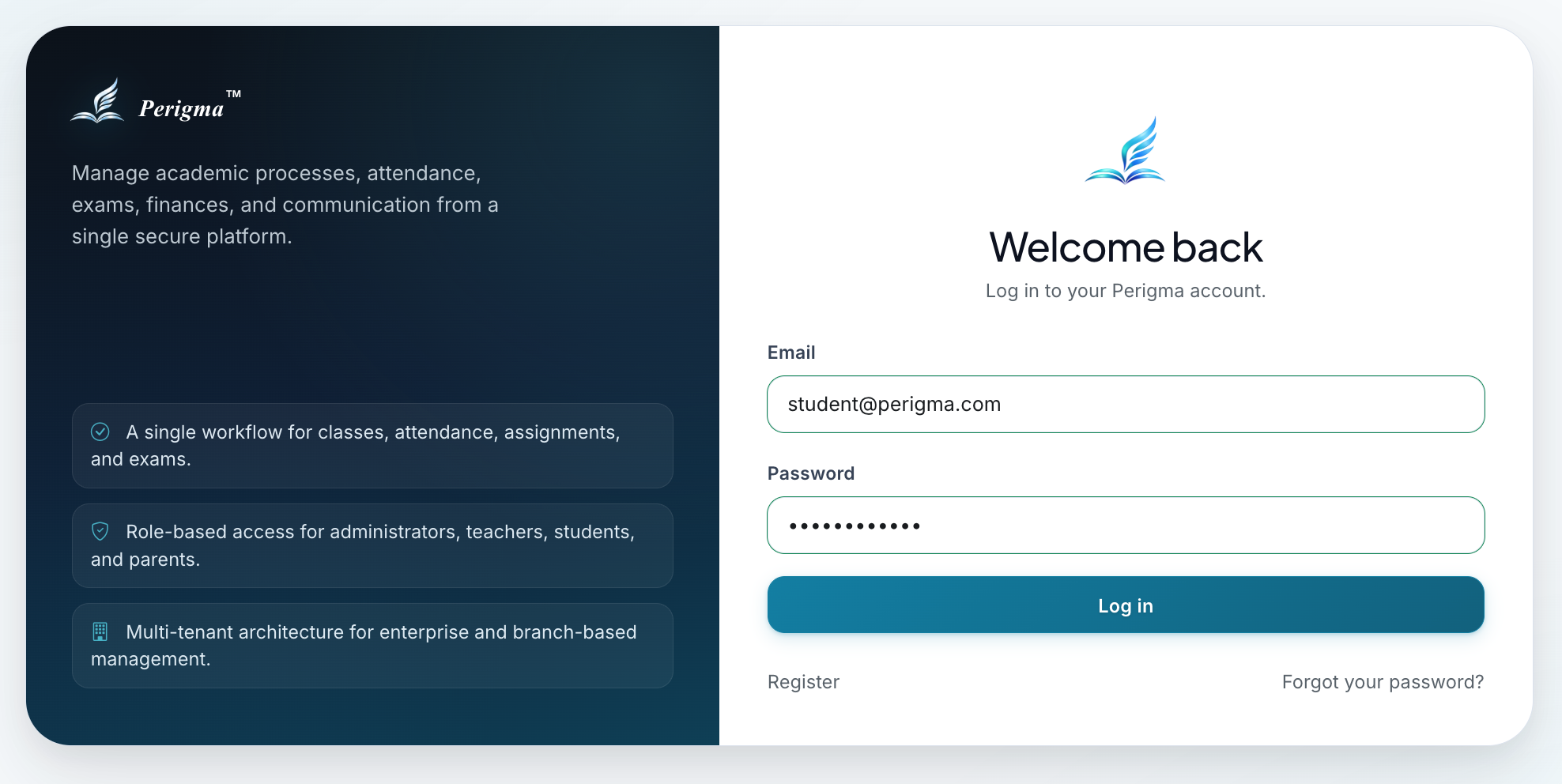
Image 1: Perigma login screen
Perigma stores your login session securely on your device. When you reopen the app or web version, you are signed in automatically in most cases.
Login Scenarios
During login, you may see different screens depending on account status:
Scenario 1: Direct Login
If your email is verified and your account is linked to one institution, you are redirected directly to your dashboard.
Scenario 2: Email Not Verified
If your email is not verified yet, the system redirects you to the email verification screen. Enter the 6-digit code sent to your email.
Scenario 3: No Institution Link
If your account is not linked to any institution/branch yet, you are asked to join one. Enter the join code provided by your institution.
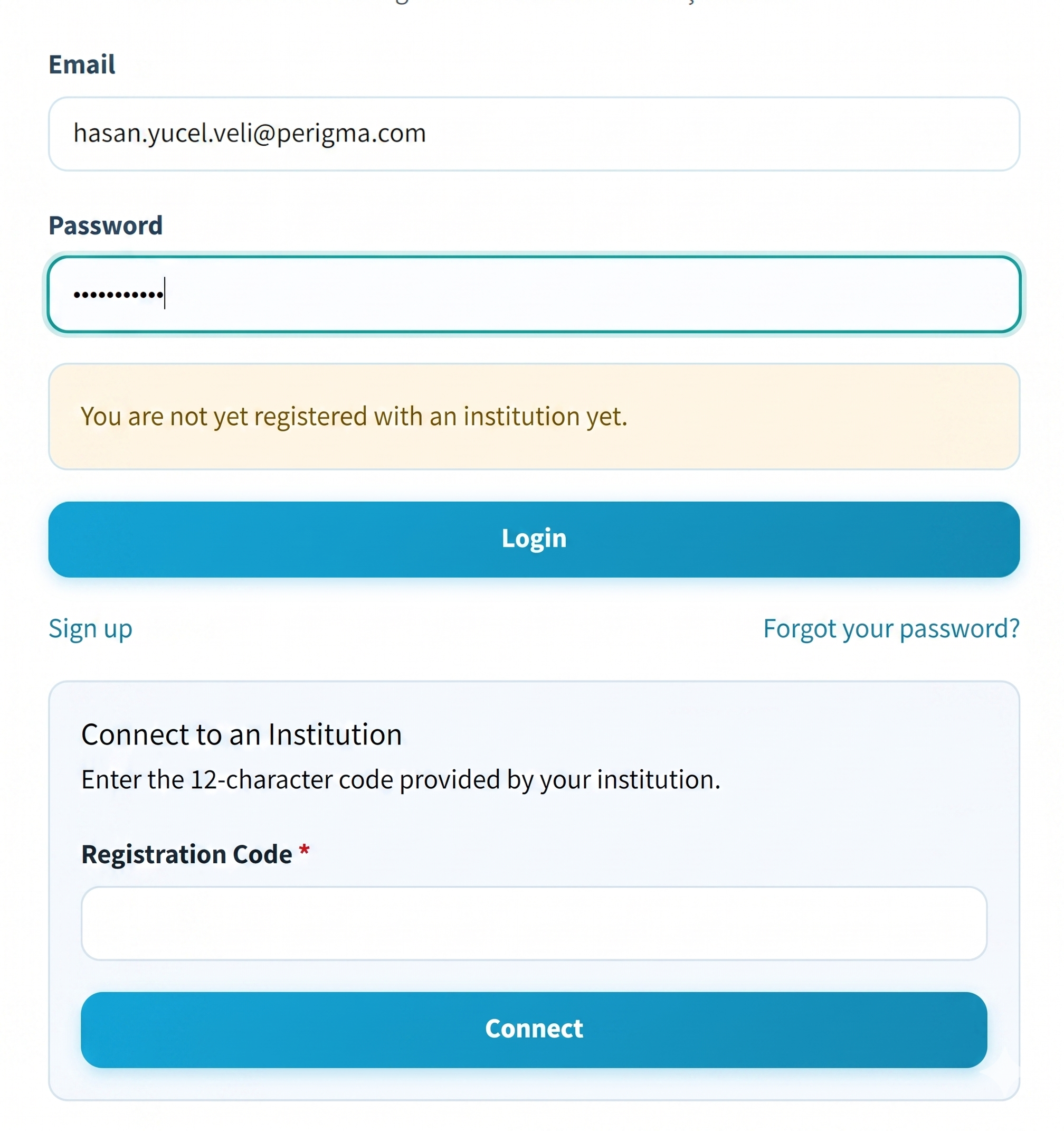
Image 2: Institution join code entry screen
Scenario 4: Multiple Institutions
If your account is linked to multiple institutions/branches, you see the institution selection screen after login. From the connect section on the same screen, you can enter another join code to add a new institution/branch link.
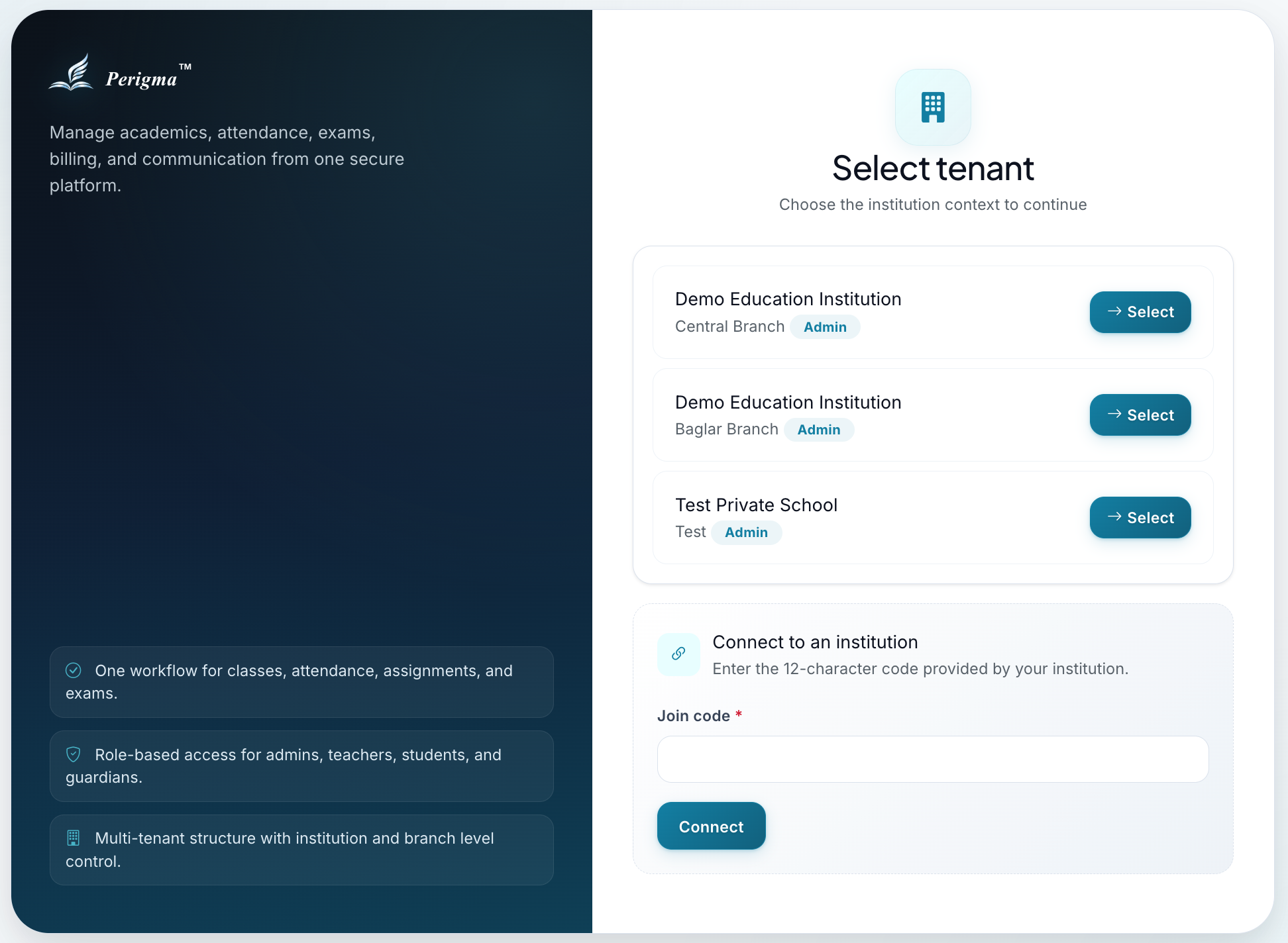
Image 3: Institution selection screen for multi-institution users
Scenario 5: Two-Factor Authentication (2FA)
If 2FA is enabled for your account, you must enter an additional verification code after email/password login. See Two-Factor Authentication for details.
Switching Institutions
Users linked to multiple institutions can switch institutions after login:
- Click your current institution name in the top bar (or settings)
- Select the institution you want to switch to
- The app automatically loads data for the selected institution
- If needed, add a new institution/branch from the join-code connect section on the institution selection screen
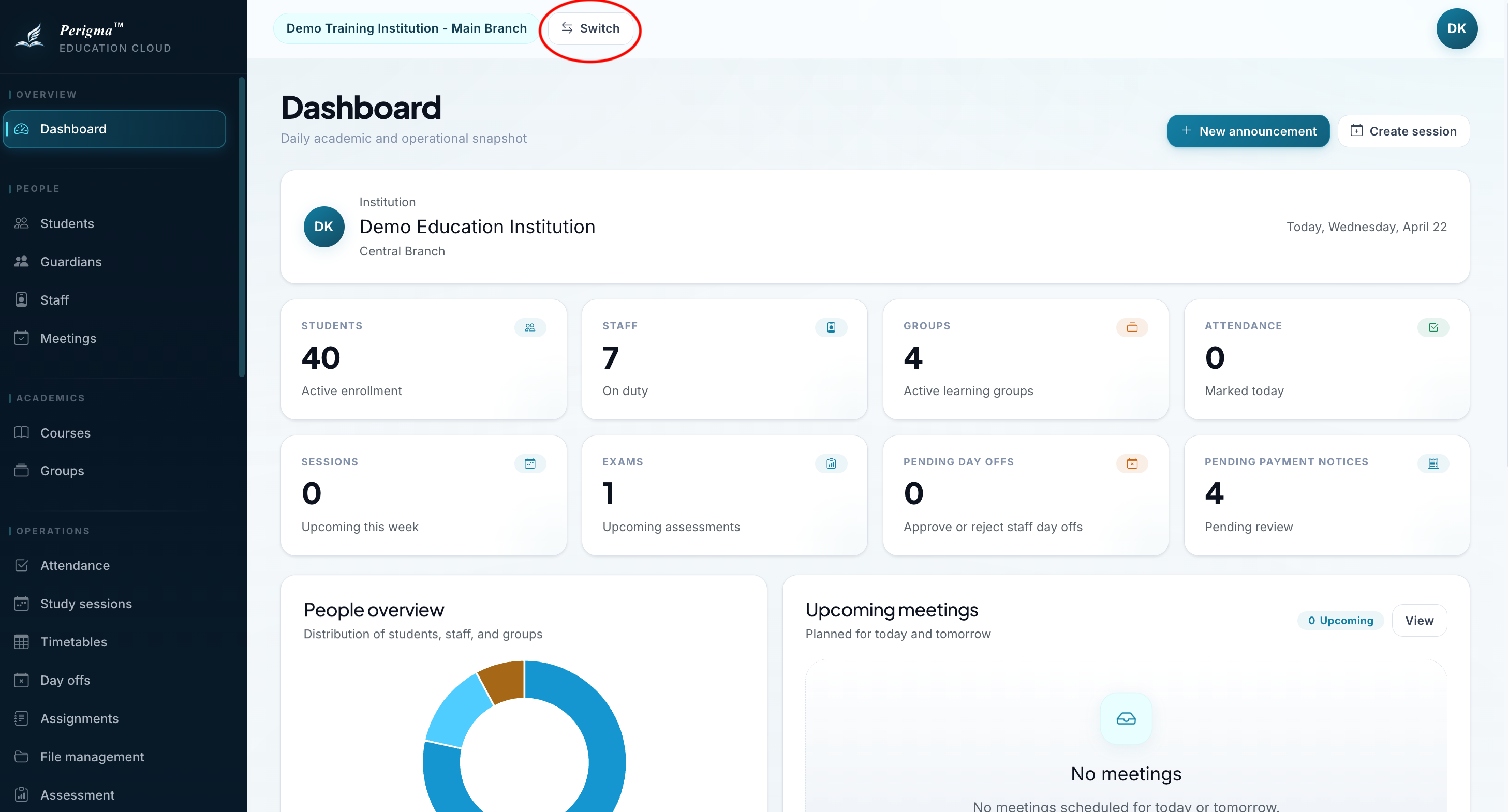
Image 4: Institution switch menu
Forgot Password
If you forgot your password, follow these steps:
- Click "Forgot Password" on the login screen
- Enter your registered email address
- Click "Send Reset Code"
- Enter the verification code sent to your email
- Set and confirm your new password
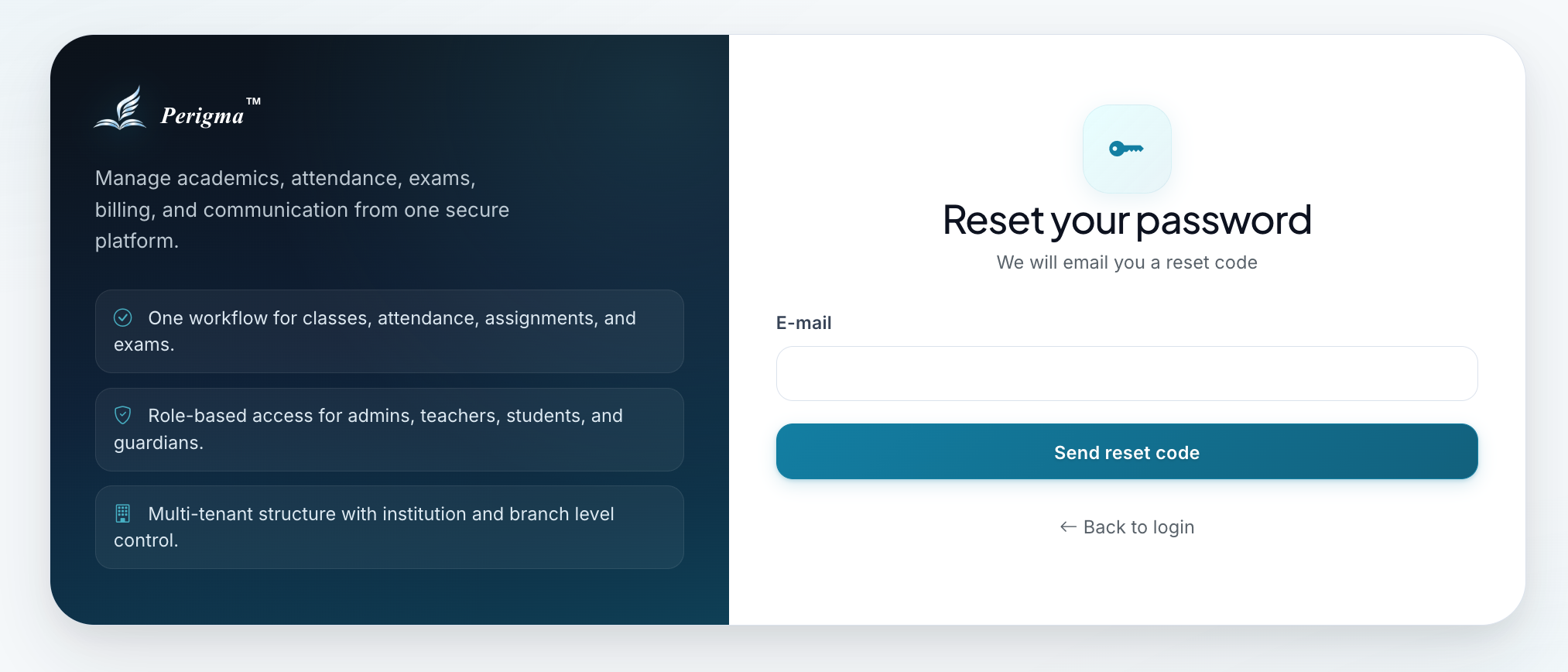
Image 5: Password reset flow
Your new password must still meet security requirements: at least 8 characters, one lowercase letter, and one number.
Logout
To end your session:
- Click your profile icon (top-right corner)
- Select "Logout"
- Your session ends securely and you are redirected to the login screen