Two-Factor Authentication (2FA)
Two-factor authentication adds an extra security layer to your account. When this feature is enabled, you must enter a verification code in addition to your password during login.
How 2FA Works
- You log in with your email and password
- The system sends a verification code to your registered email
- You enter this code in the verification field
- If verified, your session is opened
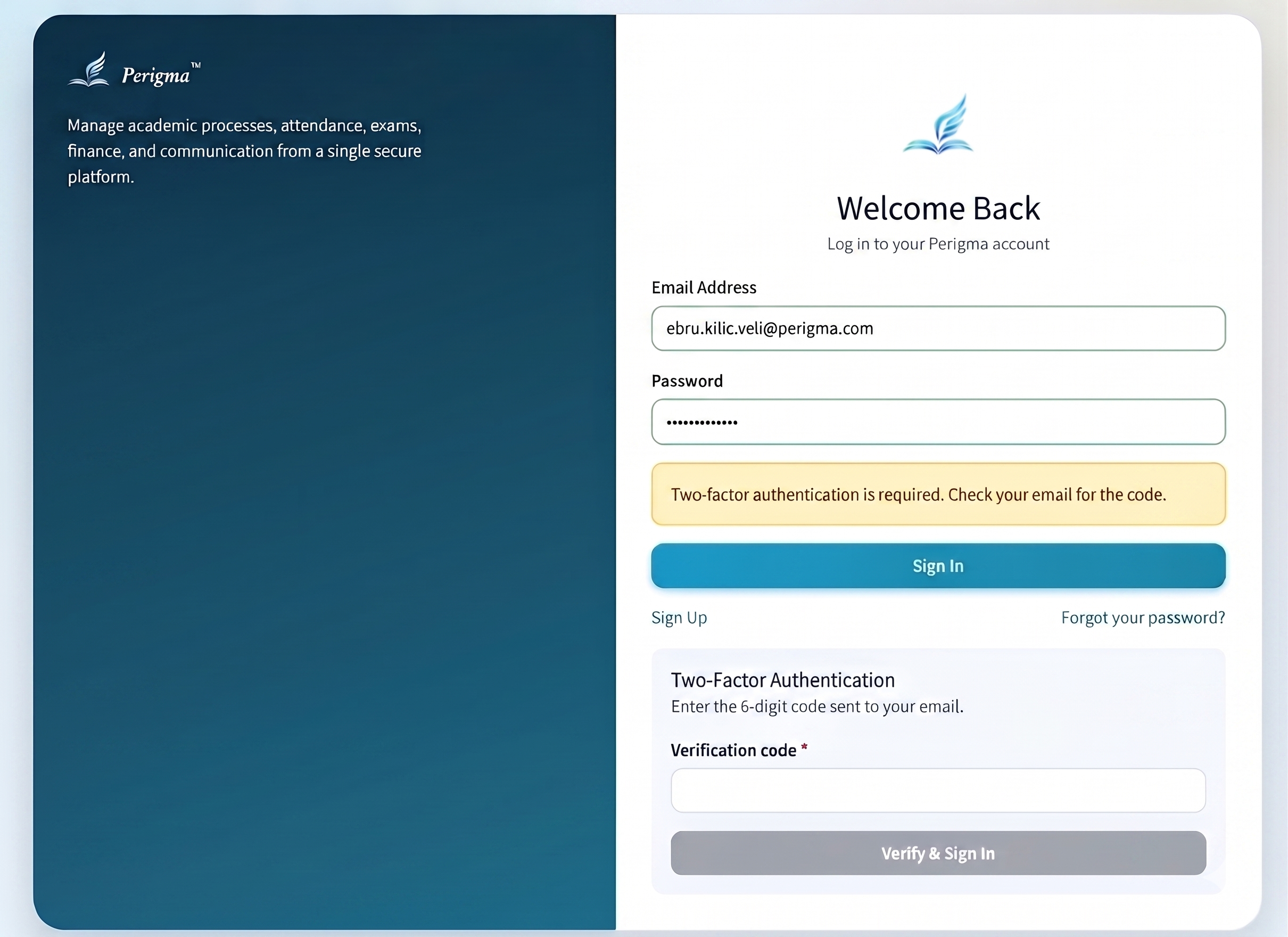
Image 1: Two-factor verification code entry screen
Why Should You Use 2FA?
- Prevents unauthorized access: Even if your password is compromised, users without email access cannot log in
- Protects personal data: Student data, financial data, and personal records are protected with an extra layer
- Protects institution data: Prevents unauthorized users from accessing institution records
Recommendation
Enabling 2FA is strongly recommended for users in administrator and manager roles.
Login Flow with 2FA
Step 1: Standard Login
Enter your email and password, then click "Login".
Step 2: Verification Code
The system sends a 6-digit verification code to your registered email address.
Step 3: Enter Code
Enter the 6-digit code and click "Verify".
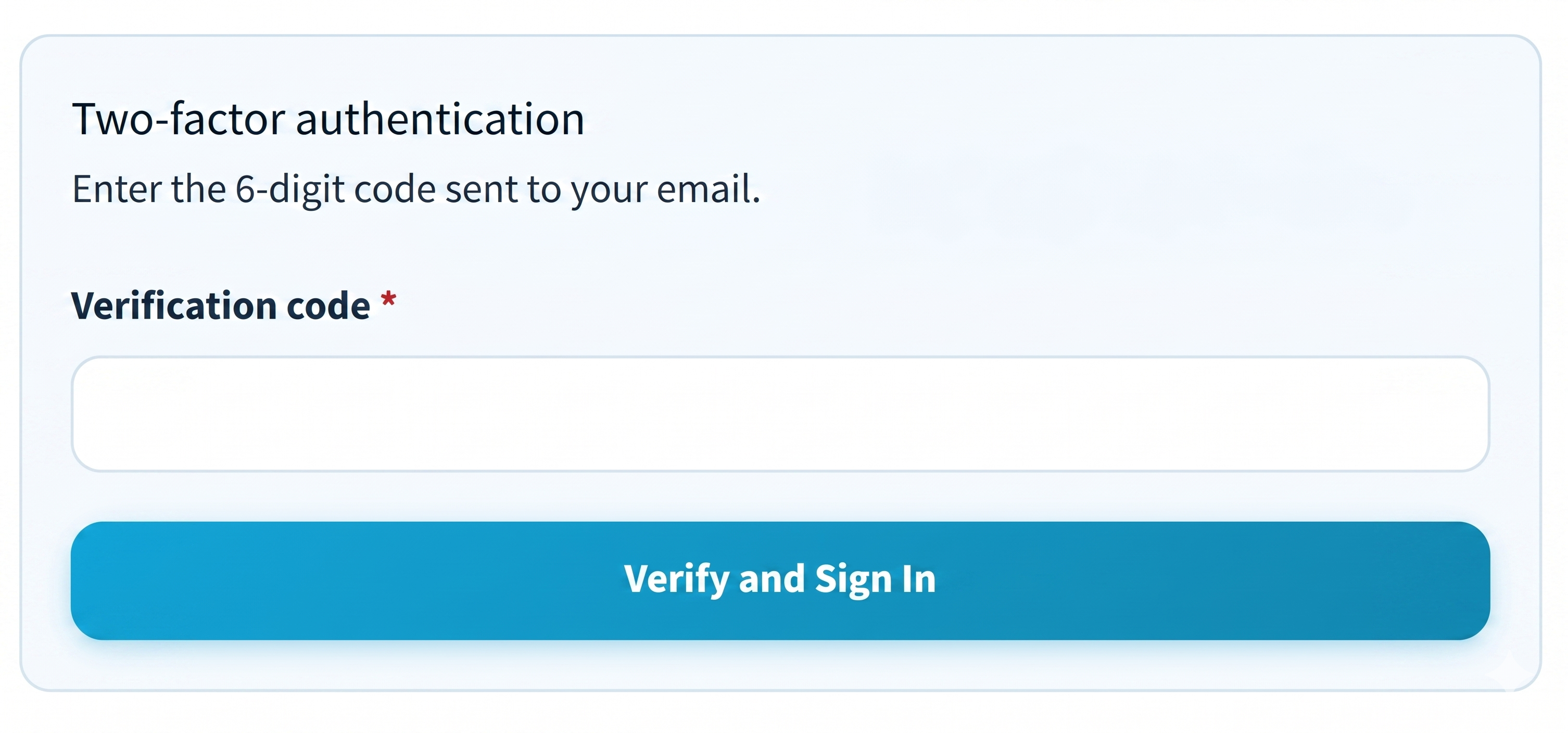
Image 2: 2FA code input and verify button
Step 4: Login Complete
If the code is valid, your session opens and you are redirected to your dashboard.
Common Issues
| Issue | Solution |
|---|---|
| Verification code did not arrive | Check spam folder; wait a few minutes; use "Resend Code" |
| Code expired | Request a new code - verification codes expire after a set time |
| Wrong code entered | Re-enter carefully; repeated failed attempts may cause temporary lockout |
Security warning
Never share your verification codes. No Perigma staff member will ask for your verification code.