Group (Class) Management
Groups are units used to organize students academically. A group can represent a class, coaching group, or study group. This module is accessible to Administrator, Manager, and Teacher roles.
Group List
Go to Academics → Groups from the left menu.
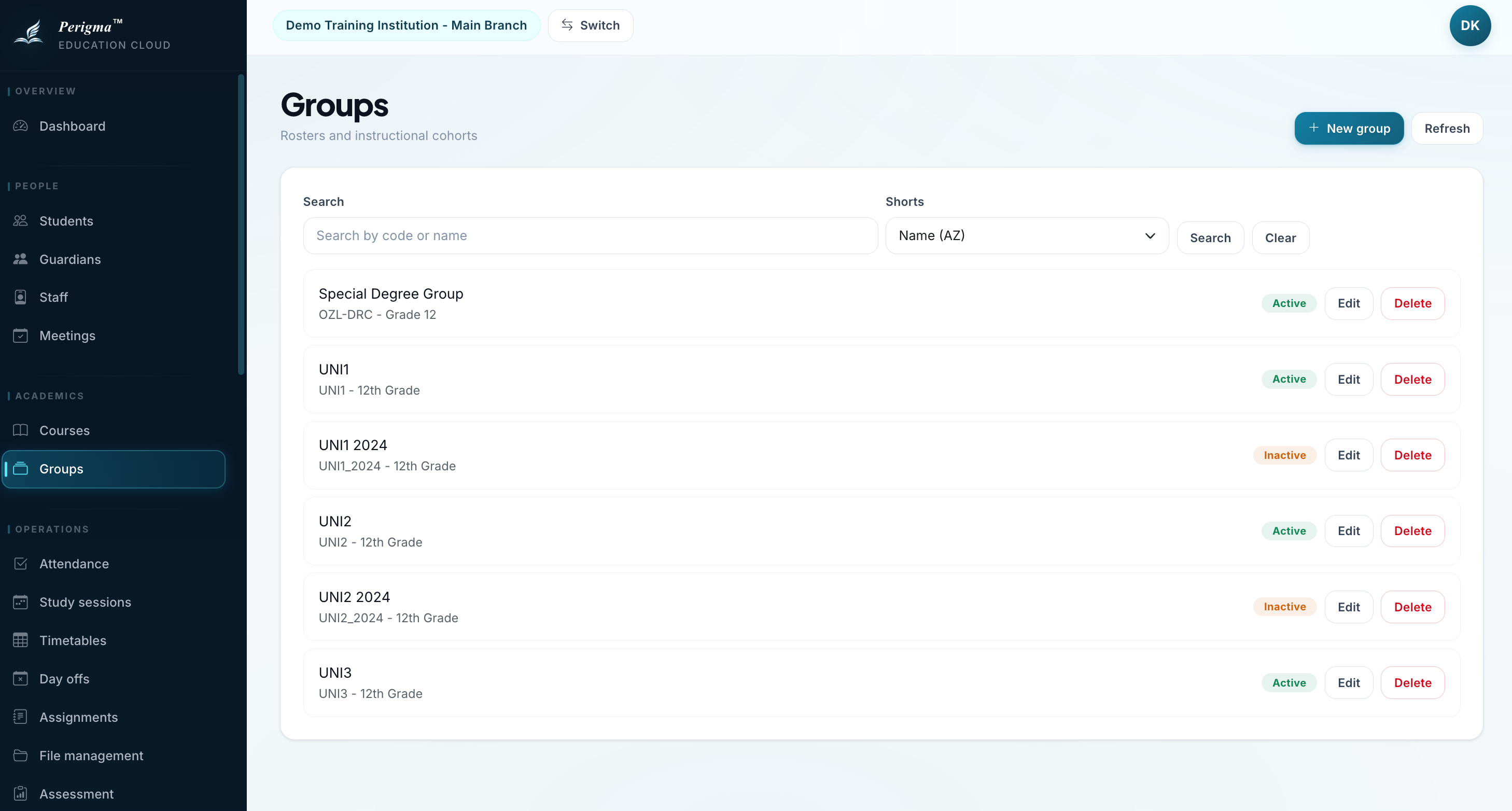
Image 1: Group list with search/filter options
Filtering
- Academic Year filter
- Search by group name/code
Deleting Groups
- Administrator and Manager roles can delete groups from the group card or group detail screen.
- Deletion archives the group and removes it from active lists.
Creating a New Group
(Administrator or Manager permission required)
- Click "New Group"
- Fill details:
| Field | Required | Description |
|---|---|---|
| Group Code | Yes | Unique code (for example 11A, CRS-MAT) |
| Group Name | Yes | Full group name |
| Group Type | Yes | Class, Coaching Group, or Study Group |
| Branch | Yes | Related branch |
| Academic Year | Yes | Related academic year |
| Grade Level | Yes | Grade level |
| Active | Yes | Whether group is active |
- Click "Save"
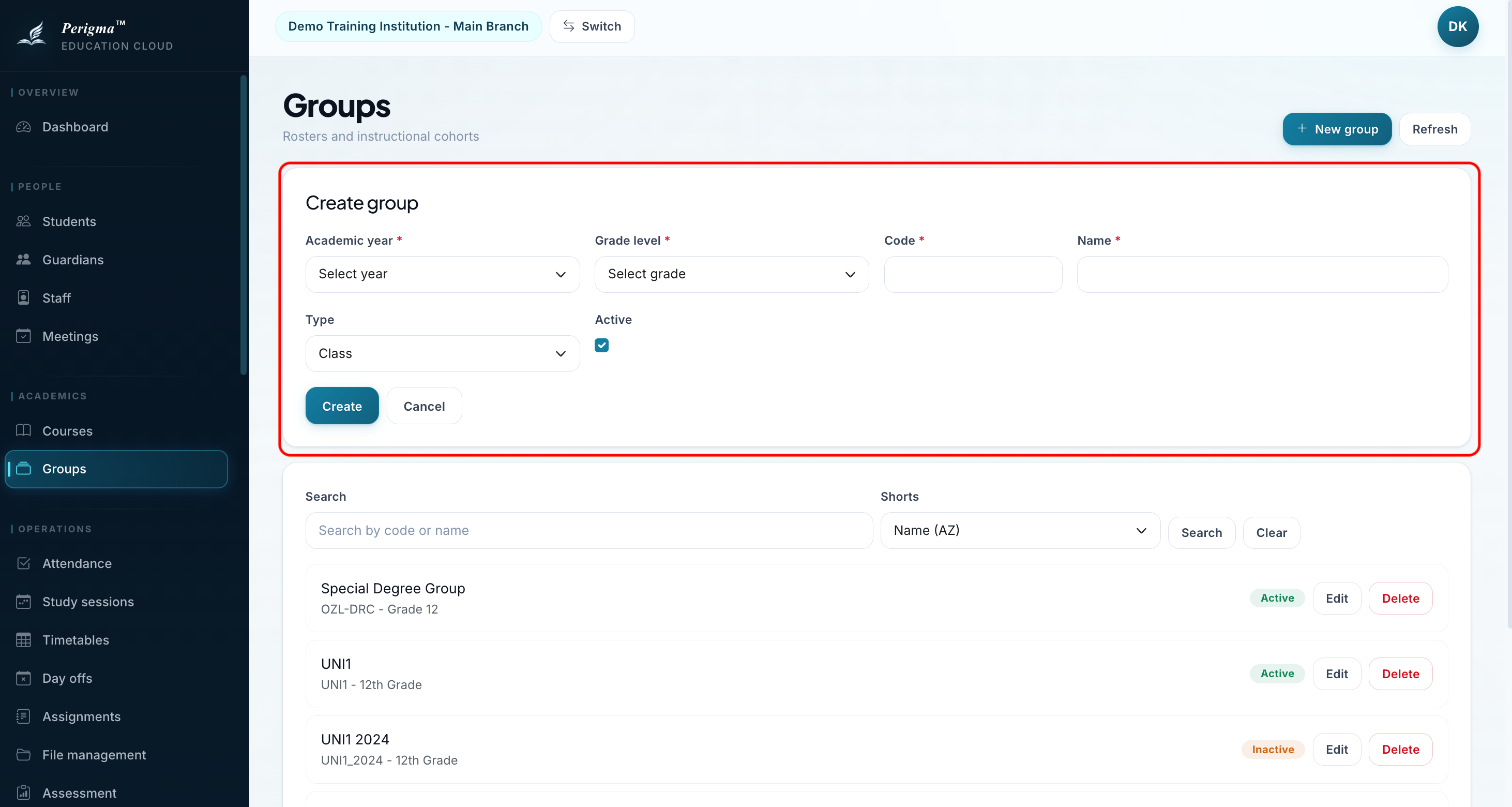
Image 2: New group form
Group Types
| Type | Description |
|---|---|
| Class | Standard academic class |
| Coaching Group | Cohort progressing together |
| Study Group | Small collaborative learning group |
Group Detail
Group detail has two major sections:
Student Management
- Click "Add Student"
- Select student
- Set start date
- Click "Add"
Stored per student:
- Start date
- End date (if left)
- Active flag in group
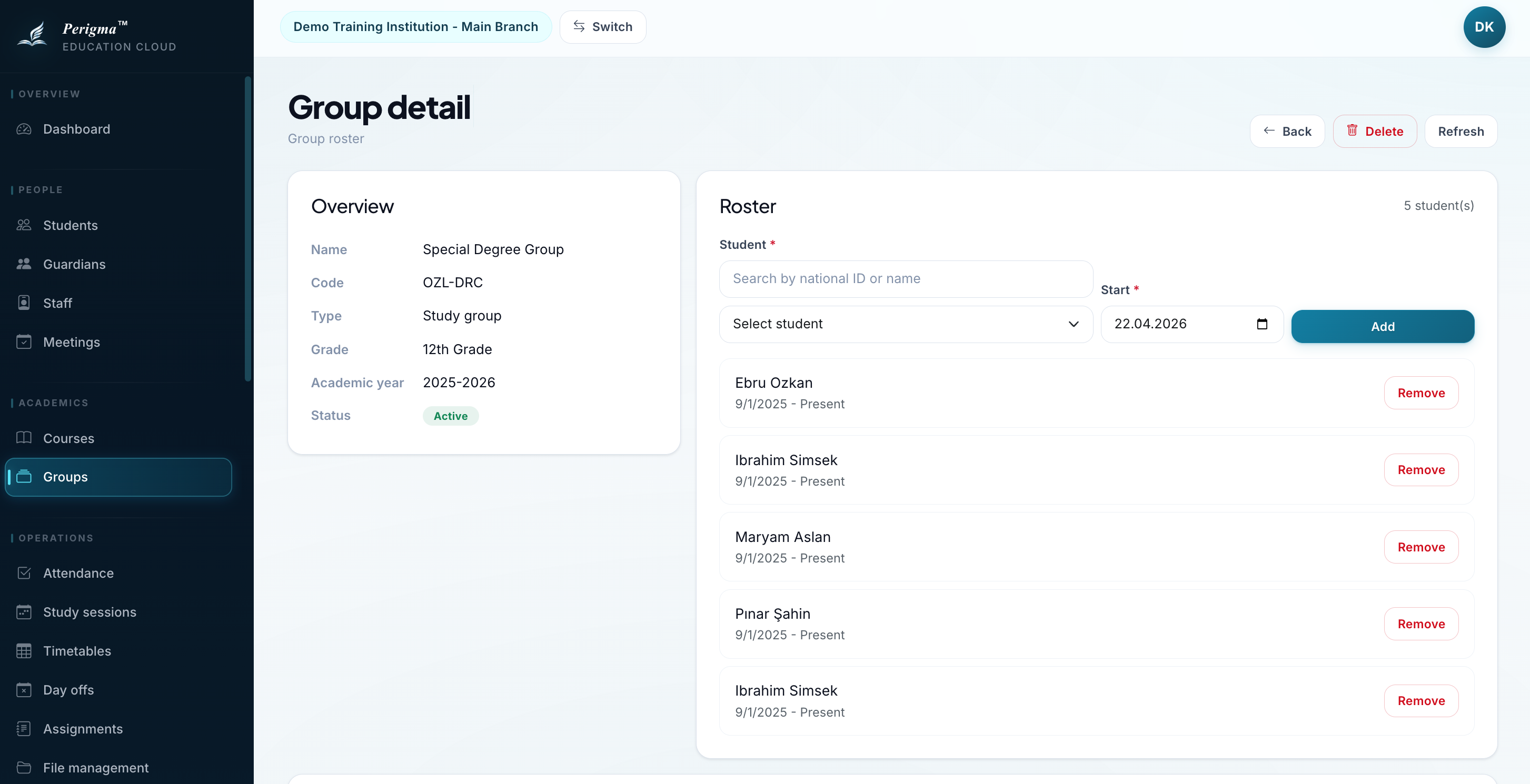
Image 3: Group student list and add flow
Course Management
- Click "Add Course"
- Select course from definitions
- Click "Add"
Assigned courses appear in attendance and timetable options.
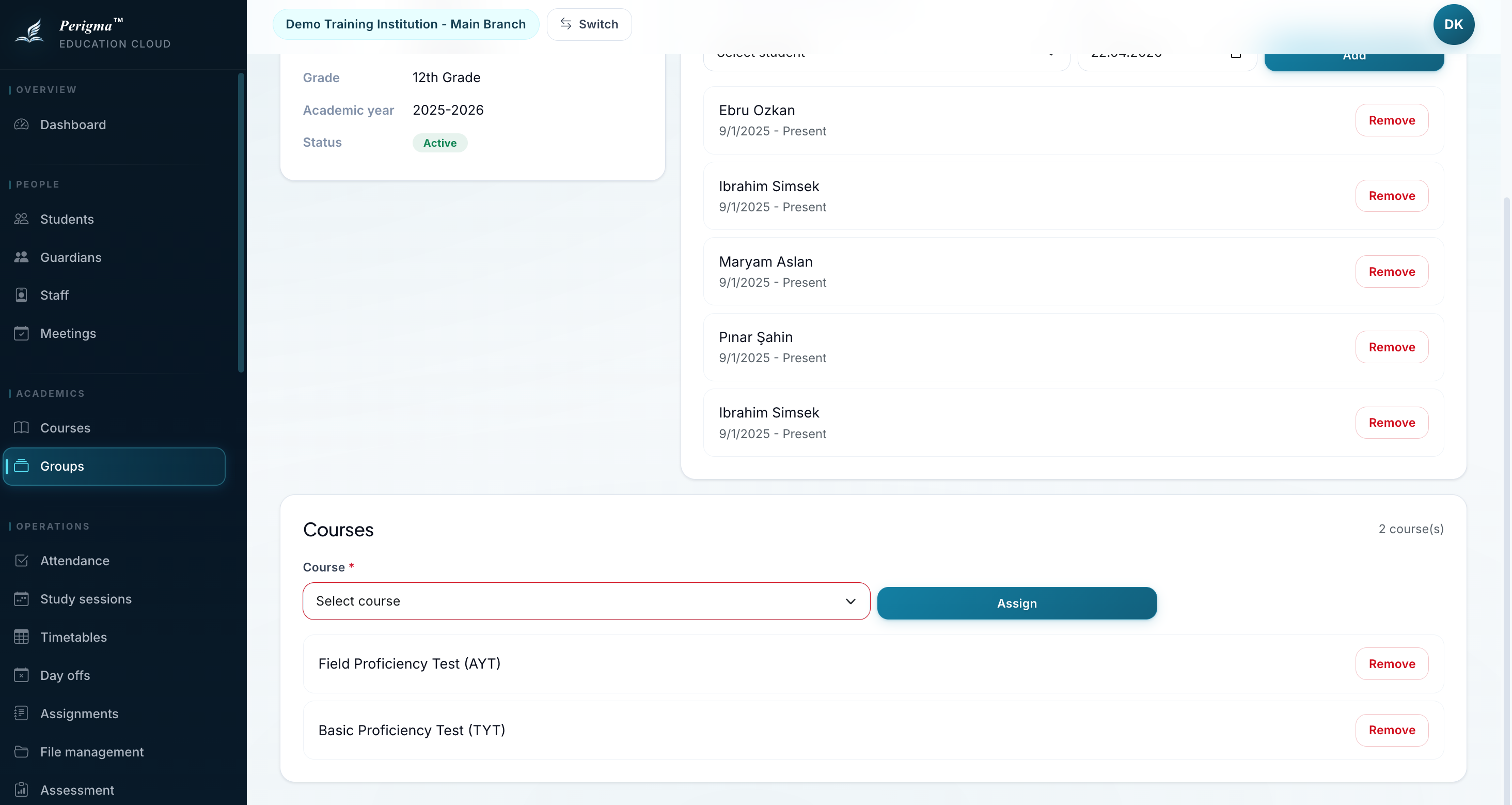
Image 4: Assign course to group
Where Groups Are Used
| Module | Usage |
|---|---|
| Attendance | Session creation by group |
| Timetable | Weekly schedule by group |
| Assignments | Bulk assignment distribution to group |
| Exams | Exam targeting by group |
| Announcements | Group-specific announcements |
| Study Sessions | Group-based study planning |