Assignment Management
The assignment module allows teachers to assign work to students, track submissions, and provide feedback. Accessible to Administrator, Manager, and Teacher roles.
Assignment List
Go to Operations → Assignments from the left menu.
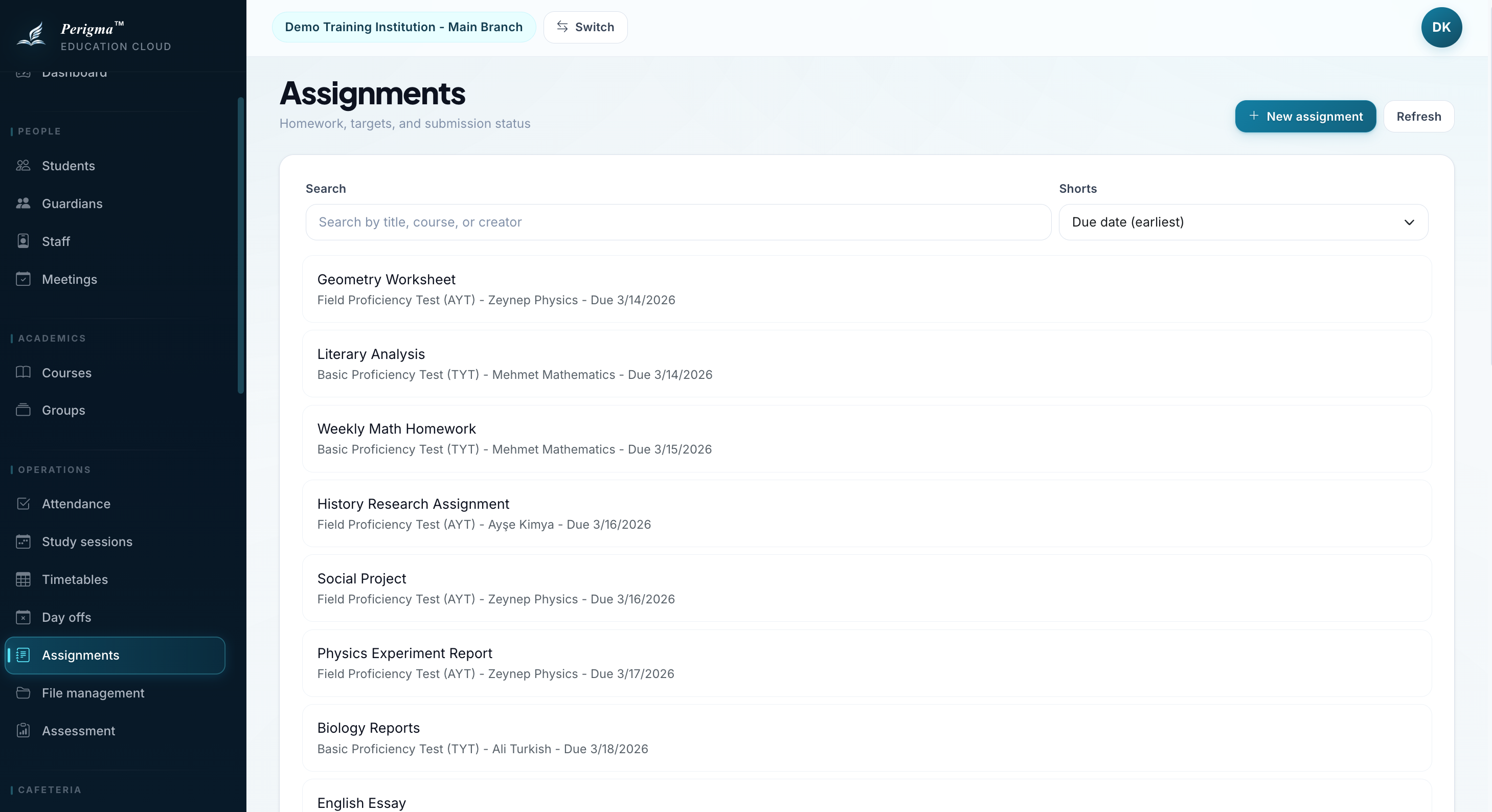
Image 1: Assignment list with filters and create button
Filter Options
- Course
- Subject
- Assignment Type
- Creator (teacher)
Creating a New Assignment
- Click "New Assignment"
- Fill in assignment details:
| Field | Required | Description |
|---|---|---|
| Title | Yes | Assignment title |
| Assignment Type | Yes | Category/type of assignment |
| Course | No | Related course |
| Subject | No | Related subject |
| Due Date | No | Final submission date |
- Click "Save"
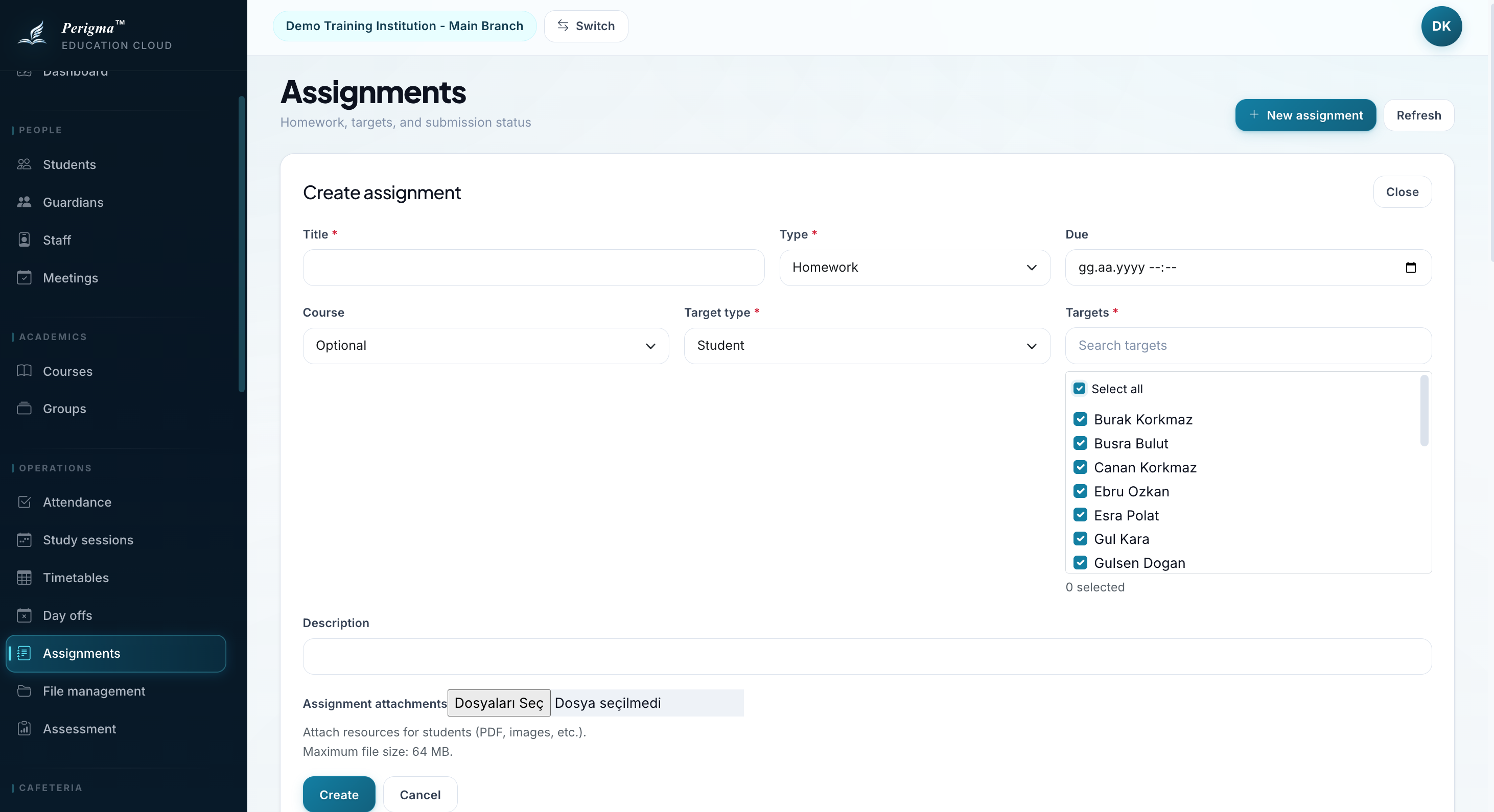
Image 2: New assignment form
Assignment Types
| Type | Description |
|---|---|
| Homework | Daily/weekly routine assignments |
| Reading | Book/article/resource reading tasks |
| Practice | Question-solving and exercises |
| Project | Long-term research/preparation work |
Assignment Targets (Who Receives It?)
After creating assignment, define recipients:
Individual Assignment
- Open assignment detail
- Click "Add Target"
- Select Student and choose student
Group Assignment
- Open assignment detail
- Click "Add Target"
- Select Group and choose group
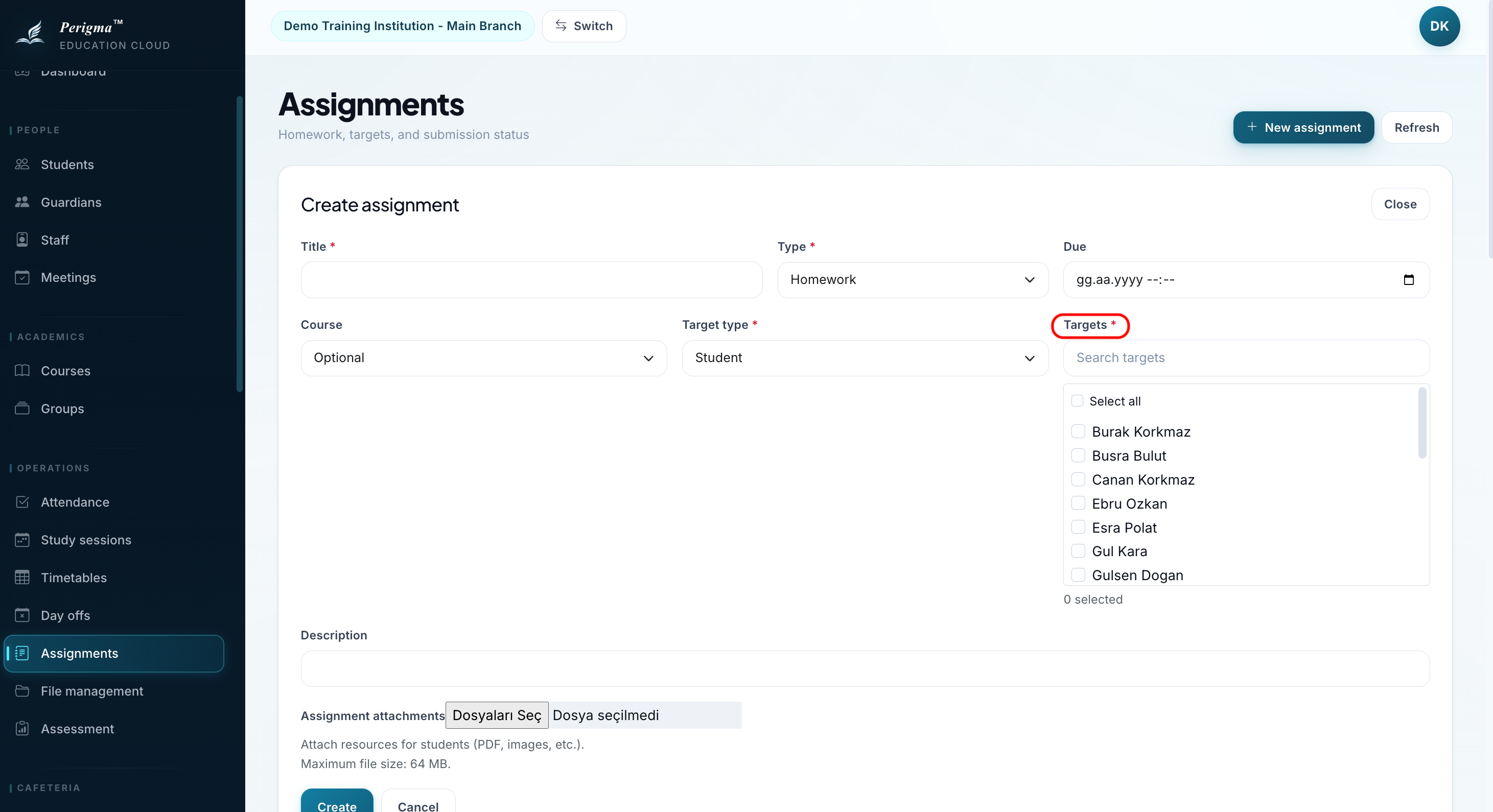
Image 3: Assignment target selection (individual/group)
File Attachments
You can attach files (PDF, image, document):
- Open assignment detail
- Click "Add File"
- Select file from device
Students can download and review attached files.
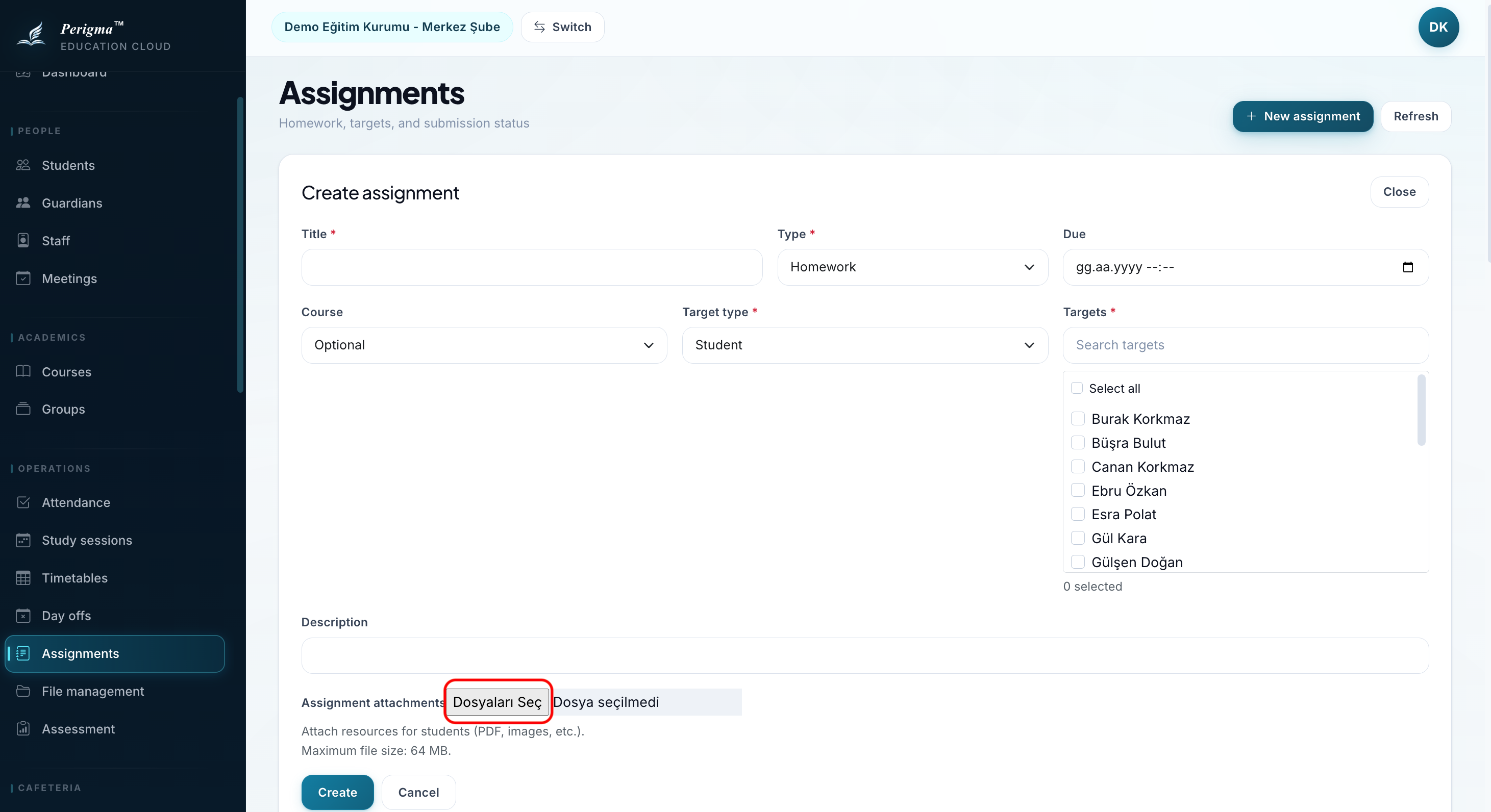
Image 4: Adding files to assignment
Submission Tracking
For each submission, you can see:
| Field | Description |
|---|---|
| Submission Date | Date student submitted |
| Submission Note | Student note |
| Score | Teacher score (optional) |
| Feedback | Written feedback |
| Reviewed By | Teacher who reviewed |
| Review Date | Feedback date |
Providing Feedback
- Open related submission
- Enter score (optional)
- Write feedback
- Click "Save"
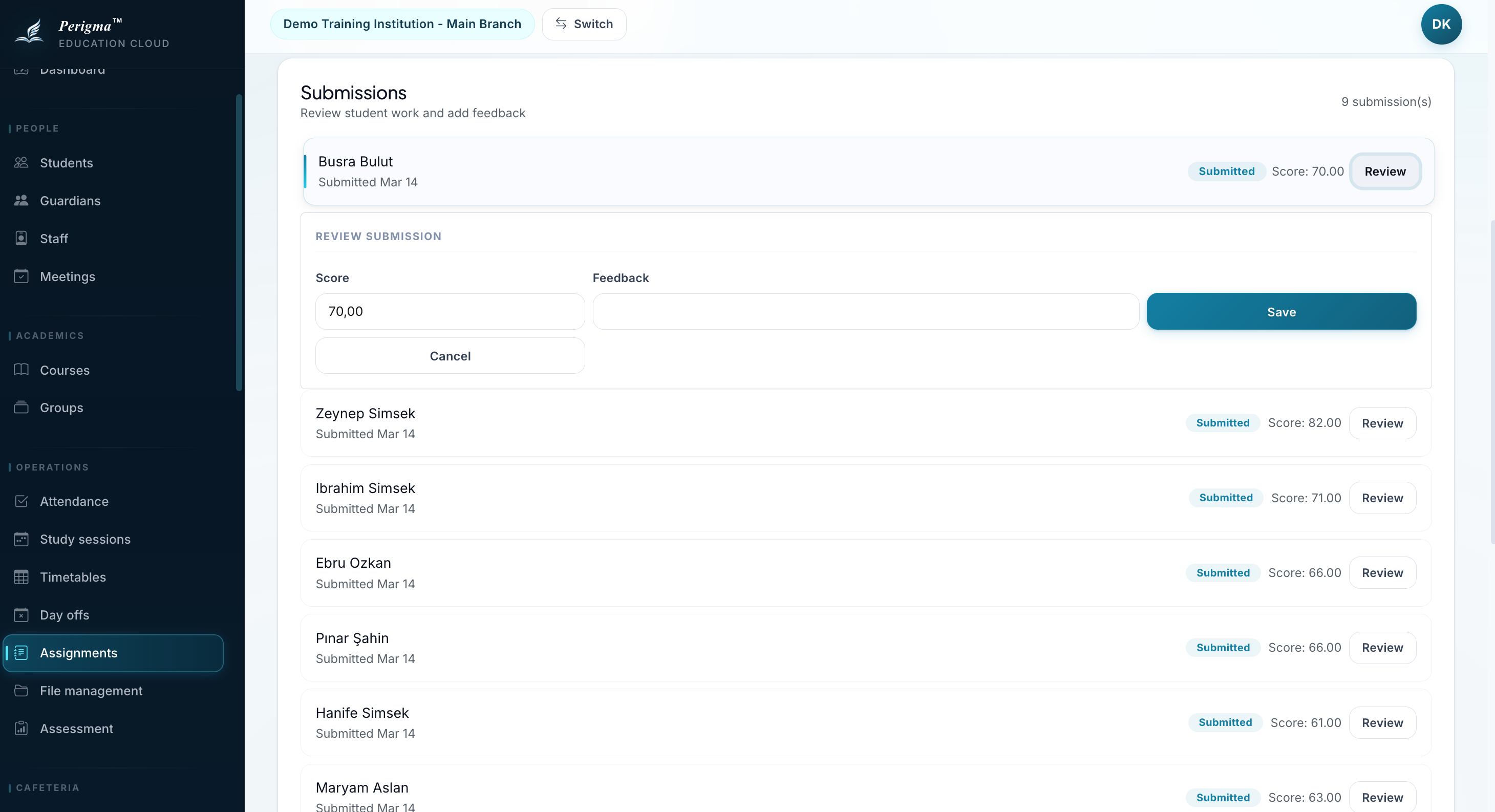
Image 5: Submission evaluation with score and feedback
Deleting an Assignment
Open assignment detail, click "Delete", and confirm.
Deleting an assignment permanently removes all submissions and feedback related to it.