Announcement Management
The announcements module lets you publish announcements institution-wide or to targeted audiences. Accessible to Administrator, Manager, and Teacher roles.
Announcement List
Go to Communication → Announcements from the left menu.
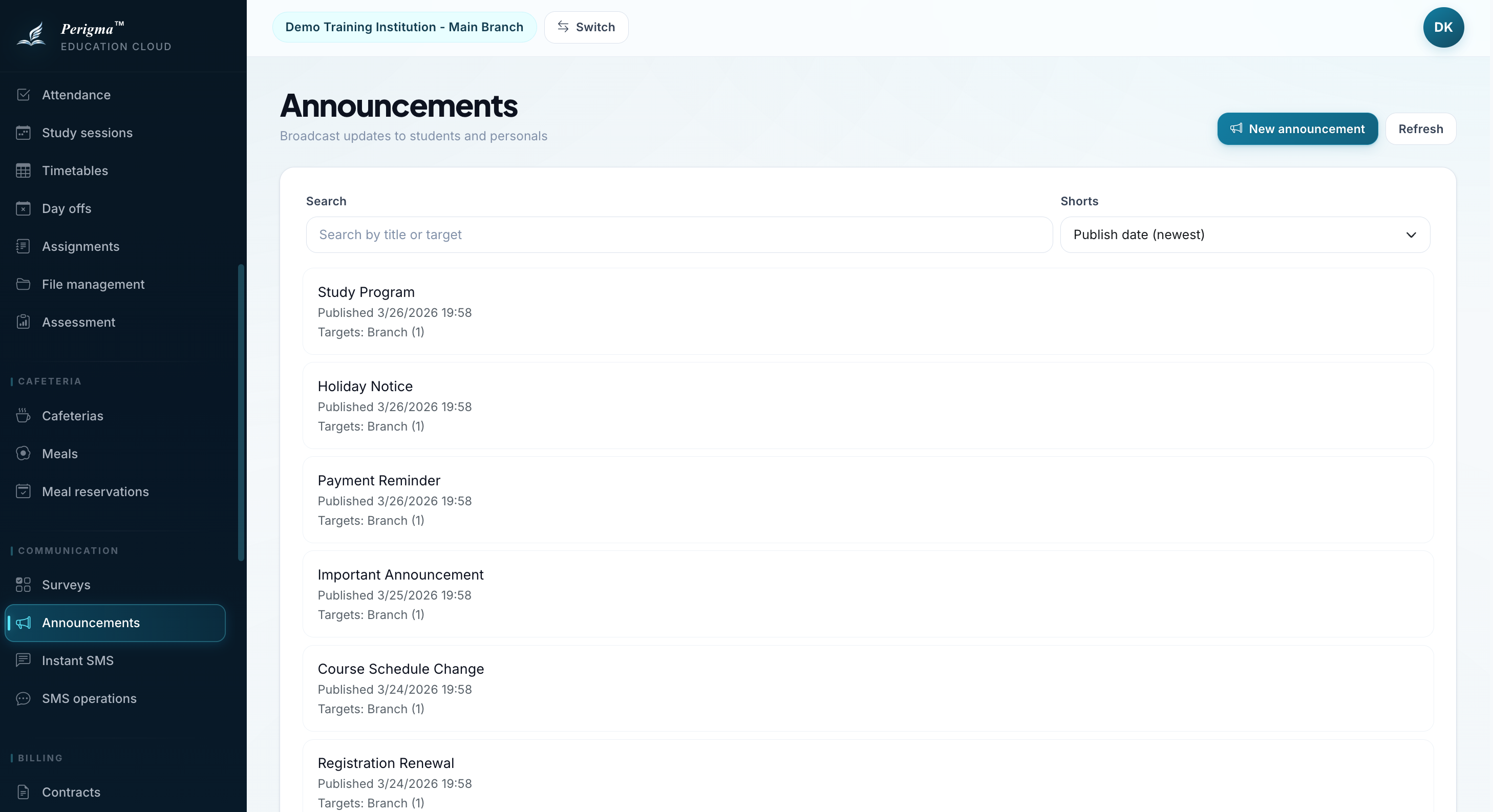
Image 1: Announcement list screen
Creating a New Announcement
- Click "New Announcement"
- Fill details:
| Field | Required | Description |
|---|---|---|
| Title | Yes | Announcement title |
| Content | Yes | Announcement text |
| Publish Date | Yes | Date/time it becomes visible |
| End Date | No | Date/time it is removed |
| Documents | No | PDFs, forms, or other files shared with the same audience |
- Click "Save"
Adding documents
- You can optionally attach documents while creating the announcement.
- Each document has its own title and description.
- The size limit is
200 MBper document. - These files are also created in
File Management. - Visibility is inherited from the announcement targets automatically.
- Auto-delete stays empty for announcement-created documents.
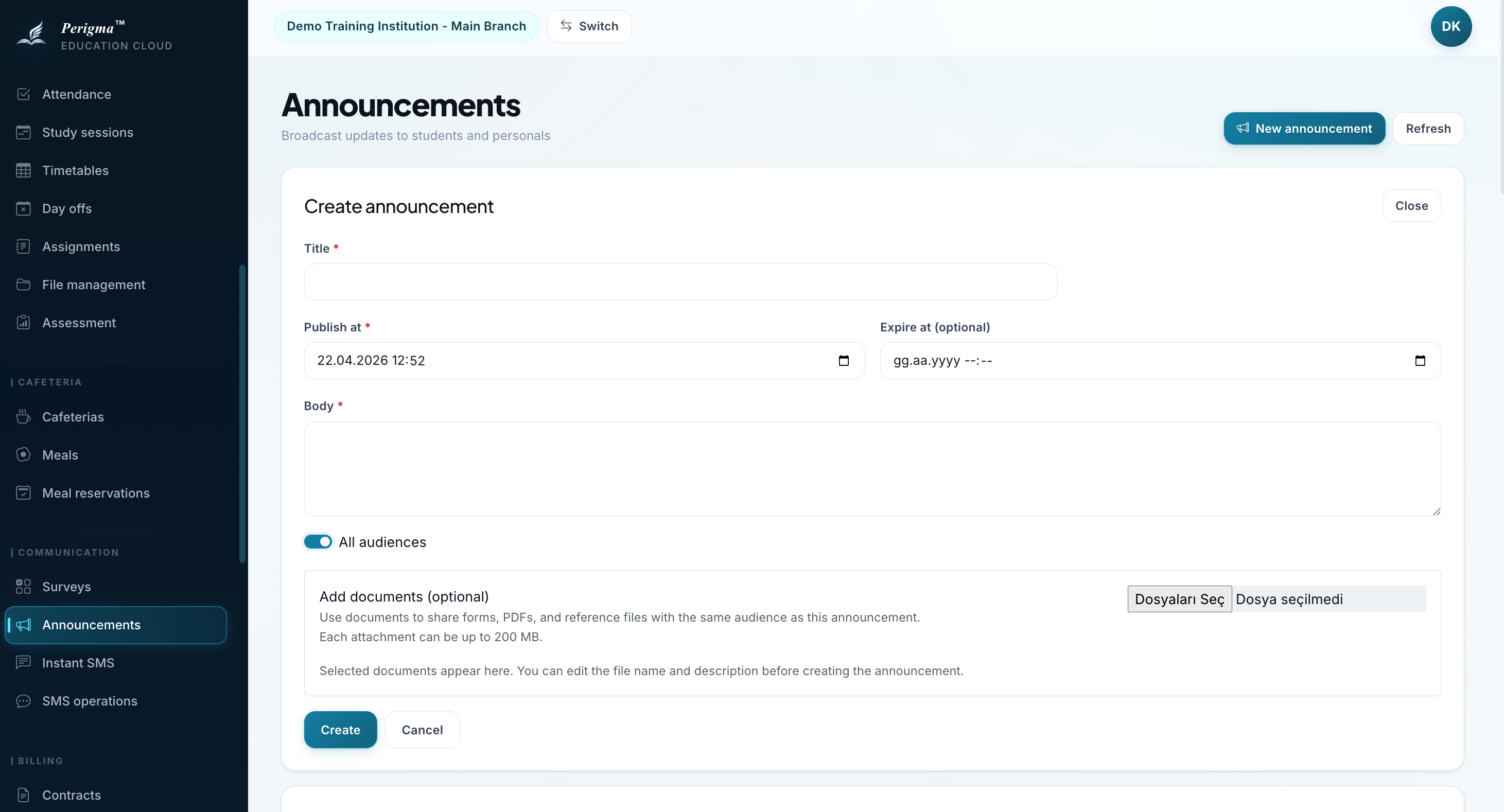
Image 2: New announcement form
Targeting Audience
You can define who receives the announcement.
Target Types
| Type | Description |
|---|---|
| All | Everyone in institution |
| Branch | People in selected branch |
| Group | Students/guardians in selected group |
| Student | Single student |
| Guardian | Single guardian |
| Staff | Staff members |
Adding Targets
- Open announcement detail
- Click "Add Target"
- Select target type and record
- Click "Save"
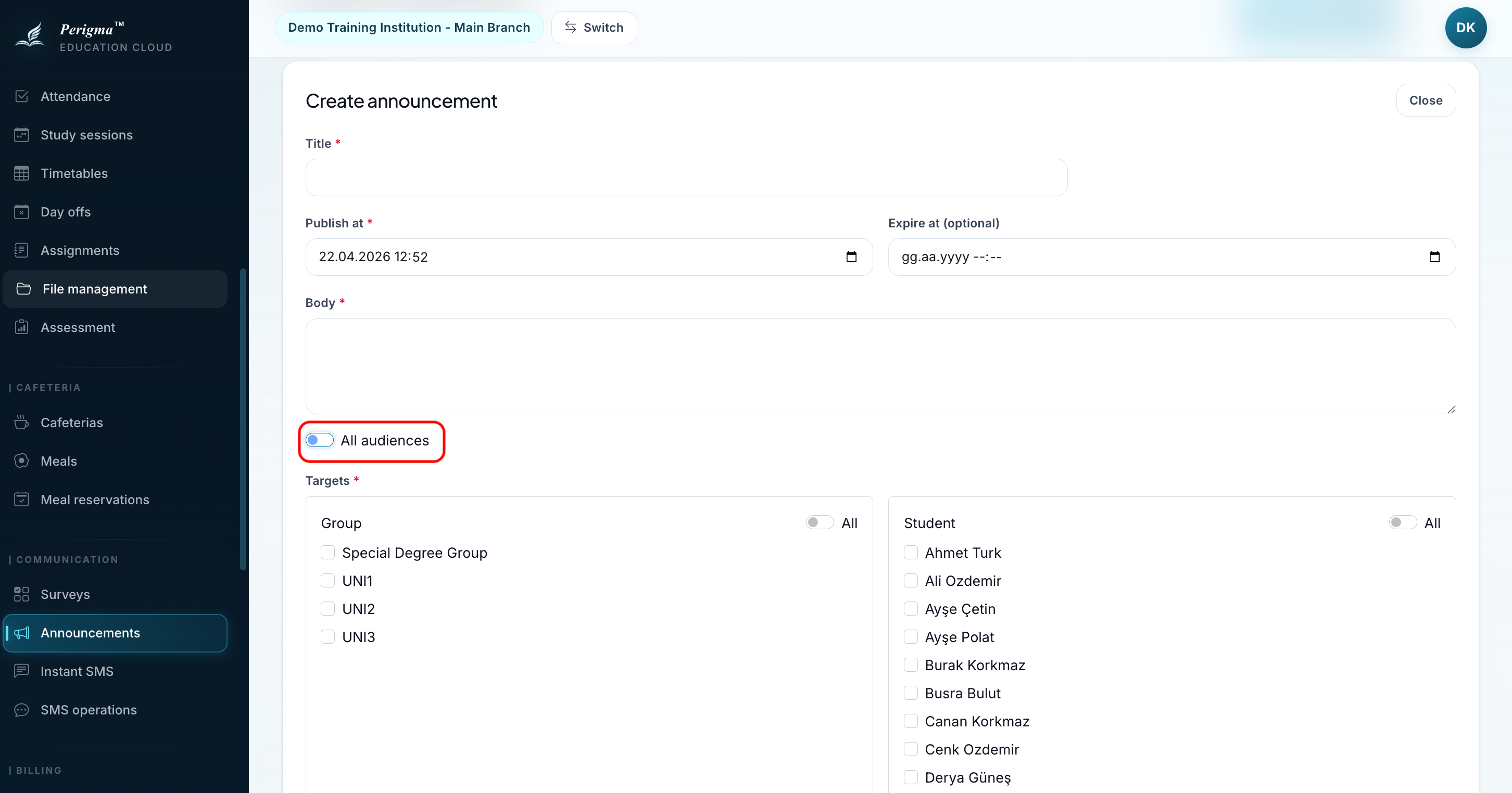
Image 3: Announcement target selection
Announcement Detail
On detail page:
- Title and content
- Publish/end dates
- Target audience list
- Attached documents that recipients can download from the app
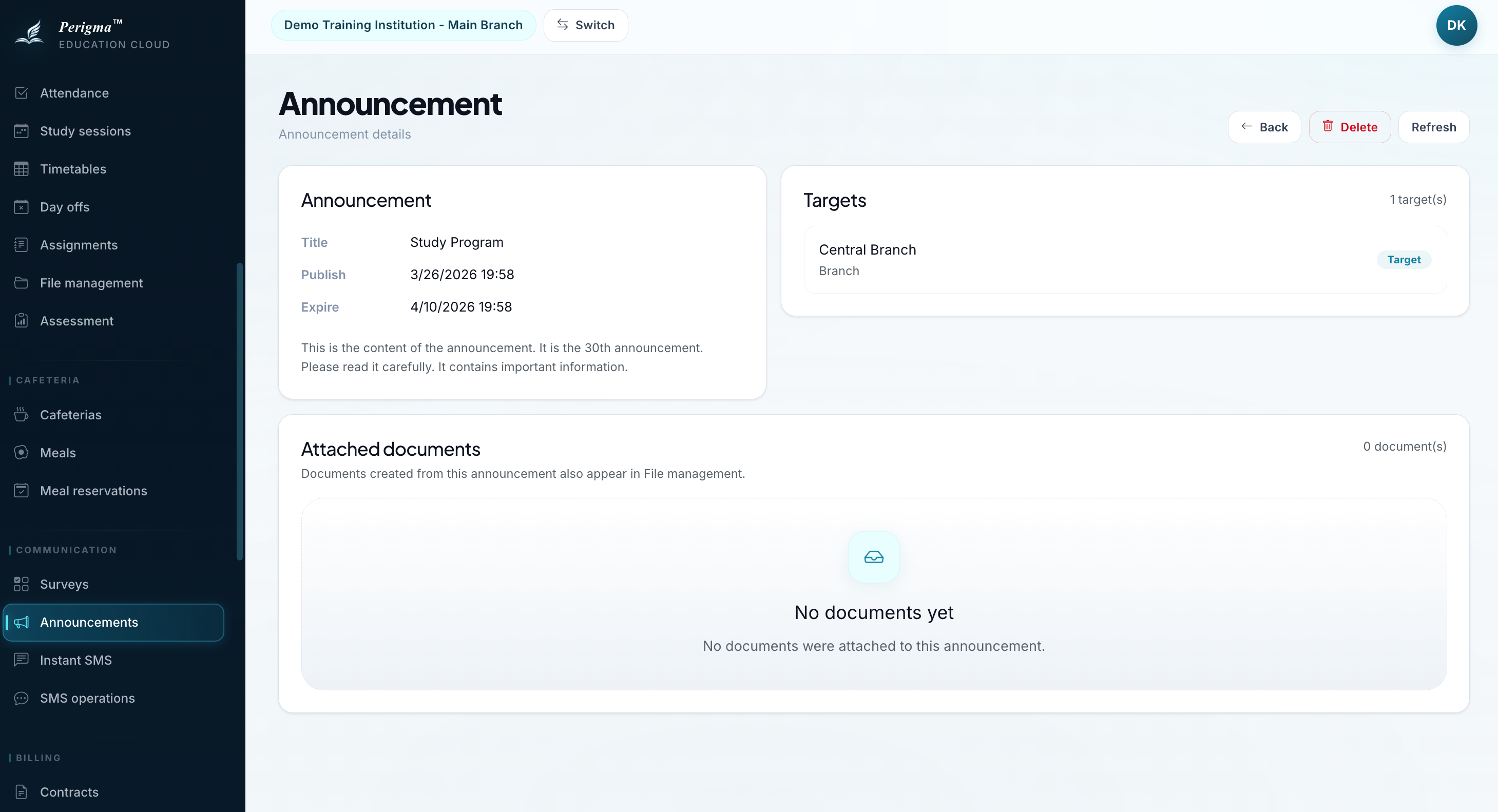
Image 4: Announcement detail page
Deleting an Announcement
- Open announcement detail
- Click "Delete"
- Confirm deletion
Documents created through that announcement are also deleted from both the database and physical storage.
Student/Guardian View
Students and guardians can view received announcements under My → Announcements or from dashboard announcement sections.
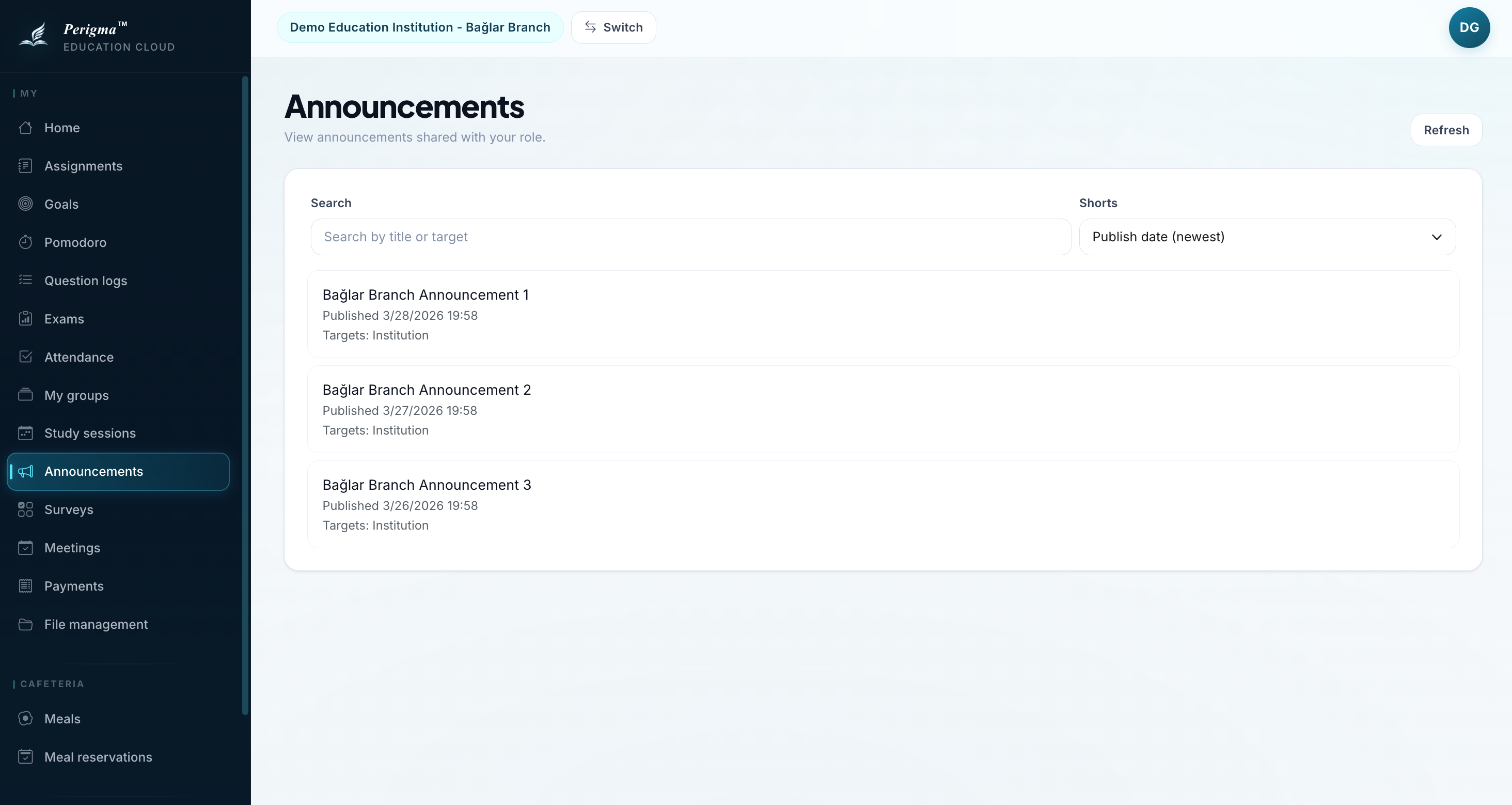
Image 5: Student/guardian announcement view