My Assignments
In this section, you can view assignments given to you, download attachments, and submit work (if submission is enabled).
Accessing Assignment List
Click My Assignments in the left menu.
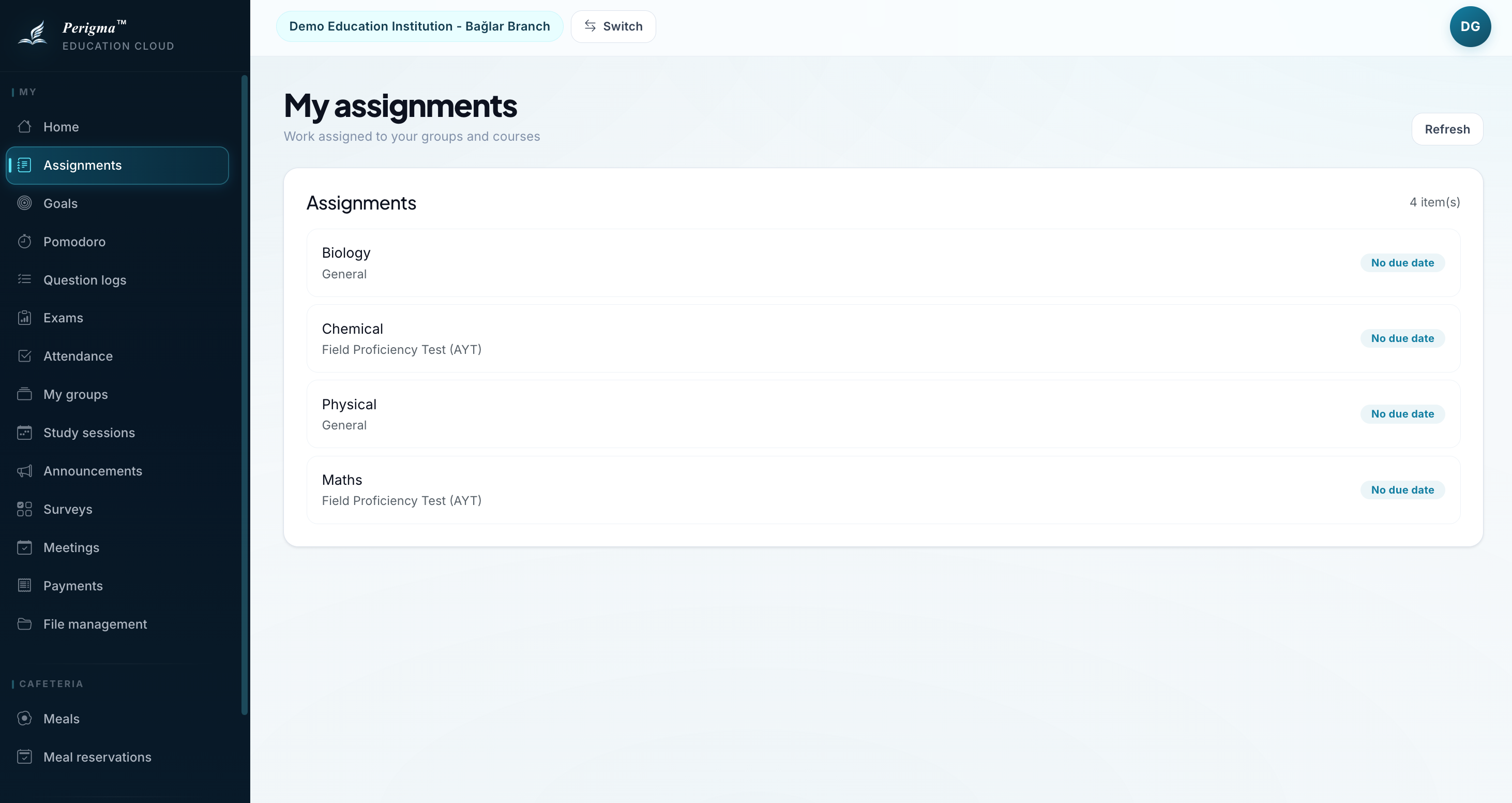
Image 1: Student assignment list
Assignment Card Details
Each assignment card includes:
| Field | Description |
|---|---|
| Title | Assignment name |
| Course | Course of the assignment |
| Group | Group assigned |
| Due Date | Final submission date |
| Files | Whether there are attachments |
| Status | Submitted or not (if submission is required) |
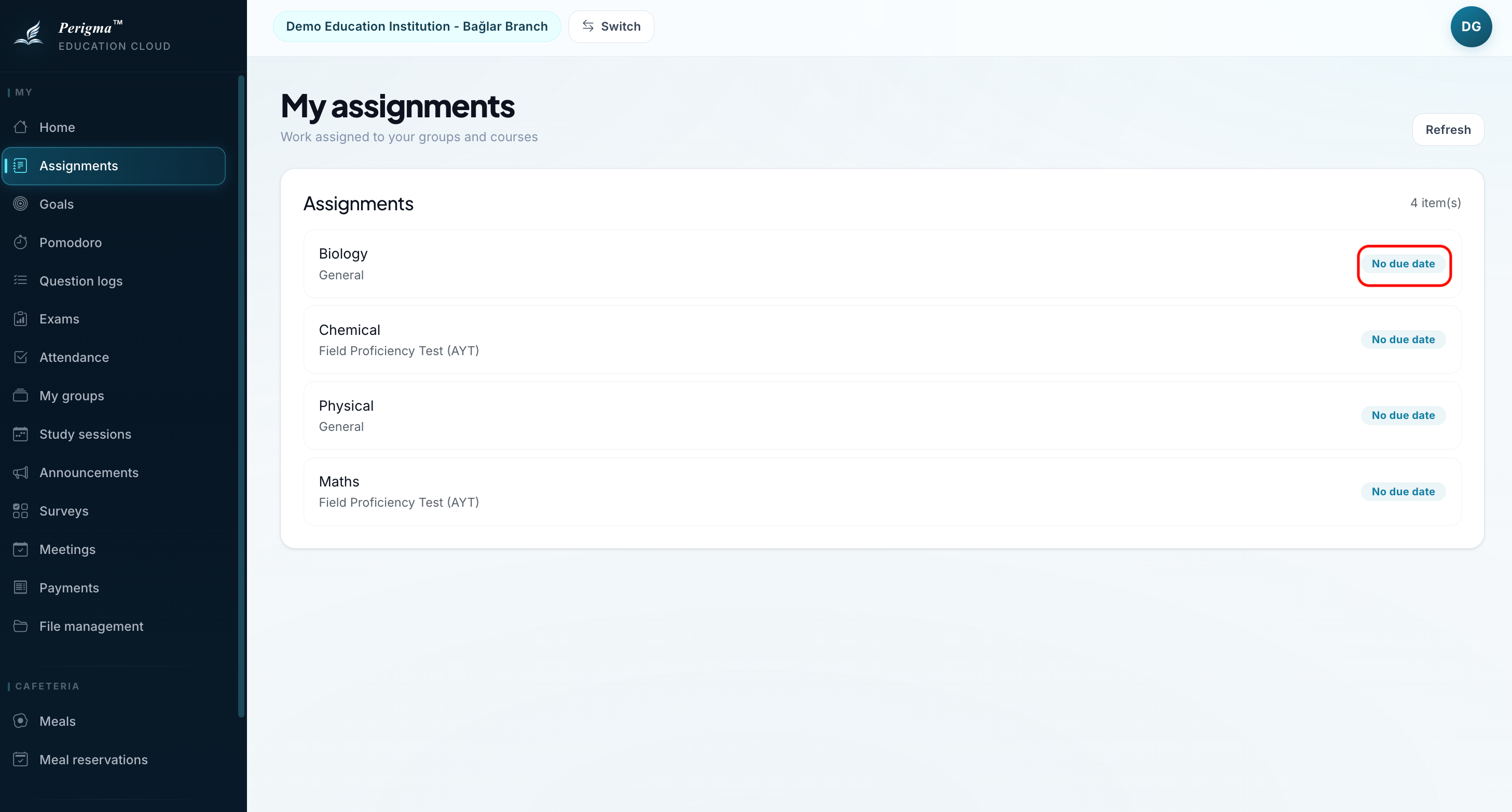
Image 2: Assignment card details
Filtering Assignments
You can filter assignments by status:
- Active: Not yet overdue
- Submitted: Already submitted assignments
- Overdue: Due date has passed
- All: All assignments
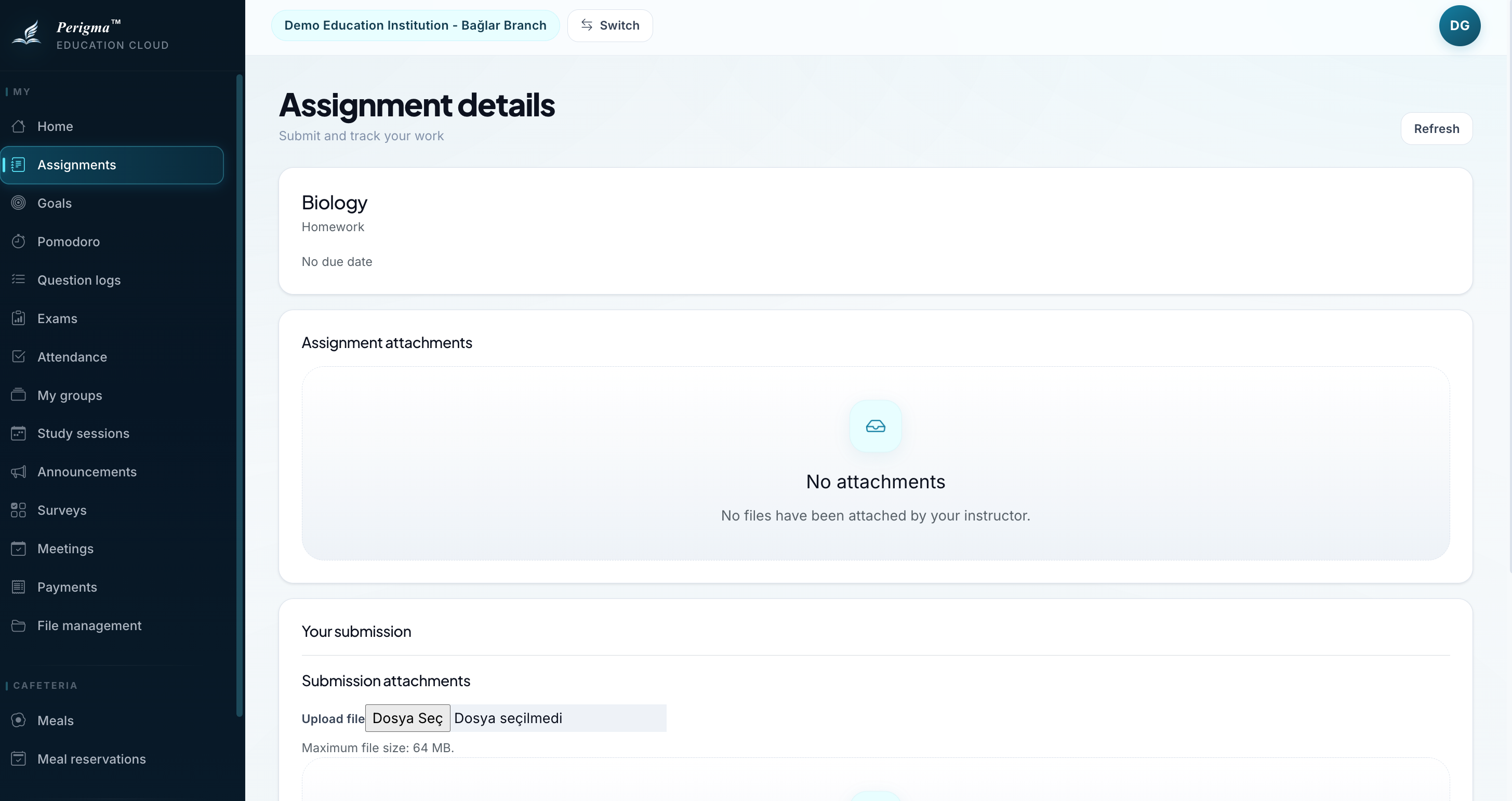
Image 3: Assignment filter options
Assignment Detail
When you click an assignment, the detail page opens:
- Description: Detailed explanation from your teacher
- Attachments: Downloadable files (PDF, image, etc.)
- Submission Area: File upload (if enabled)
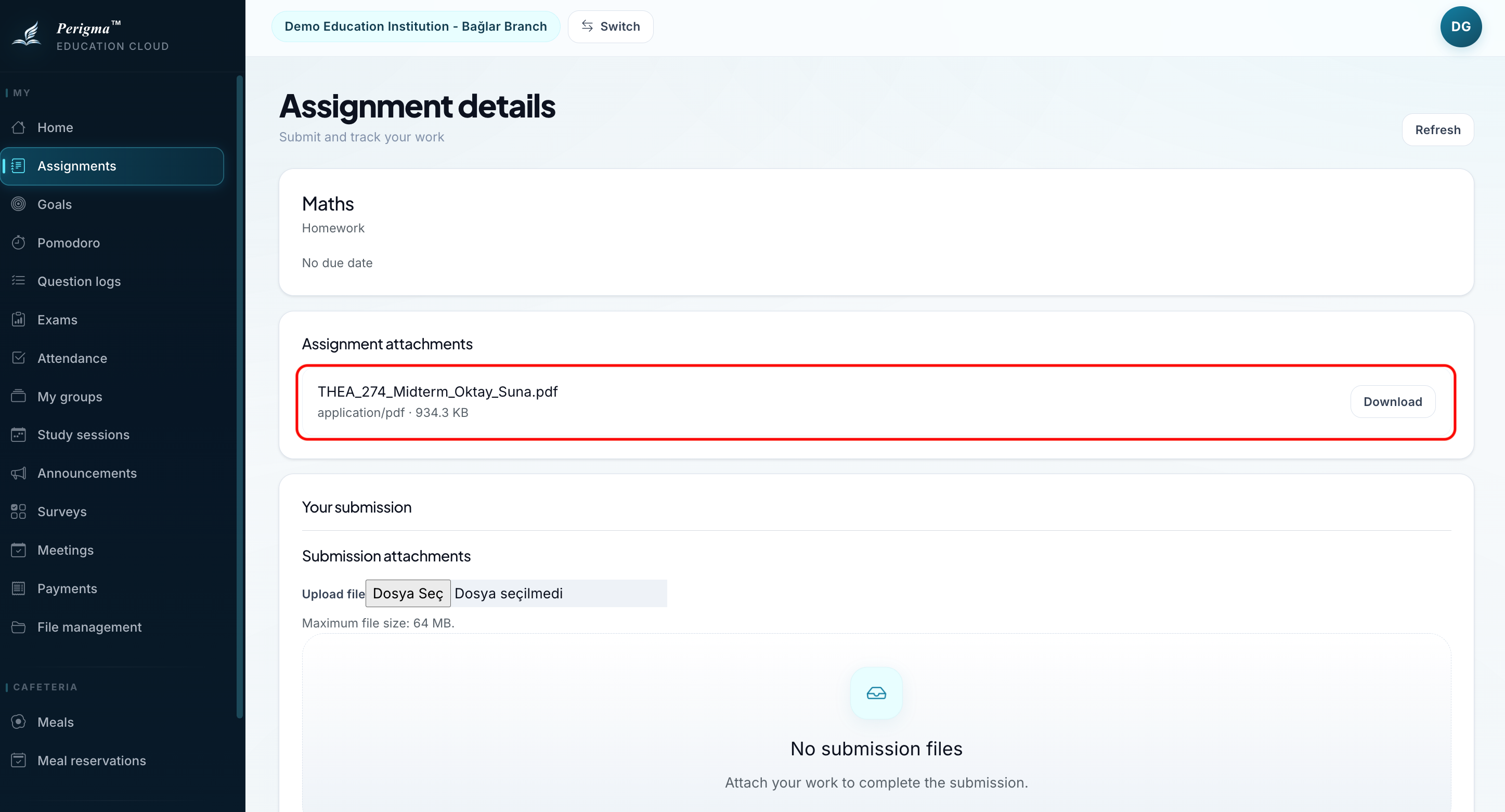
Image 4: Assignment detail page
Downloading Files
To download teacher attachments:
- Open assignment detail page
- Click a file in the Files section
- The file is downloaded to your device
Image 5: Assignment file download
Submitting an Assignment
info
Assignment submission is available only if enabled by the teacher.
- Open assignment detail page
- Click "Upload File"
- Select a file from your device
- Click "Submit"
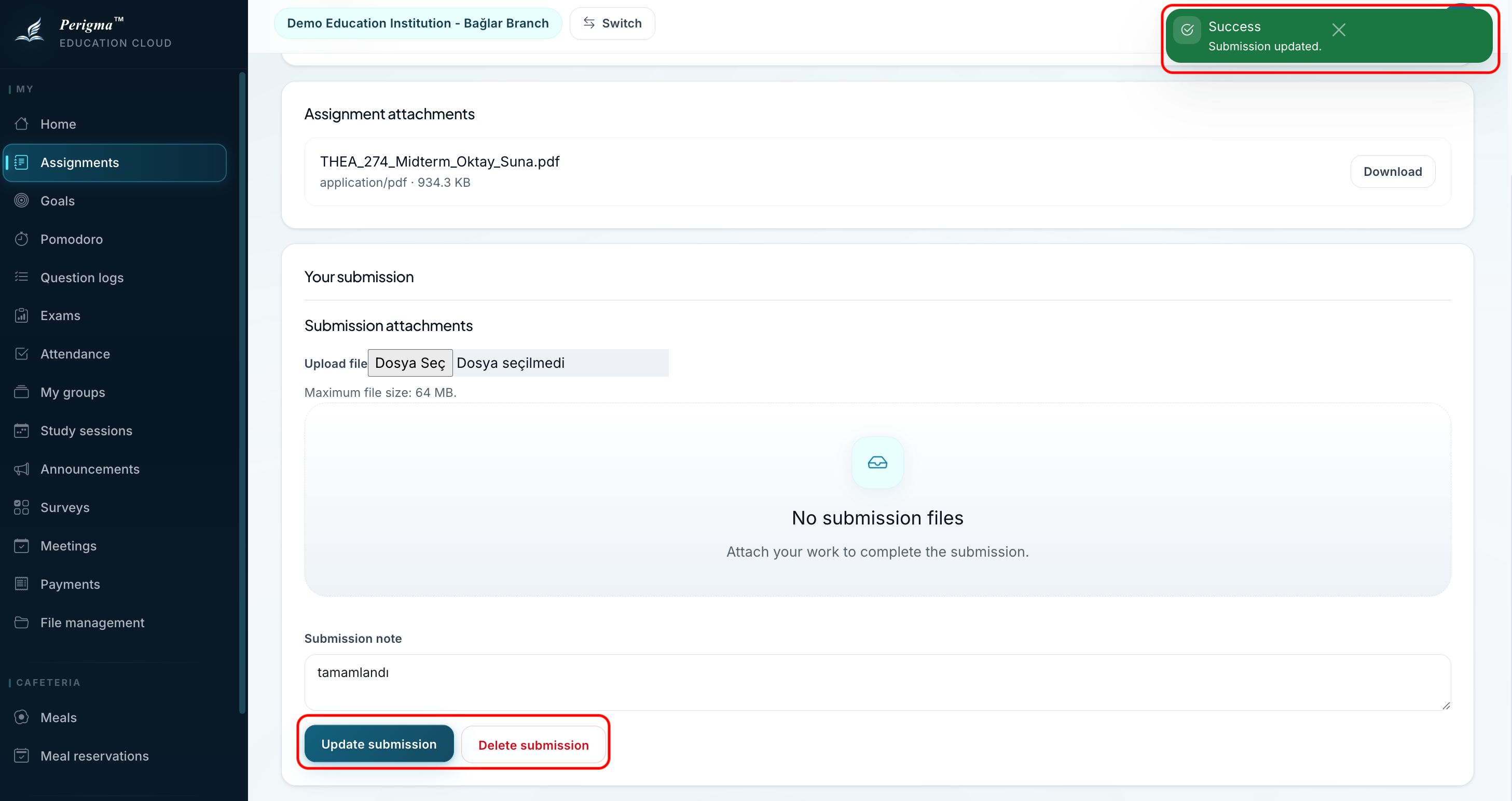
Image 6: Assignment submission
Submitted assignments move to Submitted status.