My Payments
In this section, you can view installments for your active contracts and track payment status.
Accessing Payments Page
Click My Payments in the left menu.
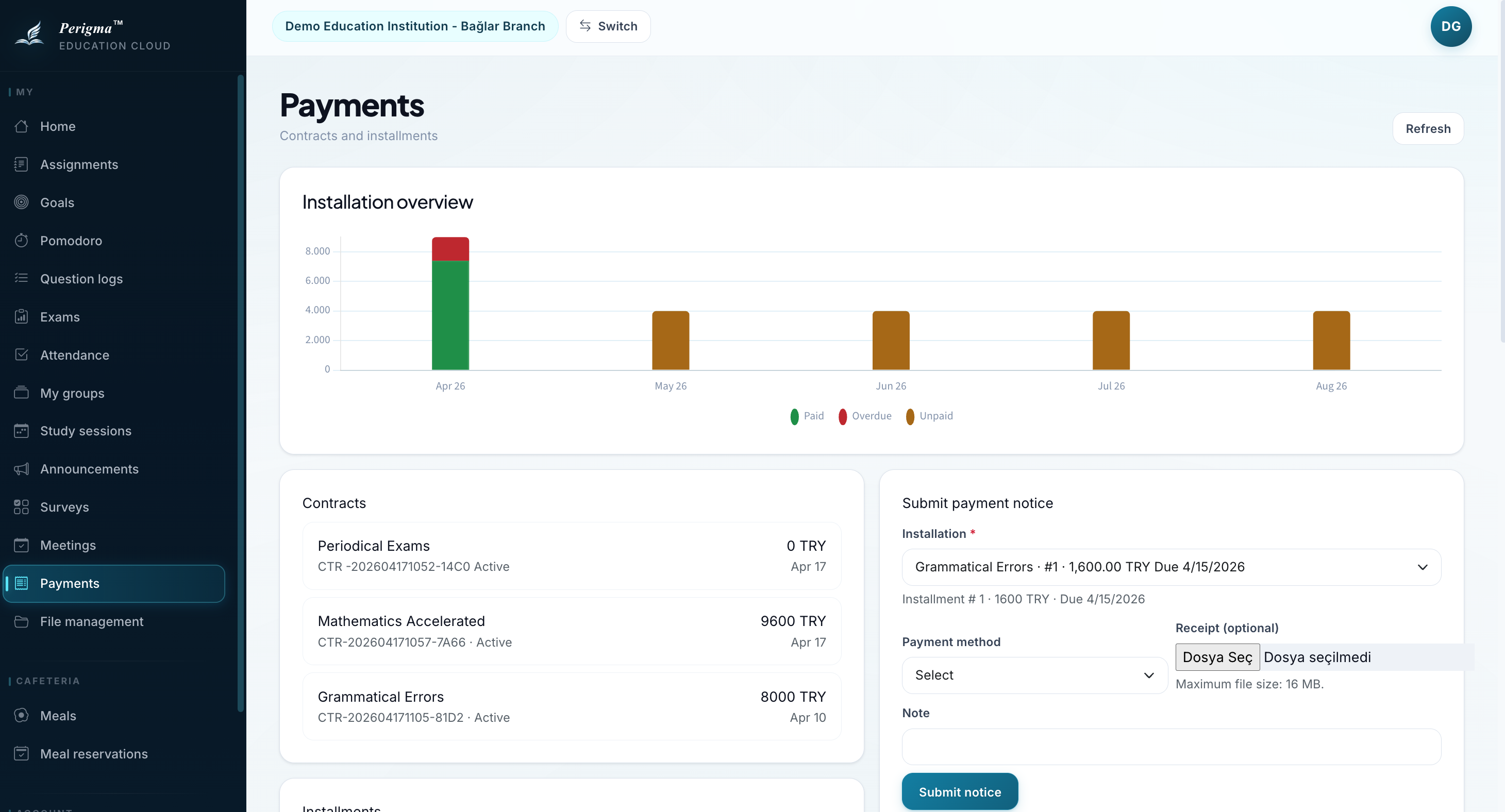
Image 1: My Payments page
Contract Information
Your active contracts are listed with:
| Field | Description |
|---|---|
| Product/Package | Enrolled package name |
| Total Amount | Contract total |
| Paid | Amount paid so far |
| Remaining | Outstanding amount |
| Status | Contract status |
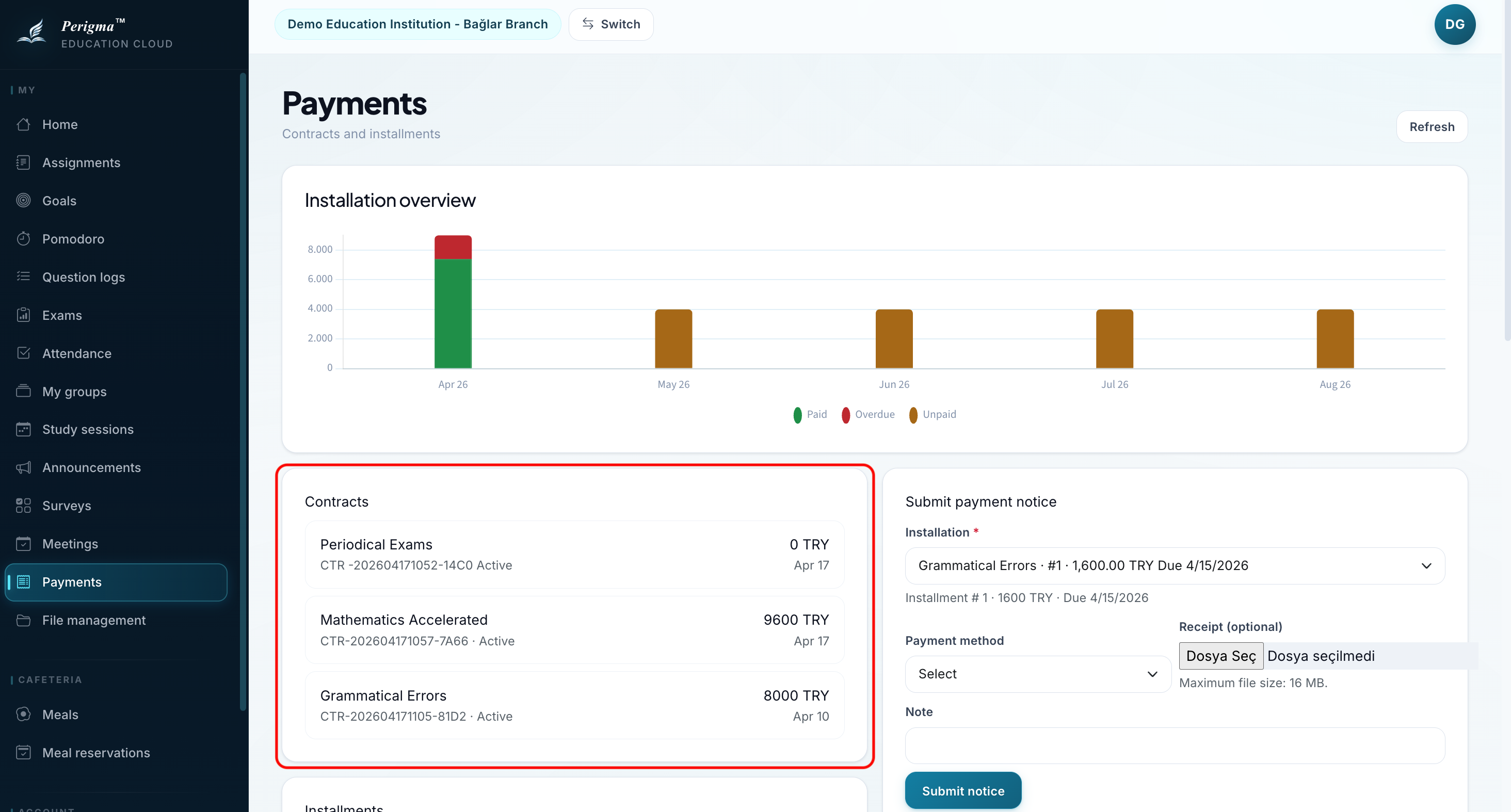
Image 2: Contract summary card
Installment List
Installments are listed per contract:
| Installment | Due Date | Amount | Status |
|---|---|---|---|
| 1 | 15.09.2024 | TRY 7,500 | Paid |
| 2 | 15.10.2024 | TRY 7,500 | Paid |
| 3 | 15.11.2024 | TRY 7,500 | Pending |
| 4 | 15.12.2024 | TRY 7,500 | Pending |
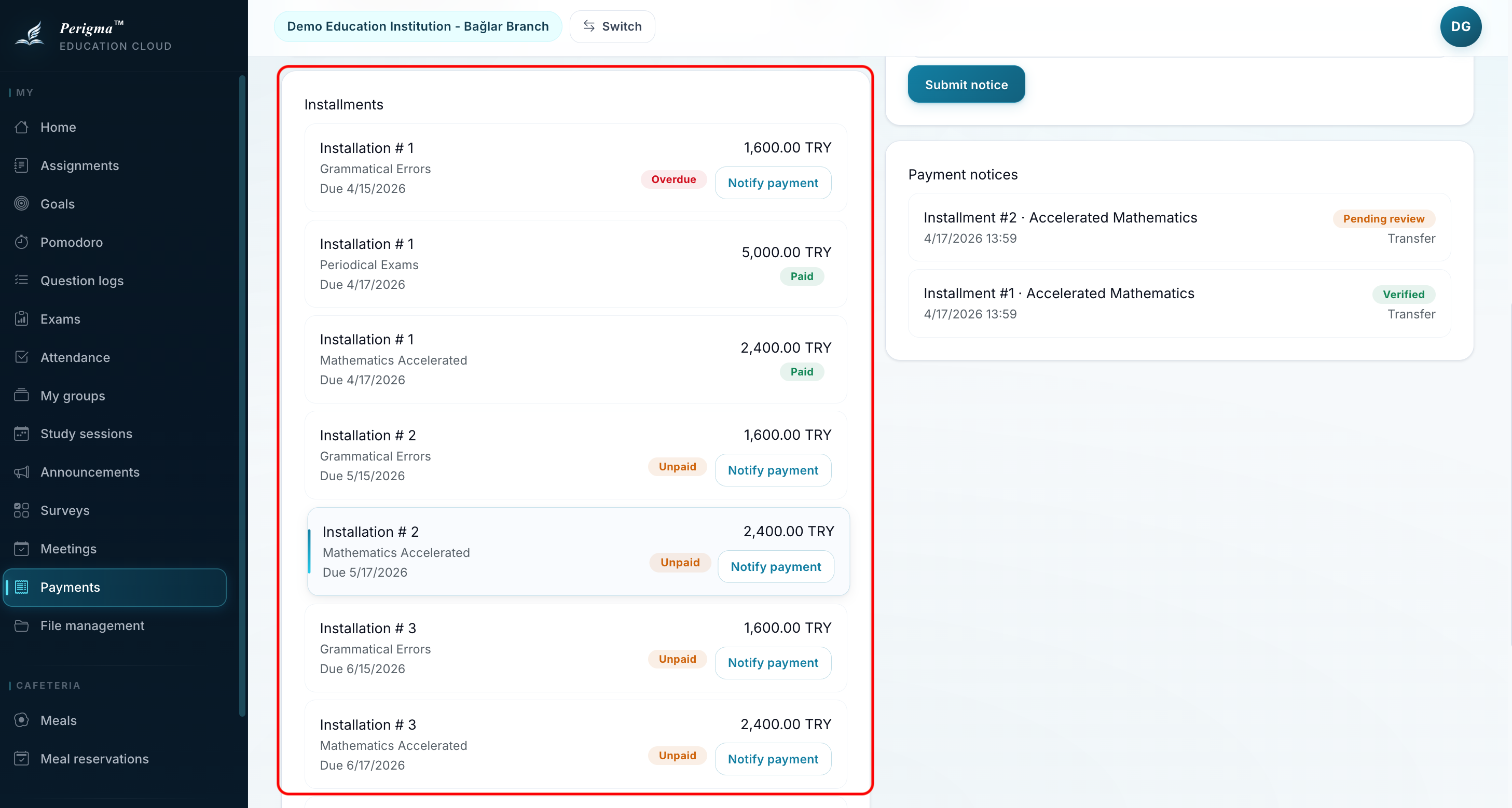
Image 3: Installment list
Installment Statuses
| Status | Description |
|---|---|
| Paid | Installment paid and approved |
| Pending | Due date not reached yet |
| Overdue | Due date passed and not paid |
| Awaiting Approval | Payment notice submitted, pending review |
Sending Payment Notice
info
Payment notice lets you inform the institution of a completed payment by uploading a receipt.
- Select the installment to pay
- Click "Send Payment Notice"
- Select payment method (Wire Transfer, EFT, Cash)
- Upload receipt image/file
- Click "Send"
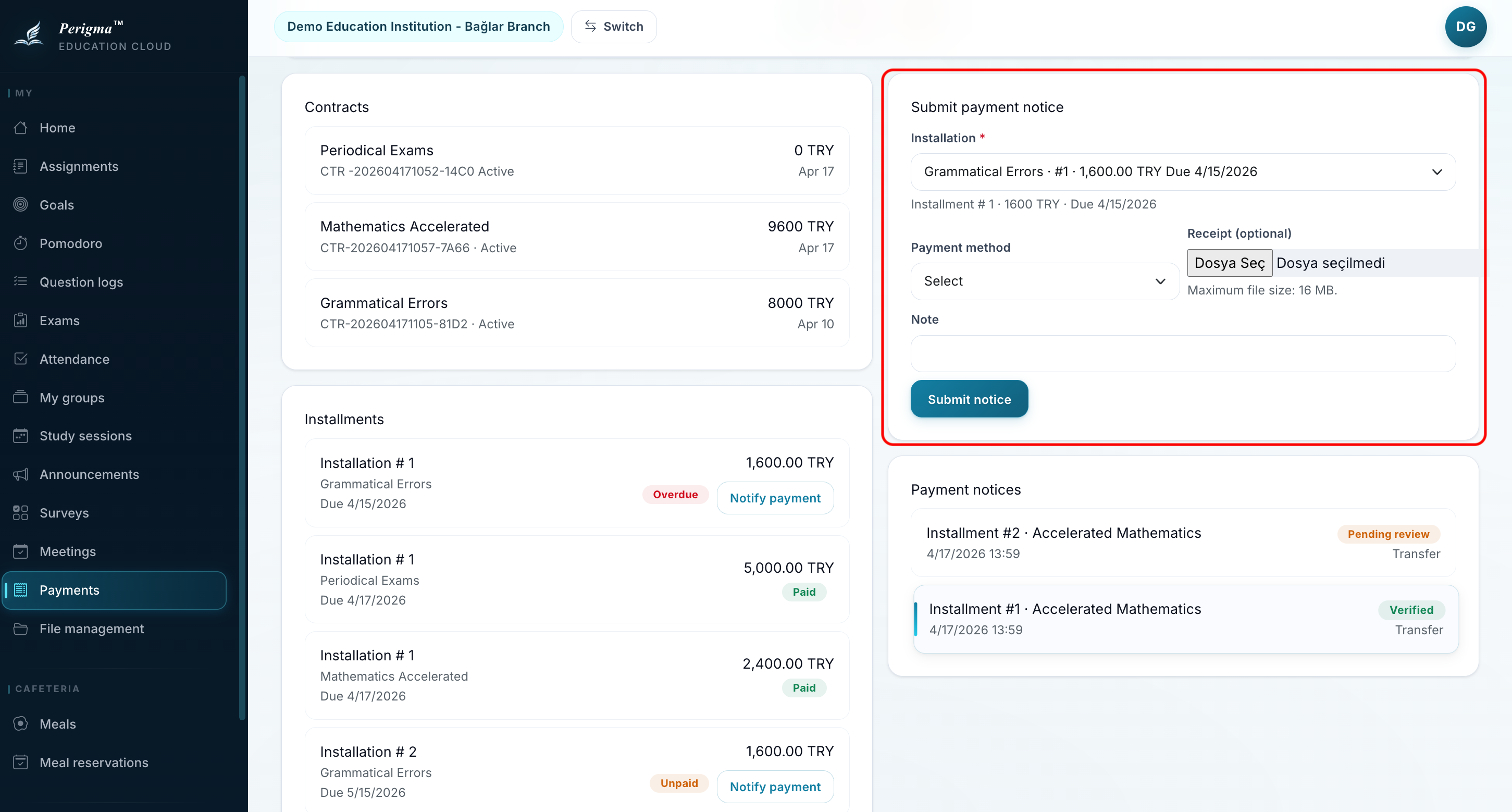
Image 4: Payment notice submission form
After Submission
- Your notice is sent to the institution
- Once approved, installment status becomes Paid
- If rejected, you can submit again
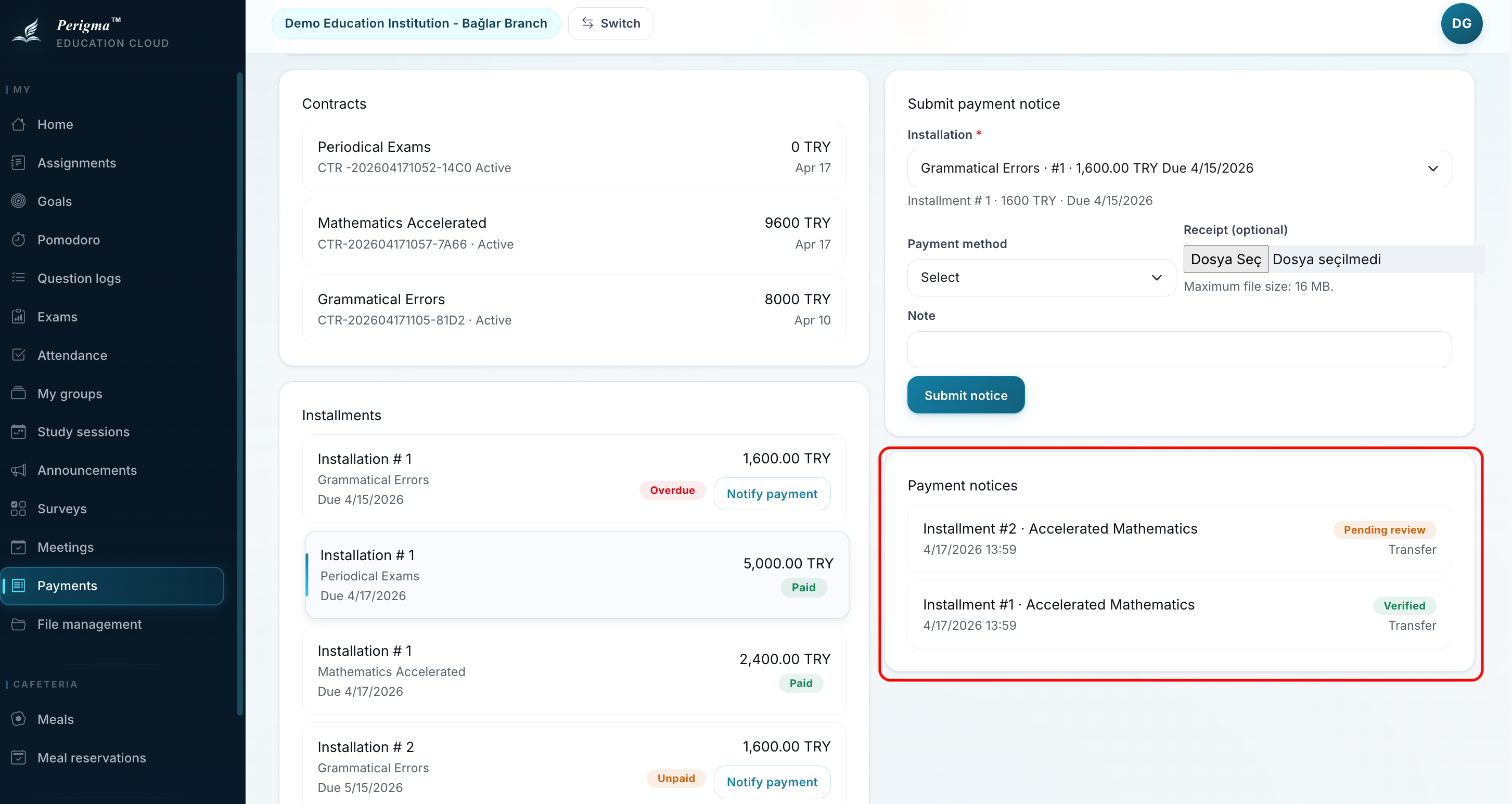
Image 5: Payment notice status
Overdue Installments
For overdue installments:
- They are highlighted in red
- You may receive SMS/email reminders
- It is recommended to complete payment as soon as possible
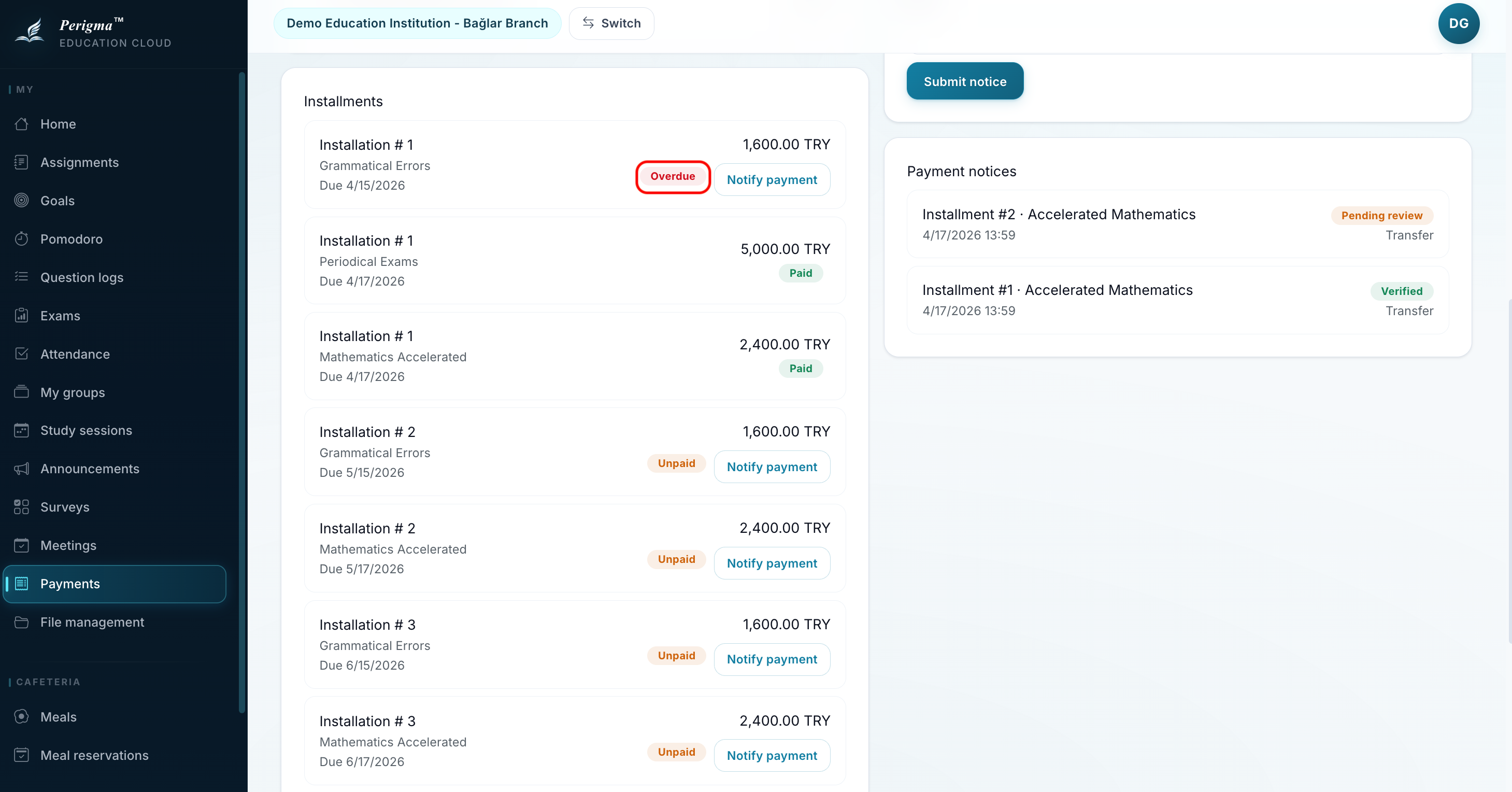
Image 6: Overdue installment warning