My Question Logs
The question logs section helps you record solved questions and track your progress.
Accessing Question Logs
Click My Question Logs in the left menu.
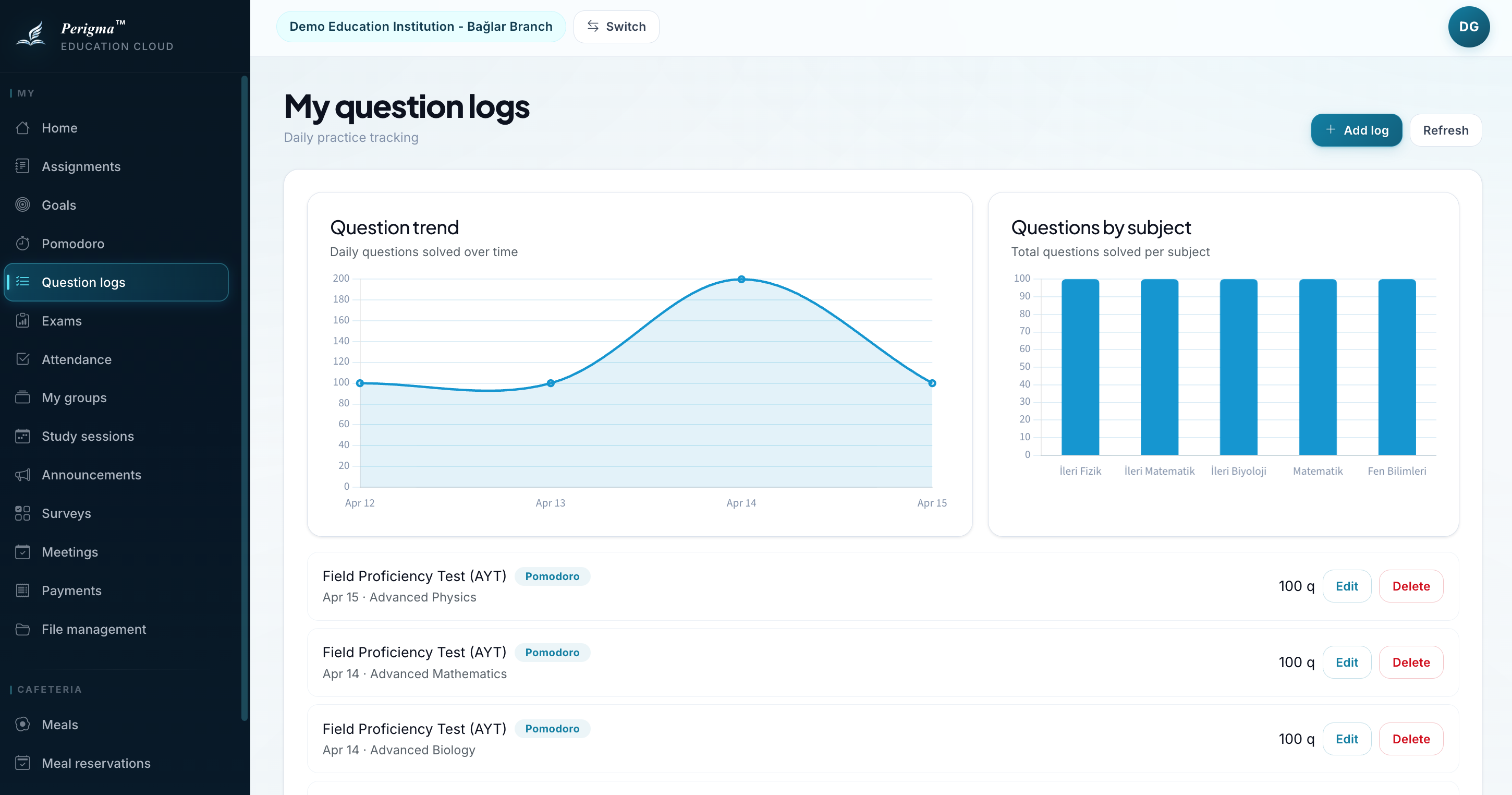
Image 1: Question logs main page
Why Keep Question Logs?
- Track progress: See daily/weekly solved counts
- Identify weak points: Analyze topics with higher error rates
- Follow goals: Check whether you reached your question targets
- Stay motivated: Visualize your progress
Adding a New Record
- Click "Add Record"
- Fill in fields:
| Field | Required | Description |
|---|---|---|
| Date | Yes | Date you solved questions |
| Course | Yes | Related course |
| Subject | No | Topic name |
| Question Count | Yes | Total solved questions |
| Correct | Yes | Correct answers |
| Incorrect | Yes | Incorrect answers |
| Source | No | Book/mock source |
- Click "Save"
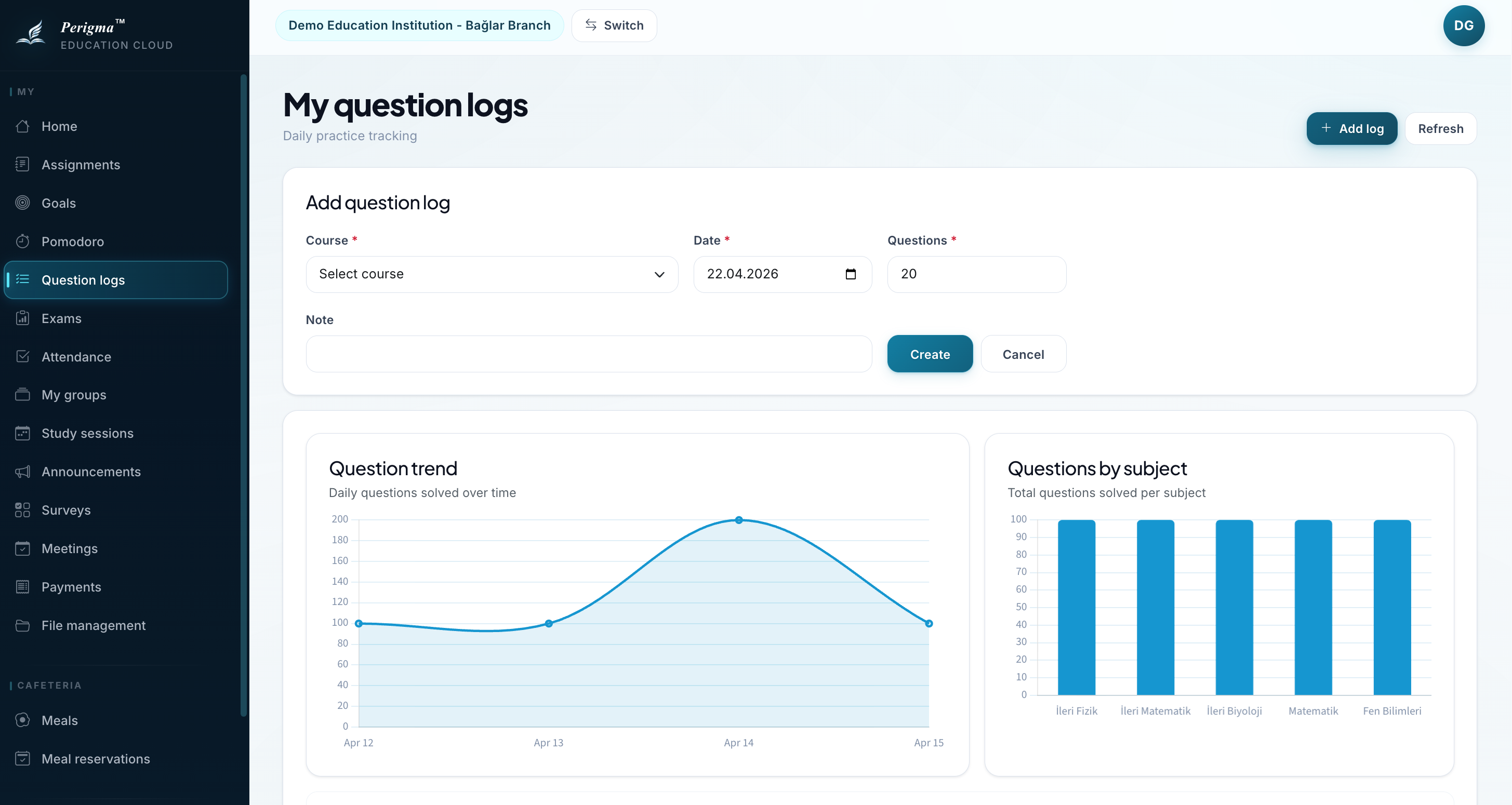
Image 2: Add question log form
Record List
You can list all records by date:
| Date | Course | Subject | Total | Correct | Incorrect | Net |
|---|---|---|---|---|---|---|
| 15.03.2025 | Mathematics | Derivative | 40 | 32 | 6 | 30.5 |
| 15.03.2025 | Physics | Optics | 25 | 20 | 3 | 19.25 |
| 14.03.2025 | Chemistry | Organic | 30 | 24 | 4 | 23 |
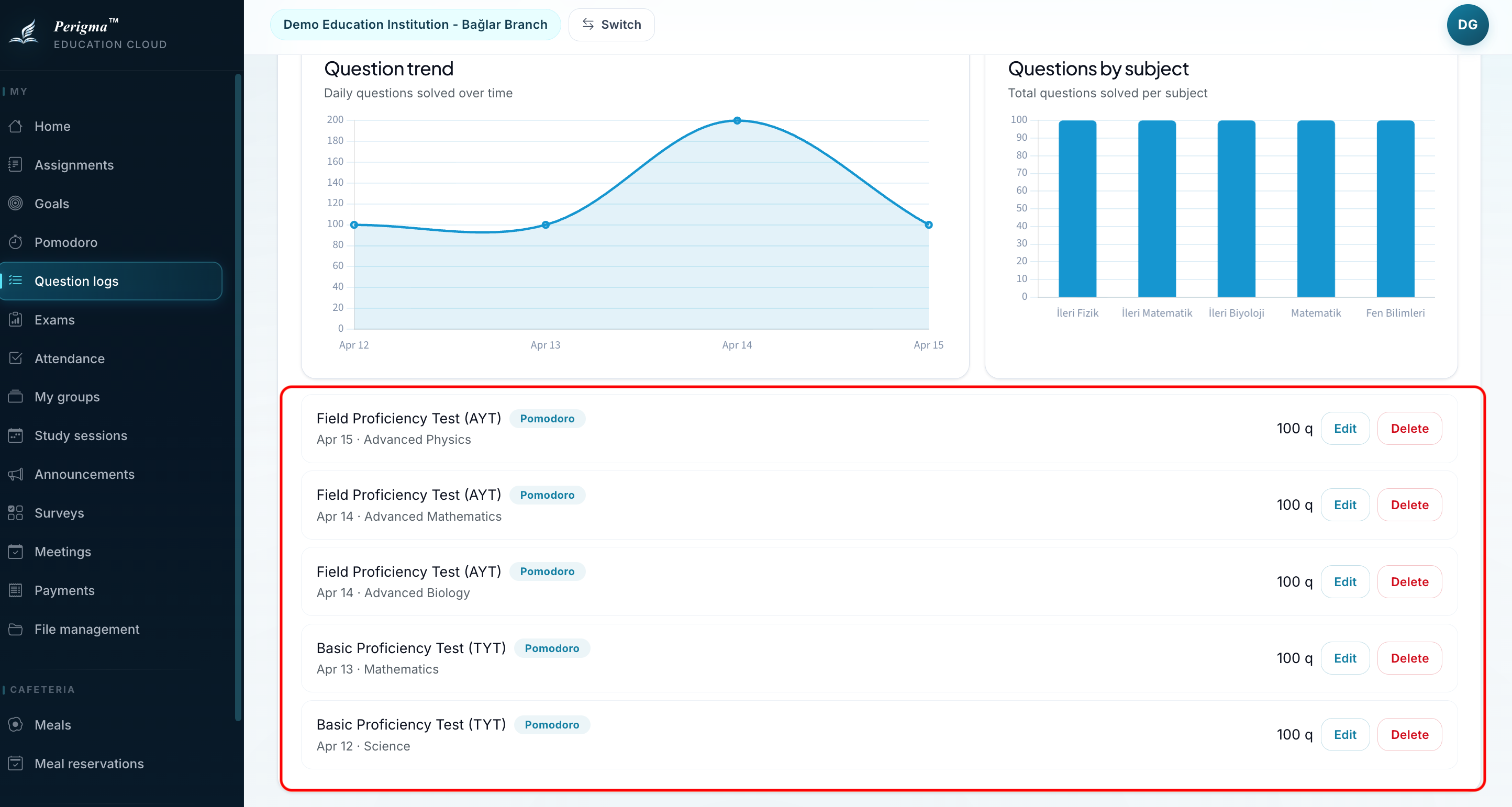
Image 3: Question log list
Charts and Analytics
Daily Chart
Bar chart showing solved questions in the last 7 days.
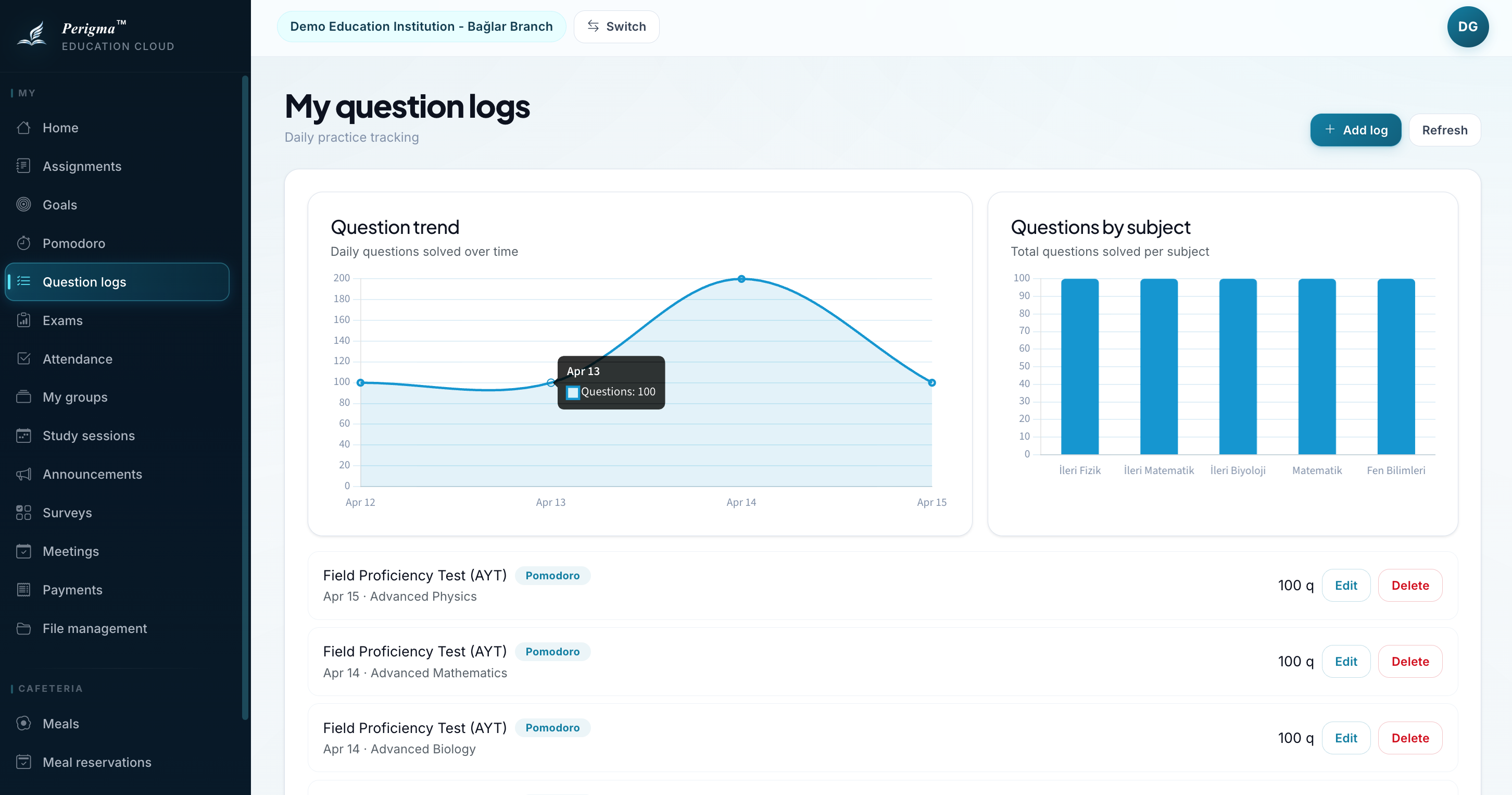
Image 4: Daily question chart
Course Distribution
Pie chart showing solved questions per course.
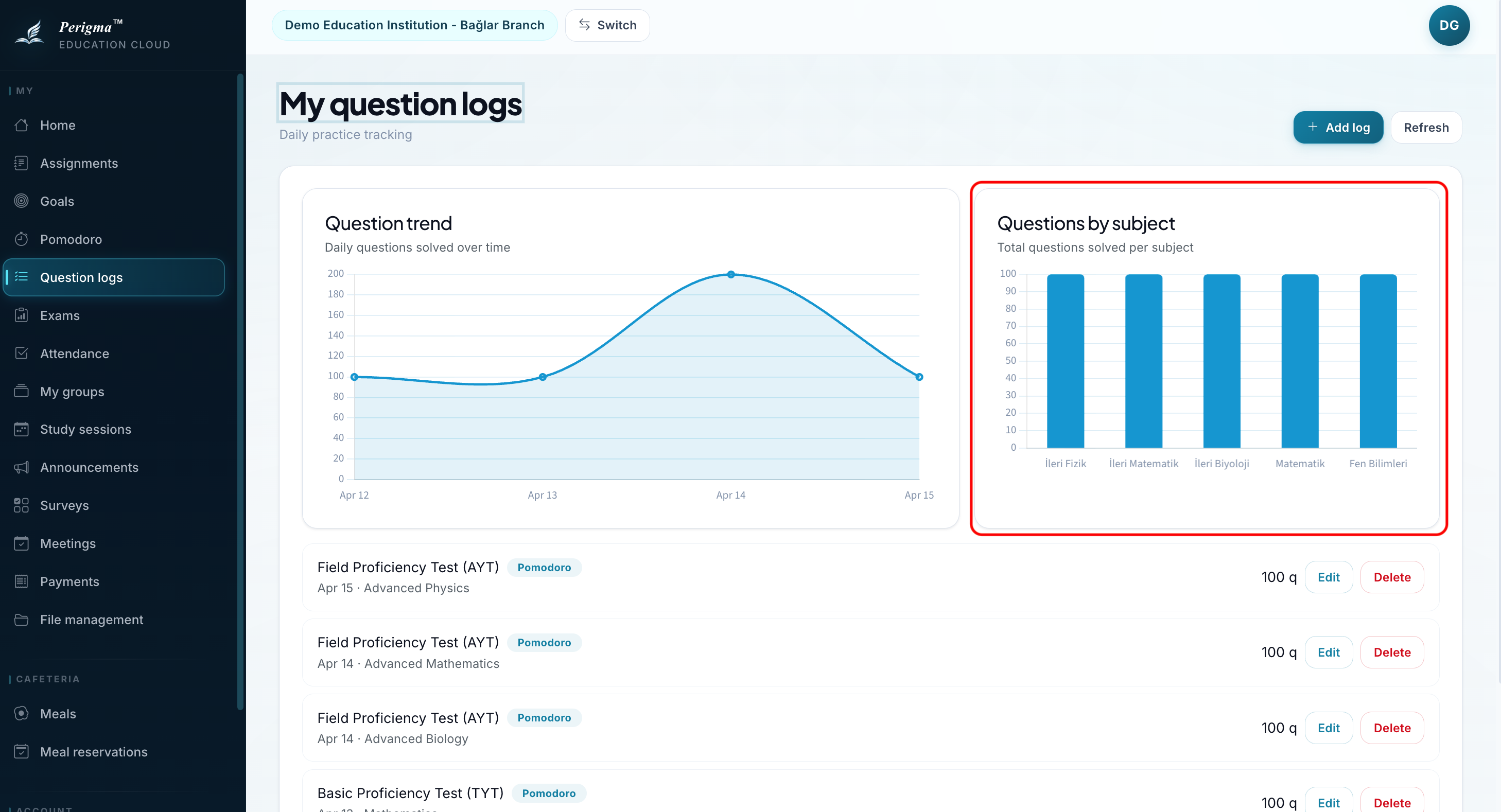
Image 5: Course distribution chart
Edit/Delete Records
To edit or delete a record:
- Click the record
- Select "Edit" or "Delete"
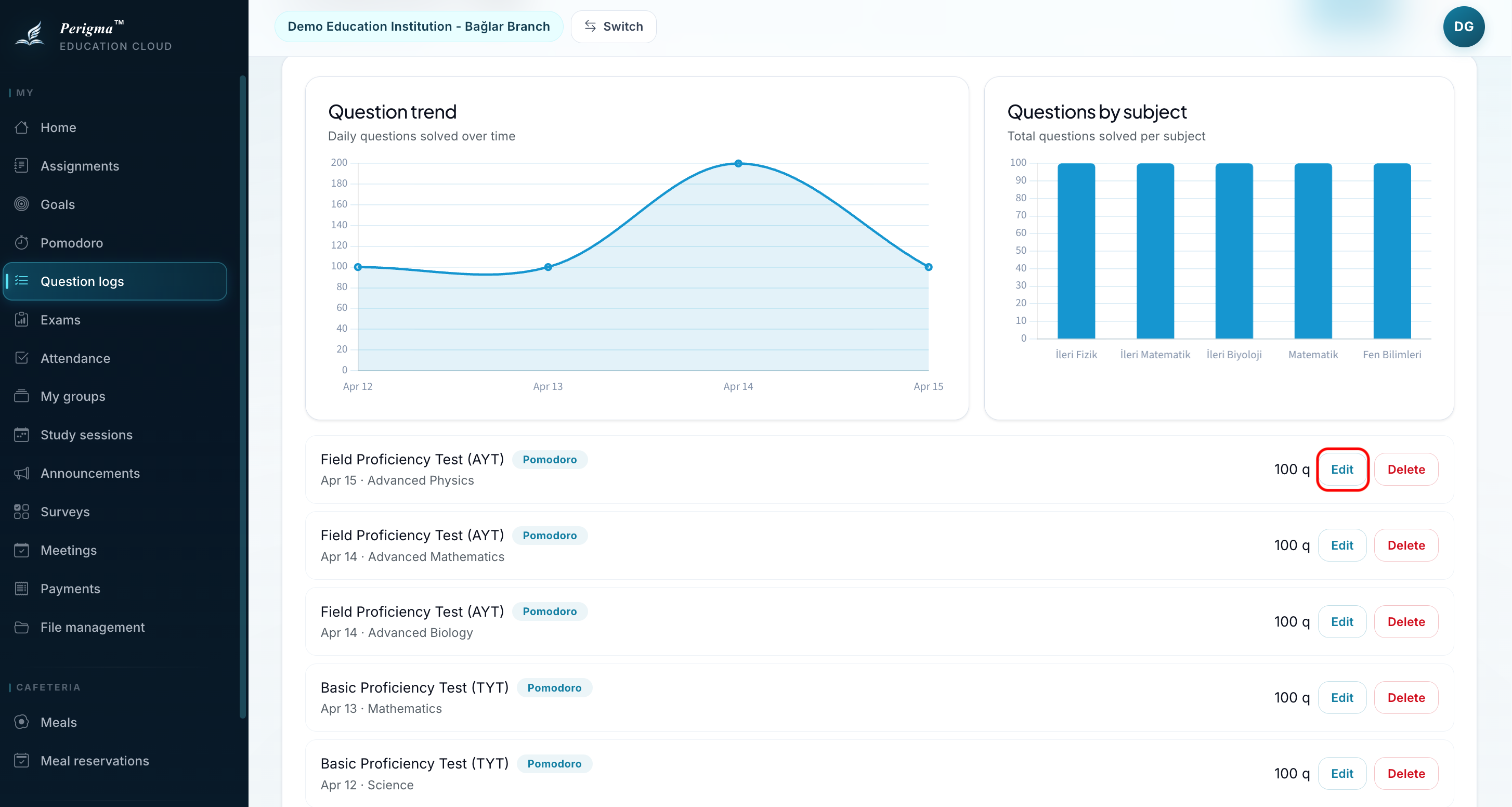
Image 8: Record editing